12
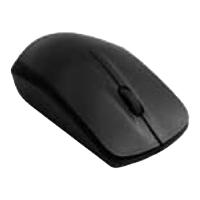
817873_INS_Scanner Mouse
Size:5”Wx4.75”H_Output:100%_Prints:1/1,Blk
EDITING YOUR SCAN
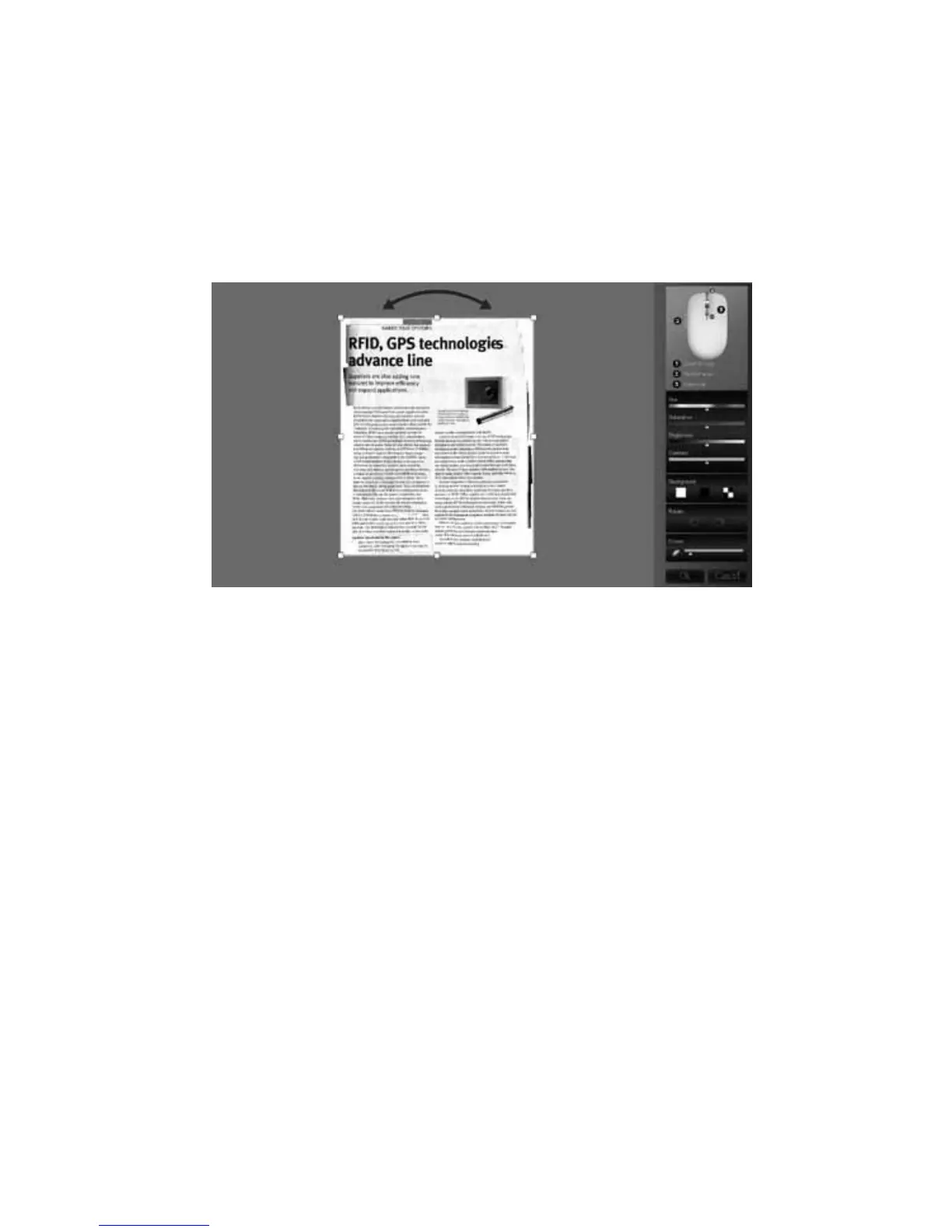
When scanning is complete, the scanned image is automatically cut into a
rectangular shape and should be aligned vertically to the background. However,
when scanning a partial area, the image may not be automatically set vertical to the
background.
If the image is not vertical to the background, you can rotate it manually
by using the arrow above the box where your scan appears.
• If you wish to select a partial area of the scanned image, press and hold the
scanner mouse’s left button, drag through the desired area, then release the
button to select. You can also rotate the selected area by pressing the left button.
• To adjust the color, brightness, etc. of the image, use the color, saturation,
brightness and contrast controls located in the menu at the right of the scanned
image window.


 To Next Page