
 Need help?
Do you have a question about the Brother DCP-B7500D and is the answer not in the manual?
Information on default password and changing it to protect from unauthorized access.
Instructions for connecting the machine to a computer via USB or network.
Instructions for connecting the machine to a mobile device.
This document serves as a Quick Setup Guide for Brother multifunction devices, specifically models MFC-B7720DN, MFC-B7700D, DCP-B7535DW, DCP-B7530DN, DCP-B7520DW, and DCP-B7500D. It provides essential instructions for unpacking, initial setup, and connecting the device to a computer or mobile device.
These Brother devices are designed to provide versatile functionality, including printing, and in the case of MFC models, faxing. The "MFC" designation indicates a Multi-Function Center, typically offering print, scan, copy, and fax capabilities, while "DCP" models generally focus on print, copy, and scan. The guide primarily focuses on the initial setup to enable printing and scanning functionalities.
The setup process is broken down into several intuitive steps, starting with the physical unpacking and component verification.
Unpacking and Component Check: The first step involves carefully unpacking the machine and verifying that all essential components are present. These include the main unit, a Drum Unit, an Inbox Toner Cartridge, and a Brother Installation Disc. For MFC models (MFC-B7720DN/MFC-B7700D), a Handset, Handset Cord, and Phone Line Cord are also included. A USB Interface Cable is provided for direct computer connection. The guide highlights that network cables are not standard accessories and recommends specific types for optimal performance: a USB 2.0 cable (Type A/B) no longer than 2 meters, and a straight-through Category 5 (or greater) twisted-pair cable for network connections.
Removing Packing Materials and Installing Drum Unit and Toner Cartridge: This crucial step ensures the device is ready for operation. Users are instructed to remove all internal packing materials, including an orange part, before installing the drum unit and toner cartridge assembly. The illustrations clearly show how to insert the toner cartridge into the drum unit and then install the combined assembly into the machine, emphasizing a firm push to secure it.
Loading Paper: Proper paper loading is essential for reliable printing. The guide illustrates how to adjust the paper guides in the paper tray to fit the paper size and instructs users to load paper with the printing surface down, ensuring not to exceed the maximum fill mark.
Connecting Telephone Line and Power Cord: For MFC models, connecting the telephone line and handset cord is part of the initial setup. All models require connecting the power cord to turn the machine on, initiating the device's boot-up sequence.
Connecting to a Computer: The guide offers two primary methods for connecting the device to a computer:
Connecting to a Mobile Device: The guide also supports connecting the device to mobile devices for printing and scanning.
Alternative Wireless Setup (for specific DCP models): For DCP-B7535DW and DCP-B7520DW models, a detailed alternative wireless setup method is provided. Users need to locate their SSID (Network Name) and Network Key (Password) from their wireless access point/router. The guide then walks through the menu navigation on the device's control panel to select the network and enter the password. Visual cues indicate a successful connection.
While this quick setup guide primarily focuses on initial installation, it implicitly touches upon maintenance aspects through the installation of consumables and recommendations for driver updates:
The guide emphasizes the availability of additional resources, including operation videos, FAQs, and manuals, on www.95105369.com, further supporting users in maintaining and troubleshooting their devices.
 General
| Duplex printing | Yes |
|---|---|
| Print technology | Laser |
| Maximum resolution | 2400 x 600 DPI |
| Duplex printing mode | Auto |
| Time to first page (black, normal) | 8.5 s |
| Print speed (black, normal quality, A4/US Letter) | 34 ppm |
| Printing colors | Black |
| Duplex functions | |
| Maximum duty cycle | 15000 pages per month |
| Number of print cartridges | 1 |
| Page description languages | BR-Script 3, PCL 6, PDF 1.7 |
| Copier resize | 25 - 400 % |
| Duplex copying | - |
| Maximum copy resolution | 600 x 600 DPI |
| Maximum number of copies | 99 copies |
| Scan to | E-mail, File, Image |
| Input color depth | 30 bit |
| Output color depth | 24 bit |
| Input grayscale depth | 10 bit |
| Output grayscale depth | 8 bit |
| Optical scanning resolution | 1200 x 1200 DPI |
| Faxing | No |
| Total input capacity | 250 sheets |
| Total output capacity | 120 sheets |
| Paper tray media types | Plain paper, Recycled paper, Thin paper |
| Paper tray media weight | 60 - 230 g/m² |
| Non-ISO print media sizes | Executive (184 x 267mm), Folio (media size), Legal (media size) |
| ISO A-series sizes (A0...A9) | A4, A5, A6 |
| Maximum ISO A-series paper size | A4 |
| USB 2.0 ports quantity | USB 2.0 ports have a data transmission speed of 480 Mbps, and are backwards compatible with USB 1.1 ports. You can connect all kinds of peripheral devices to them. |
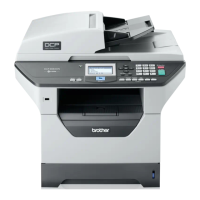
| Product color | Gray |
| Market positioning | Home & office |
| Mac operating systems supported | Mac OS X 10.11 El Capitan, Mac OS X 10.12 Sierra, Mac OS X 10.13 High Sierra, Mac OS X 10.14 Mojave, Mac OS X 10.15 Catalina, Mac OS X 10.15.3 Catalina, Mac OS X 10.2 Jaguar, Mac OS X 10.4 Tiger, Mac OS X 10.5 Leopard, Mac OS X 10.6 Snow Leopard, Mac OS X 10.7 Lion, Mac OS X 10.8 Mountain Lion, Mac OS X 10.9 Mavericks, Mac OS X 11.0 Big Sur |
| Windows operating systems supported | Windows 10, Windows 7, Windows 8, Windows 8.1 |
| AC input voltage | 220 - 240 V |
| AC input frequency | 50 - 60 Hz |
| Power consumption (off) | 0.03 W |
| Power consumption (ready) | 42 W |
| Power consumption (sleep) | 6.2 W |
| Power consumption (printing) | 485 W |
 Weight and Dimensions
| Depth | 398.5 mm |
|---|---|
| Width | 410 mm |
| Height | 272 mm |




 To Next Page


