EasyManua.ls Logo

Brother HL-1110 - User Manual

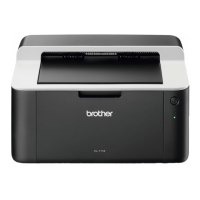
Brother HL-1110
73 pages
Print Icon
To Next Page IconTo Next Page
Loading...
User’s Guide
Brother Laser Printer
HL-1110
HL-1111
For visually-impaired users
You can read this manual with Screen Reader ‘text-to-speech’ software.
You must set up the hardware and install the driver before you can use the machine.
Please use the Quick Setup Guide to set up the machine. You can find a printed copy in the box.
Please read this User’s Guide thoroughly before you use the machine.
Please visit us at http://solutions.brother.com/
where you can get product support, the latest driver updates and utilities,
and answers to frequently asked questions (FAQs) and technical questions.
Note: Not all models are available in all countries.
Version 0
ARL/ASA/SAF/GLF

Table of Contents

Other manuals for Brother HL-1110

Questions and Answers

  • M
    Matthew ClarkeAug 12, 2025
    What to do if my Brother HL-1110 says 'Replace Toner'?
    • E
      ejohnsonAug 12, 2025
      If your Brother Printer displays a 'Replace Toner' message, it means the toner cartridge is at the end of its life and the machine will stop all print operations. The solution is to replace the toner cartridge.
  • D
    Derrick PerezAug 16, 2025
    What to do if my Brother HL-1110 Printer says 'Replace Drum'?
    • E
      Emily RodriguezAug 16, 2025
      If your Brother Printer displays a 'Replace Drum' message, it means: * It is time to replace the drum unit, so replace it. * The drum unit counter was not reset when a new drum was installed, so reset the drum unit counter.
  • E
    Elizabeth ThompsonAug 20, 2025
    What does 'Toner Low' mean on a Brother HL-1110 and what to do?
    • J
      James ColemanAug 20, 2025
      If the Status Monitor shows 'Toner Low' on your Brother Printer, you can still print. However, the machine is indicating that the toner cartridge is near the end of its life. Order a new toner cartridge now, so you have a replacement available when the Status Monitor shows 'Replace Toner'.
  • T
    Tracy MitchellAug 23, 2025
    Why is my Brother HL-1110 not printing anything?
    • D
      Danielle HudsonAug 25, 2025
      If your Brother printer is not producing any printouts, check the following: * Verify that the correct printer driver has been installed and chosen. * Check to see if the LEDs are indicating any error. * Check the machine is online.
  • C
    Cynthia MyersAug 27, 2025
    What does 'Drum End Soon' mean on my Brother HL-1110 Printer and what should I do?
    • F
      fpowellAug 27, 2025
      If your Brother Printer displays 'Drum End Soon', it means the drum unit is near the end of its life. Order a new drum unit now, so a replacement will be available when the Status Monitor indicates 'Replace Drum'.
  • J
    Jeffrey YoungSep 3, 2025
    How to fix a Brother HL-1110 Printer 'Cartridge Error'?
    • V
      Victor SanchezSep 4, 2025
      If your Brother Printer is showing a 'Cartridge Error', it could be due to a couple of reasons: * The toner cartridge is not installed correctly. To fix this, pull out the drum unit and toner cartridge assembly, take out the toner cartridge, and put it back into the drum unit again. Put the drum unit and toner cartridge assembly back in the machine. If the problem continues, call your Brother Customer Service. * You are not using a genuine Brother toner cartridge. Ensure that you use only a genuine Brother Original drum unit and genuine Brother Original toner cartridge.
  • W
    William MoraSep 7, 2025
    What to do if the Brother HL-1110 Printer cover is open?
    • A
      Amanda CastroSep 7, 2025
      If your Brother Printer indicates that the cover is open, it means the top cover is not closed completely. Close the top cover of the machine.
  • A
    Annette GonzalezDec 1, 2025
    How to fix Brother HL-1110 paper jams?
    • J
      Jennifer SkinnerDec 1, 2025
      If your Brother Printer is experiencing paper jams, follow these steps: 1. Leave the machine turned on for 15 minutes to cool down. 2. Use both hands to slowly pull out the jammed paper. 3. Open the top cover. 4. Slowly take out the drum unit and toner cartridge assembly. The jammed paper may be pulled out with the drum unit and toner cartridge assembly, or this may release the paper so you can pull it out from inside of the machine. 5. Push down the lock lever and take the toner cartridge out of the drum unit. Remove the jammed paper if there is any inside the drum unit. 6. Put the toner cartridge back into the drum unit until you hear it lock into place. If you put the cartridge in correctly, the lock lever on the drum unit will lift automatically. 7. Put the drum unit and toner ...

Summary

Users Guides and where to find them?

Manuals overview and purpose

Guide to Product Safety, Quick Setup, and User's Guides.

1 Printing Methods

2 Driver and Software

Printer driver installation and basics

Covers printer driver role, installation for various OS, and printing a document.

Status Monitor

Using the Status Monitor utility to check machine status, monitor, update, and manage the window.

3 General Information

Error messages and troubleshooting

Covers toner, cartridge, drum, paper jam, and service call errors.

A Troubleshooting and other information

Consumable items and toner settings

Details about toner cartridges, drum units, and toner saving settings.

Problem identification and print quality

Steps to diagnose problems and improve print quality.

Paper jams and machine difficulty

Instructions for clearing paper jams and troubleshooting general machine issues.

Brother HL-1110 Specifications

General IconGeneral
Print technologyLaser
Maximum resolution2400 x 600 DPI
Print speed (black, normal quality, A4/US Letter)20 ppm
Maximum duty cycle- pages per month
Recommended duty cycle250 - 1800 pages per month
Number of print cartridges1
Page description languagesGDI
Mobile printing technologies-
Maximum internal memory- MB
Sound pressure level (printing)51 dB
Total input capacity150 sheets
Total output capacity50 sheets
Maximum print size210 x 297 mm
Paper tray media typesPlain paper, Recycled paper
Paper tray media weight65 - 105 g/m²
Non-ISO print media sizesFolio (media size), Letter (media size)
ISO A-series sizes (A0...A9)A4
Standard interfacesUSB 1.1, USB 2.0
USB 2.0 ports quantityUSB 2.0 ports have a data transmission speed of 480 Mbps, and are backwards compatible with USB 1.1 ports. You can connect all kinds of peripheral devices to them.
Mac operating systems supportedMac OS X 10.6 Snow Leopard, Mac OS X 10.7 Lion, Mac OS X 10.8 Mountain Lion
Linux operating systems supportedYes
Server operating systems supportedWindows Server 2003, Windows Server 2003 R2, Windows Server 2008, Windows Server 2008 R2
Windows operating systems supportedWindows 7 Home Basic, Windows 7 Home Basic x64, Windows 7 Home Premium, Windows 7 Home Premium x64, Windows 7 Professional, Windows 7 Professional x64, Windows 7 Starter, Windows 7 Starter x64, Windows 7 Ultimate, Windows 7 Ultimate x64, Windows 8, Windows 8 Enterprise, Windows 8 Enterprise x64, Windows 8 Pro, Windows 8 Pro x64, Windows 8 x64, Windows Vista Business, Windows Vista Business x64, Windows Vista Enterprise, Windows Vista Enterprise x64, Windows Vista Home Basic, Windows Vista Home Basic x64, Windows Vista Home Premium, Windows Vista Home Premium x64, Windows Vista Ultimate, Windows Vista Ultimate x64, Windows XP Home, Windows XP Home x64, Windows XP Professional, Windows XP Professional x64
Power consumption (off)0.28 W
Power consumption (standby)40 W
Power consumption (printing)380 W
Power consumption (PowerSave)0.5 W
Package depth313 mm
Package width415 mm
Package height294 mm
Package weight5300 g
Product colorBlack, White
Harmonized System (HS) code84433210
Weight and Dimensions IconWeight and Dimensions
Depth238 mm
Width340 mm
Height189 mm

Videos

How to Replace the Pickup Roller on Brother HL-1110

How to Refill Your Brother HL-1110

Related product manuals