EasyManua.ls Logo

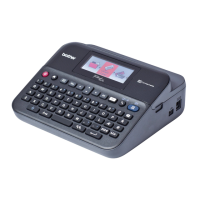
Brother PT-D600VP - User Manual

Brother PT-D600VP
55 pages
Print Icon
To Next Page IconTo Next Page
Loading...
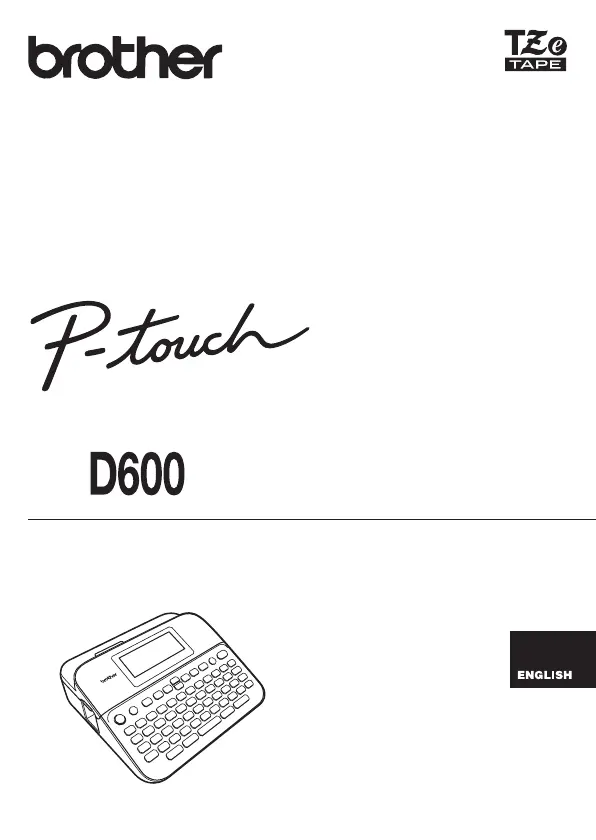
Read this User’s Guide before you start using your P-touch.
Keep this User’s Guide in a handy place for future reference.
Please visit us at http://support.brother.com/ where you can get product support and
answers to frequently asked questions (FAQs).
www.brother.com
USER’S GUIDE
USER'S GUIDE D600

Table of Contents

Questions and Answers

  • C
    craigjonesJul 29, 2025
    What to do if my Brother Label Maker does not print after pressing the Print key?
    • J
      James JonesJul 29, 2025
      If your Brother Label Maker isn't printing after you press the Print key, make sure you've entered text and that the tape cassette is correctly installed with enough tape. If the tape is creased, cut off the damaged part and thread the tape through the exit slot. For jammed tape, remove the cassette, pull out the jammed portion, and cut it. Ensure the tape's end goes through the guide before reinstalling the cassette.
  • L
    lucas18Aug 2, 2025
    How to fix a Brother PT-D600VP Label Maker that does not print correctly?
    • M
      montesnicoleAug 2, 2025
      If your Brother Label Maker isn't printing labels correctly, try removing the tape cassette and reinstalling it, pressing firmly until it clicks. If the print head is dirty, clean it using a cotton swab or an optional print head cleaning cassette (TZe-CL4).
  • C
    Charles GordonAug 7, 2025
    Why is my Brother PT-D600VP not cutting automatically?
    • A
      ashley79Aug 7, 2025
      If your Brother Label Maker isn't cutting labels automatically, check that the Cut Option setting isn't set to Chain or No Cut, because in these modes the tape won't feed after printing. Alternatively, you can press the feed and cut buttons to manually feed and cut the tape.
  • R
    ronald85Aug 12, 2025
    Why is the display blank on my Brother Label Maker after turning it on?
    • J
      james09Aug 12, 2025
      If the display of your Brother Label Maker remains blank after you turn it on, verify that the batteries are correctly installed and that the AC adapter (specifically designed for your device) is properly connected. Also, ensure that the rechargeable battery is fully charged.
  • L
    Lisa AndersonAug 17, 2025
    What to do if the screen on my Brother Label Maker locks up?
    • C
      Carolyn SmithAug 17, 2025
      If your Brother Label Maker screen locks up or becomes unresponsive, reset the internal memory to its initial settings. If resetting doesn't solve the problem, disconnect the AC adapter and remove the batteries for more than 10 minutes.
  • A
    Alexis FosterAug 22, 2025
    What to do if the ink ribbon is separated from the ink roller in Brother Label Maker?
    • K
      Kayla PhillipsAug 22, 2025
      If the ink ribbon is broken in your Brother Label Maker, replace the tape cassette. If the ribbon is not broken, leave the tape uncut, remove the tape cassette, and wind the loose ink ribbon onto the spool.

Summary

Getting Started with Your P-touch D600

Safety Precautions

Important notes to prevent injury and damage using symbols and warnings.

General Precautions

Guidelines for proper usage, care, and environmental considerations.

LCD Display & Keyboard Layout

Identifies and explains the functions of the P-touch display and keys.

Power Supply and Tape Cassette Installation

Instructions for connecting AC adapter or installing batteries and tape.

Creating a Label via PC Connection

How to connect to a PC and use P-touch Editor software for label creation.

Editing Labels on the P-touch D600

Entering and Editing Text

Covers entering text, adding lines/blocks, deleting, and using text reminders.

Setting Character Attributes

Customizing font, size, width, style, line, and alignment for labels.

Creating a Barcode Label

Steps and settings for generating barcode labels.

Using the File Memory

Managing Saved Label Files

Print, open, delete, or mark saved label files for organization.

Resetting & Maintaining Your P-touch

Resetting the P-touch

Procedures for resetting internal memory or factory defaults.

Maintenance Procedures

General care instructions, including cleaning the unit and print head.

Troubleshooting Common Issues

What to do when...

Common problems and their solutions, like screen lock or blank display.

Handling Error Messages

Explains common error messages and how to resolve them.

Brother PT-D600VP Specifications

General IconGeneral
ModelPT-D600VP
Device CategoryLabel Maker
Print MethodThermal transfer
Print Resolution180 dpi
Print Speed30 mm/sec
Tape Sizes6, 9, 12, 18, 24 mm
KeyboardQWERTY
ConnectivityUSB
CutterAutomatic
Memory99 labels
DisplayLCD
Power SupplyAC adapter or 6 x AA batteries
Label TypesIron-on
Label Width6 mm to 24 mm

Related product manuals