EasyManua.ls Logo

Brother PT-H500 - User Manual

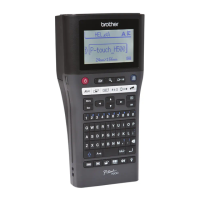
Brother PT-H500
62 pages
Print Icon
To Next Page IconTo Next Page
Loading...
In order to use your P-touch safely, read the included Quick
Setup Guide first.
Read this guide before using your P-touch.
Keep this guide in a handy place for future reference.
Please visit us at http://solutions.brother.com/ where you can
get product support and answers to frequently asked
questions (FAQs).
INTRODUCTION
EDITING A LABEL
LABEL PRINTING
USING THE FILE MEMORY
USING P-TOUCH SOFTWARE
RESETTING & MAINTENANCE
TROUBLESHOOTING
APPENDIX
H500
Version 0
UK ENG

Table of Contents

Questions and Answers

  • C
    Catherine MoralesJul 28, 2025
    How to fix Brother PT-H500 if it's not cutting?
    • B
      Benjamin SmithJul 28, 2025
      If your Brother Label Maker isn't cutting labels automatically, first check the Cut Option setting. Make sure it's not set to 'Chain' or 'No Cut'. If it isn't, press the Feed & Cut key to manually feed and cut the tape.
  • J
    Jessica RomeroAug 1, 2025
    What to do if Brother Label Maker is not printing correctly?
    • G
      Glen DixonAug 1, 2025
      If your Brother Label Maker isn't printing correctly, remove the tape cassette and firmly reinstall it until you hear a click. If the print head is dirty, clean it using a cotton swab or an optional print head cleaning cassette (TZe-CL4).
  • S
    Stephanie HernandezAug 5, 2025
    Why is my Brother PT-H500 not printing labels?
    • M
      Melissa SalasAug 5, 2025
      If your Brother Label Maker isn't printing after you press the Print key, ensure that you've entered text and that the tape cassette is correctly installed with enough tape. If the tape is bent, cut off the bent part and thread the tape through the exit slot. If there's a jam, remove the cassette, pull out the jammed tape, cut it, and make sure the end of the tape goes through the tape guide before putting the cassette back in.
  • R
    Ryan CamposAug 9, 2025
    Why does my Brother Label Maker stop printing in the middle of the label?
    • R
      Robert GardnerAug 9, 2025
      If your Brother Label Maker stops printing mid-label and you see striped tape, this means the tape cassette is empty and needs replacing. Alternatively, try replacing the batteries or connecting the AC adapter directly to the label maker.
  • X
    Xavier HarrisAug 14, 2025
    What to do if ink ribbon is separated from the ink roller in Brother PT-H500 Label Maker?
    • J
      juanstewartAug 14, 2025
      If the ink ribbon is separated from the ink roller on your Brother Label Maker because it's broken, replace the tape cassette. Otherwise, leave the tape uncut, remove the cassette, and wind the loose ink ribbon onto the spool.
  • A
    Amy MillsAug 18, 2025
    How to unlock a Brother PT-H500 Label Maker?
    • C
      Carl GibbsAug 18, 2025
      If the screen on your Brother Label Maker 'locks' or it stops responding, reset the internal memory to the initial settings. Refer to "Resetting the P-touch" on page 52 for instructions. If this doesn't work, disconnect the AC adapter and remove the batteries for more than 10 minutes.
  • R
    Robin MaloneAug 22, 2025
    Why is the display blank on my Brother PT-H500 Label Maker?
    • M
      Michael DawsonAug 23, 2025
      If the display on your Brother Label Maker is blank after turning it on, check that the batteries are correctly installed and that the AC adapter (designed for your P-touch) is properly connected. Also, ensure that the rechargeable Li-ion battery is fully charged.

Summary

Editing a Label

Entering and Editing Text

Learn to input and modify text characters on the label.

Creating a Bar Code Label

Generate labels with standard one-dimensional bar codes.

Label Printing

Printing a Label

Print text and formatted labels using various options.

Using P-Touch Software

Using P-touch Editor

Utilize the P-touch Editor software for label design.

Resetting & Maintenance

Resetting the P-touch

Restore the P-touch to factory default settings or clear memory.

Troubleshooting

Troubleshooting Common Issues

Solutions for common operational problems and errors.

Understanding Error Messages

Explanations and remedies for specific on-screen error messages.

Brother PT-H500 Specifications

General IconGeneral
Print technology-
Vertical printingYes
Maximum resolution180 x 180 DPI
Maximum print height18 mm
Maximum printing width24 mm
DisplayLCD
Product colorBlack
Keyboard layoutQWERTY
Display number of lines3 lines
Display number of characters16
Label memory50 label(s)
Number of frames99
Ethernet LANNo
USB 2.0 ports quantity1
Connectivity technologyWired
Number of batteries supported6
Tape typeTZe
Tape cuttingAutomatic
Number of fonts14
Number of styles10
Built-in barcodesCODABAR (NW-7), Code 128 (A/B/C), Code 39, EAN128, EAN13, EAN8, GS1-128, ITF, UPC-A, UPC-E
Image formats supportedBMP, JPG, TIF
Number of printing lines (max)7
Mac operating systems supportedMac OS X 10.6 Snow Leopard, Mac OS X 10.7 Lion, Mac OS X 10.8 Mountain Lion
Windows operating systems supportedWindows 7 Home Basic, Windows 7 Home Basic x64, Windows 7 Home Premium, Windows 7 Home Premium x64, Windows 7 Professional, Windows 7 Professional x64, Windows 7 Starter, Windows 7 Starter x64, Windows 7 Ultimate, Windows 7 Ultimate x64, Windows 8, Windows 8 Enterprise, Windows 8 Enterprise x64, Windows 8 Pro, Windows 8 Pro x64, Windows 8 x64, Windows Vista Business, Windows Vista Business x64, Windows Vista Enterprise, Windows Vista Enterprise x64, Windows Vista Home Basic, Windows Vista Home Basic x64, Windows Vista Home Premium, Windows Vista Home Premium x64, Windows Vista Ultimate, Windows Vista Ultimate x64
Cables includedUSB
Harmonized System (HS) code84433210
Package weight1653 g
Weight and Dimensions IconWeight and Dimensions
Depth245 mm
Width122 mm
Height91 mm
Weight830 g

Related product manuals