9
Infotainment System
Setting the Time
1. Touch Settings on the home page.
2. Touch Time and Date.
3. Touch Set Time.
4. Touch the arrows to adjust the hours, minutes and AM or PM.
5. Touch
◄
BACK to exit the menu.
Storing Favorites
Up to 60 radio stations from all bands (AM,
FM or XM
F
), media (song, artist, album, etc.),
phone contacts and navigation destinations
F
can be stored in any order.
1. Display the desired radio station, media
favorite, contact or destination.
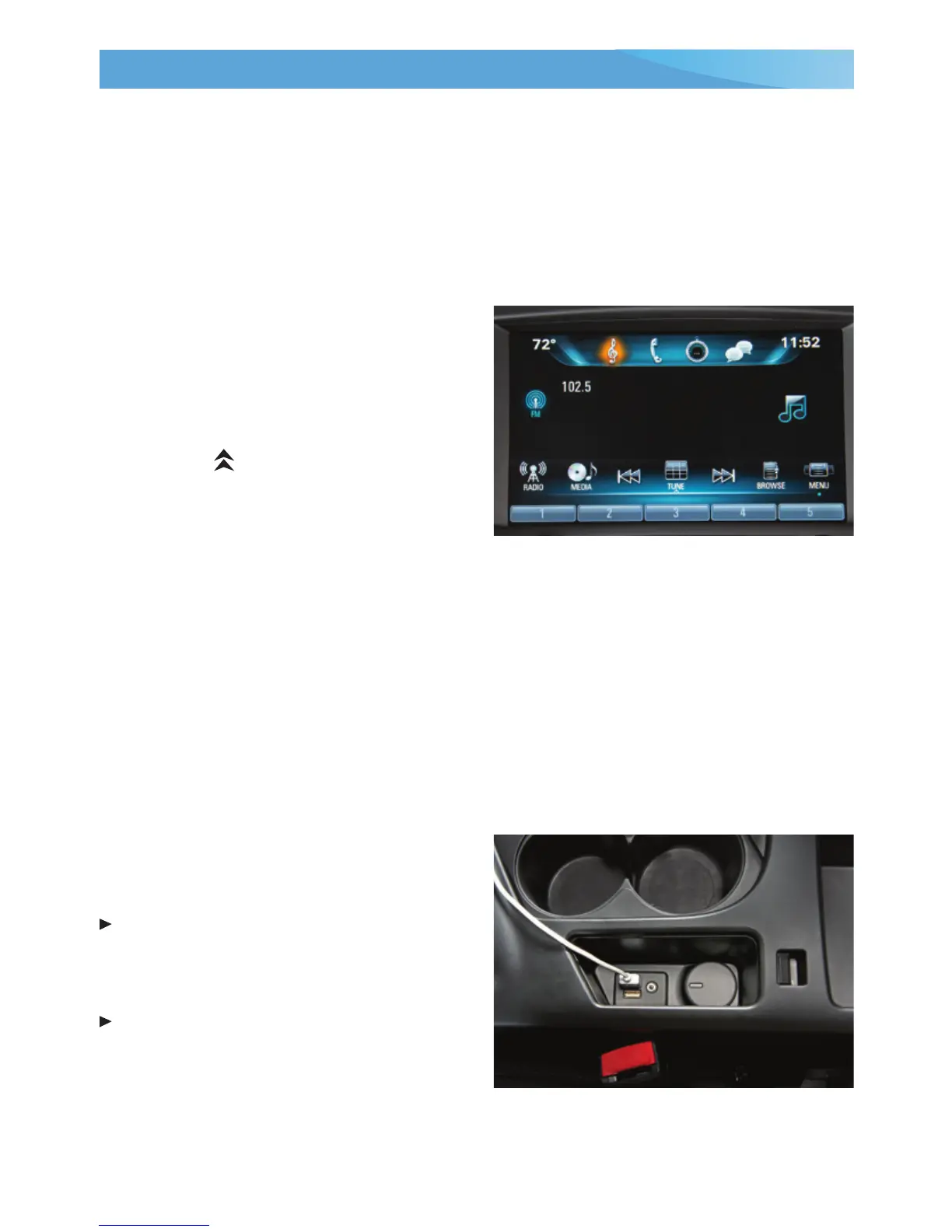
2. Touch the Interaction Selector at the
bottom of the screen to display the favor-
ite screen buttons.
3. Touch and hold one of the favorite screen
buttons until a beep is heard.
4. Repeat the steps to store another favorite item.
Note: To change the number of favorites displayed, go to Radio in the Vehicle Settings menu.
SiriusXM™ Satellite Radio
F
(Subscription required)
SiriusXM provides access to over 180 channels of commercial-free music, sports, talk,
entertainment, comedy and weather using the radio controls or voice commands.
• XM Tune Select nds your favorite artists or songs on all XM stations and alerts you.
• XM Travel Link includes fuel locations and prices, weather, and movies with theater
locations. Additional subscription fee required.
Portable Audio Devices – MEDIA
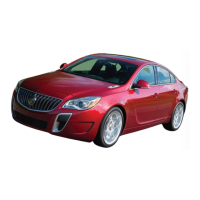
Two USB ports and an auxiliary input jack are
located in the center console.
An iPod
®
, iPhone
®
, MP3 Player, a USB ash
drive or a USB mass storage device can be
connected to the USB port. Search for
music on-screen or by voice commands.
Press the MEDIA button to select a
portable device as the audio source.
Note: Connect an iPod/iPhone USB cord after
starting the vehicle for optimum performance.
See your Infotainment System Owner Manual.
F
Optional equipment






 To Next Page