Page 7
User instructions
Setting up the device on a computer
1: Run the AUDACITY program you installed earlier.
2: Under the EDIT menu select PREFERENCES.
3: Choose the DEVICES tab (if not selected already)
and in the recording device section drop down menu
select the USB device.
4: Ensure the recording channel drop down menu is set
to ‘2 (stereo)’.
5: If the turntable is connected to a home stereo system
for playback purposes you can proceed to the next
section, if not select the RECORDING tab and tick the
‘SOFTWARE PLAYTHROUGH’ option. This will allow
the playback sound to be channelled through your PC
speakers.
Setting the recording levels
1: Begin playback of the record you wish to record so
input levels can be adjusted.
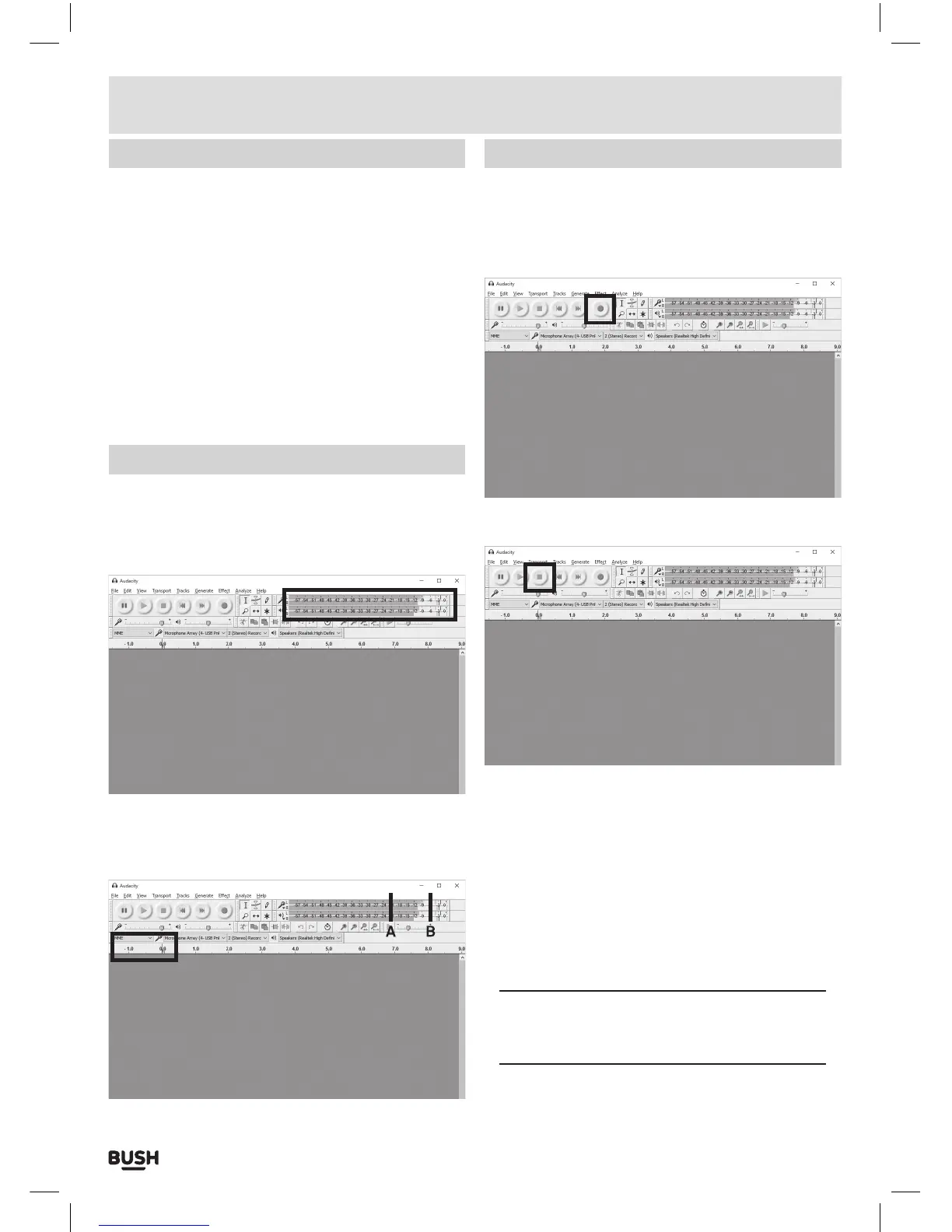
2: Within Audacity click anywhere on the recording level
bars to begin monitoring playback.
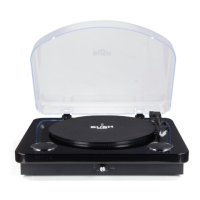
3: The input level is controlled by the RECORDING
LEVEL slide control within Audacity. The optimum
recording level should be between the markers A & B.
Recording
1: To begin recording make sure the tone arm is in the
rest position and press the PLAY button (2).
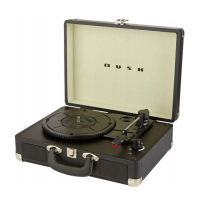
2: As the tone arm begins to lower to the record press
the RED RECORD button in Audacity to begin
recording.
3: When the record or track has finished press the
BEIGE STOP button.
4: At this point you can now save the file. Under the FILE
menu select EXPORT AUDIO.
5: Add a filename and select the location you wish to
save the file in.
6: Under the ‘Save as type’ drop down menu select a
format to save as. The WAV 16 BIT format will allow
you to burn a CD AUDIO DISC with the files if you have
a CD burner installed in your computer. The MP3
format will allow you to use with an MP3 player.
Press the OPTIONS button to set the quality of the
encoded MP3 file.
In order to save files as MP3’s you will need to
install the LAME MP3 ENCODER plug in described
on page 6.
7: Press the SAVE button to save the recorded file.
Under the FILE menu select CLOSE.


 To Next Page