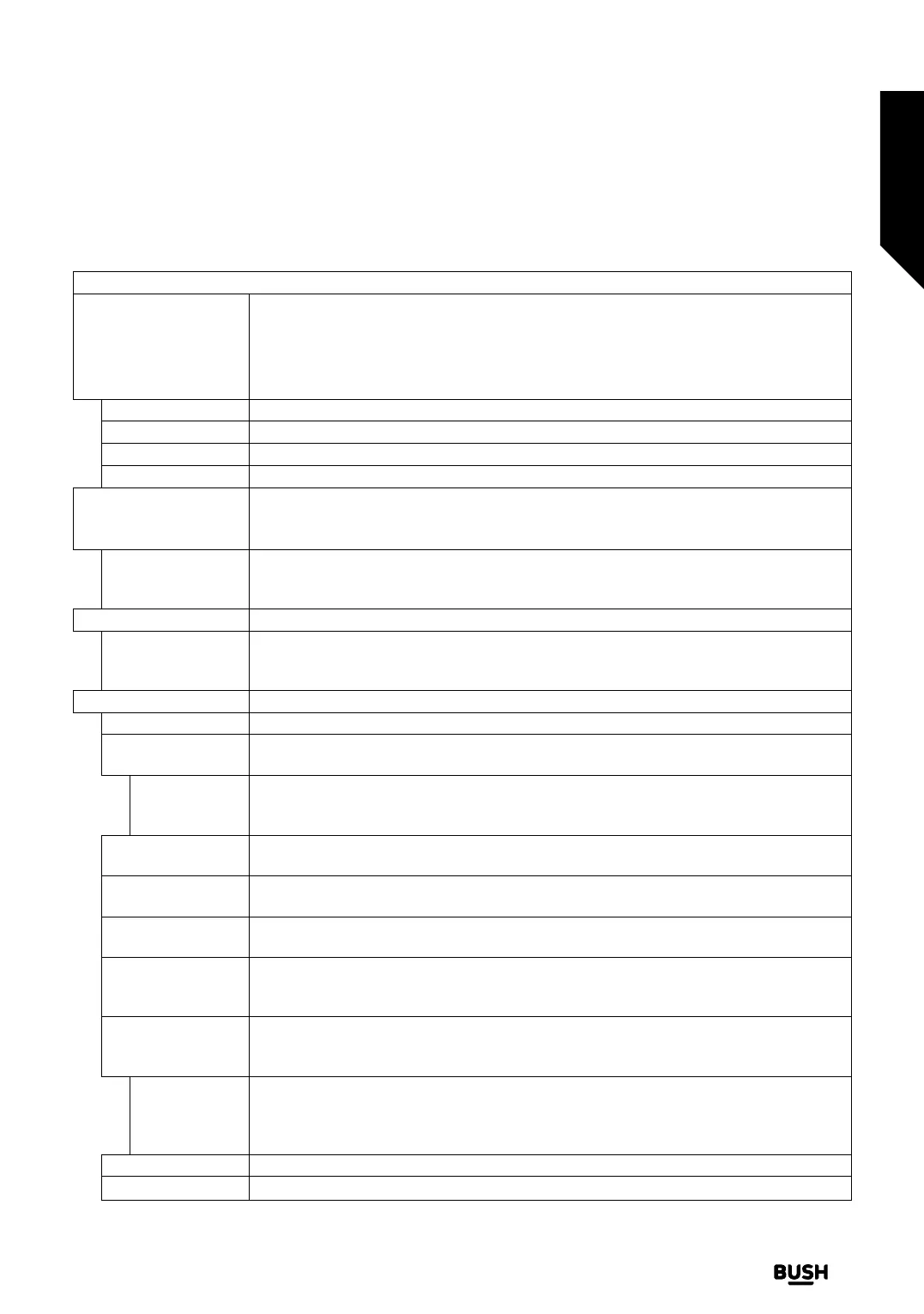
Settings Menu Content
Picture Menu Content
Mode
You can change the picture mode to suit your preference or requirements. Picture mode
can be set to one of these options: Cinema, Game, Sports, Dynamic and Natural.
Note: Available options may dier depending on the input source.
Dolby Vision Modes: If Dolby Vision content is detected Dolby Vision Dark and Dolby
Vision Bright picture mode options will be available instead of Cinema and Natural modes.
Contrast Adjusts the light and dark values on the screen.
Brightness Adjusts the brightness values on the screen.
Sharpness Sets the sharpness value for the objects displayed on the screen.
Colour Sets the colour value, adjusting the colours.
Energy Saving
For setting the Energy Saving to Custom, Minimum, Medium, Maximum, Auto, Screen
O or O.
Note: Available options may dier depending on the selected Mode.
Backlight
This setting controls the backlight level. This option (will be located under the Energy
Saving setting) will be available if the Energy Saving is set to Custom. Highlight and use
Left/Right directional buttons to set.
Picture Zoom Sets the desired image size format.
Picture Shift
This option (will be located under the Picture Zoom setting) may be available depending
on the Picture Zoom setting. Highlight and press OK, then use directional buttons to shift
the picture upwards or downwards.
Advanced Settings
Dynamic Contrast You can change the dynamic contrast ratio to desired value.
Colour Temp
Sets the desired colour temperature value. Cool, Normal, Warm and Custom options
are available.
White Point
If the Colour Temp option is set as Custom, this setting will be available (will be located
under the Colour Temp setting). Increase the ‘warmth’ or ‘coolness’ of the picture by
pressing Left or Right buttons.
Blue Stretch
White colour enhancement function that makes white colour more cooler in order to
make more bright picture. Set as On to enable.
Micro Dimming
Low, Medium, High and O options are available. While Micro Dimming is active, it will
enhance contrast locally for each defined zone.
Noise Reduction
Low, Medium
, High and O options are available. If the signal is weak and the picture is
noisy, use the Noise Reduction setting to reduce the amount of noise.
Film Mode
Films are recorded at a dierent number of frames per second to normal television
programmes. Turn this feature to Auto when you are watching films to see the fast motion
scenes clearly.
MEMC
Press left/right buttons to set MEMC to Low, Medium, High or O. While MEMC is active,
it will optimise the TV’s video settings for motional images to acquire a better quality and
readability.
MEMC Demo
When MEMC option is set to Low, Medium or High, this option will be available. Press
OK button to activate the demo mode. While demo mode is active, the screen will be
divided into two sections, one displaying the MEMC activity, the other displaying the
normal settings for TV screen. Press OK button again to cancel.
Skin Tone Skin tone can be changed between -5 and 5.
Colour Shift Adjust the desired colour tone.
Advanced features
Getting the most from your TV
Advanced features
29
If you require any technical guidance or find that your TV is not operating as intended, a simple solution can often be found in the Troubleshooting section of these instructions,
or online at www.bush-support.co.uk If you still require further assistance, call one of our experts on 0345 604 0105, a Bush enquiry line.


 To Next Page