Connecting to the Internet
You can access the Internet via your TV, by connecting
it to a broadband system. It is necessary to configure the
network settings in order to enjoy a variety of streaming
content and internet applications. These settings can be
configured from Settings>Network menu.
Wired Connection
Connect your TV to your modem/router via an Ethernet
cable. There is a LAN port on the rear side of your TV. Your
TV will automatically connect to the network.
You can check the status of the connection using the
Ethernet Configuration option in the Network menu.
Highlight this option and press Play/Pause button on the
remote to see the network status.
To configure your wired connection settings manually
highlight Ethernet Configuration and press the Select
button. Follow the on-screen dialogues to proceed and
enter the required values respectively.
If the Ethernet cable is not connected, depending on
the current connection status, Configure Ethernet
Connection or Configure Network option will be
available instead of Ethernet Configuration option.
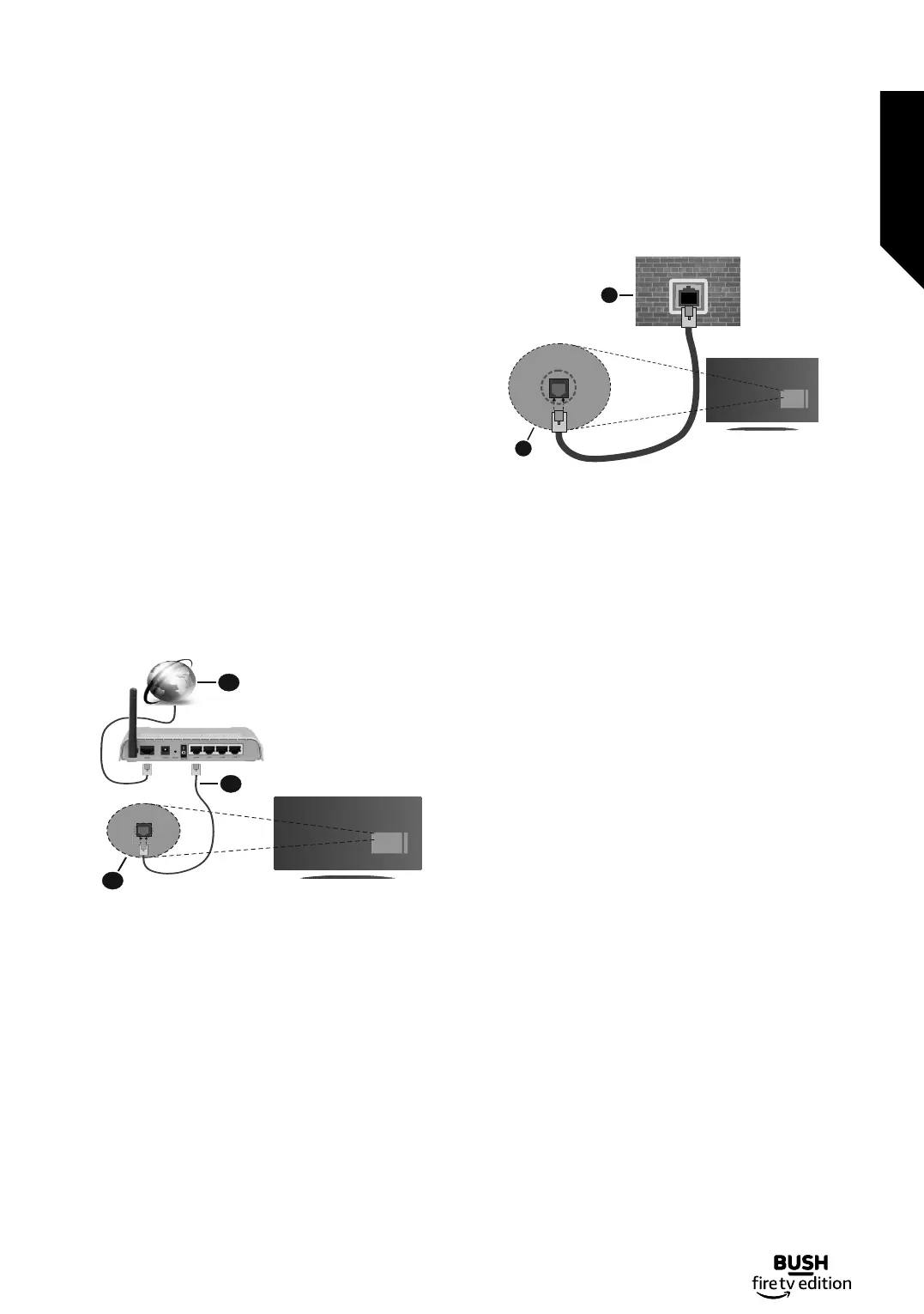
1. Broadband ISP connection
2. LAN (Ethernet) cable
3. LAN input on the rear side of the TV
You might be able to connect your TV to a network wall
socket depending on your network’s configuration. In that
case, you can connect your TV directly to the network
using an Ethernet cable.
1. Network wall socket
2. LAN input on the rear side of the TV
Wireless Connection
A wireless LAN modem/router is required to connect the
TV to the Internet via wireless LAN.
Highlight Wi-Fi option in the Network menu and press
Select to enable wireless connection. Then disconnect
the Ethernet cable, if connected priorly. Some of the
available networks will be listed. Highlight See All
Networks and press Select to see the complete list.
If you prefer to connect your TV to your network via WLAN
you have 3 ways to do this.
•Highlight one of the listed available wireless networks
and press Select. Then enter the password if the network
is password protected.
•Use the WPS button on your router. Highlight Join
Network Using WPS (Button) option and press Select.
Press the WPS button on your router. Your TV will
connect to your router, without the use of a password.
Note: During the initial setup process Connect using
WPS Push Button option will be available instead of
Join Network Using WPS (Button) option.
•Enter WPS PIN on your router. Highlight Join Network
Using WPS (PIN) option and press Select. A code will be
created and displayed on the screen. Enter this code on
your router. Your TV will connect to your router, without
the use of a password.
Note: During the initial setup process Connect using
WPS PIN option will be available instead of Join
Network Using WPS (PIN) option.
Advanced features
Getting the most from your TV
Advanced features
35
If you require any technical guidance or find that your TV is not operating as intended, a simple solution can often be found in the Help Menu,
or online at www.bush-support.co.uk. If you still require further assistance, call one of our experts on 0345 604 0105, a Bush enquiry line.







 To Next Page