For any help concerning set up and use of your TV please call the Customer Helpline: 0044 845 604 0105
Connectivity Functions
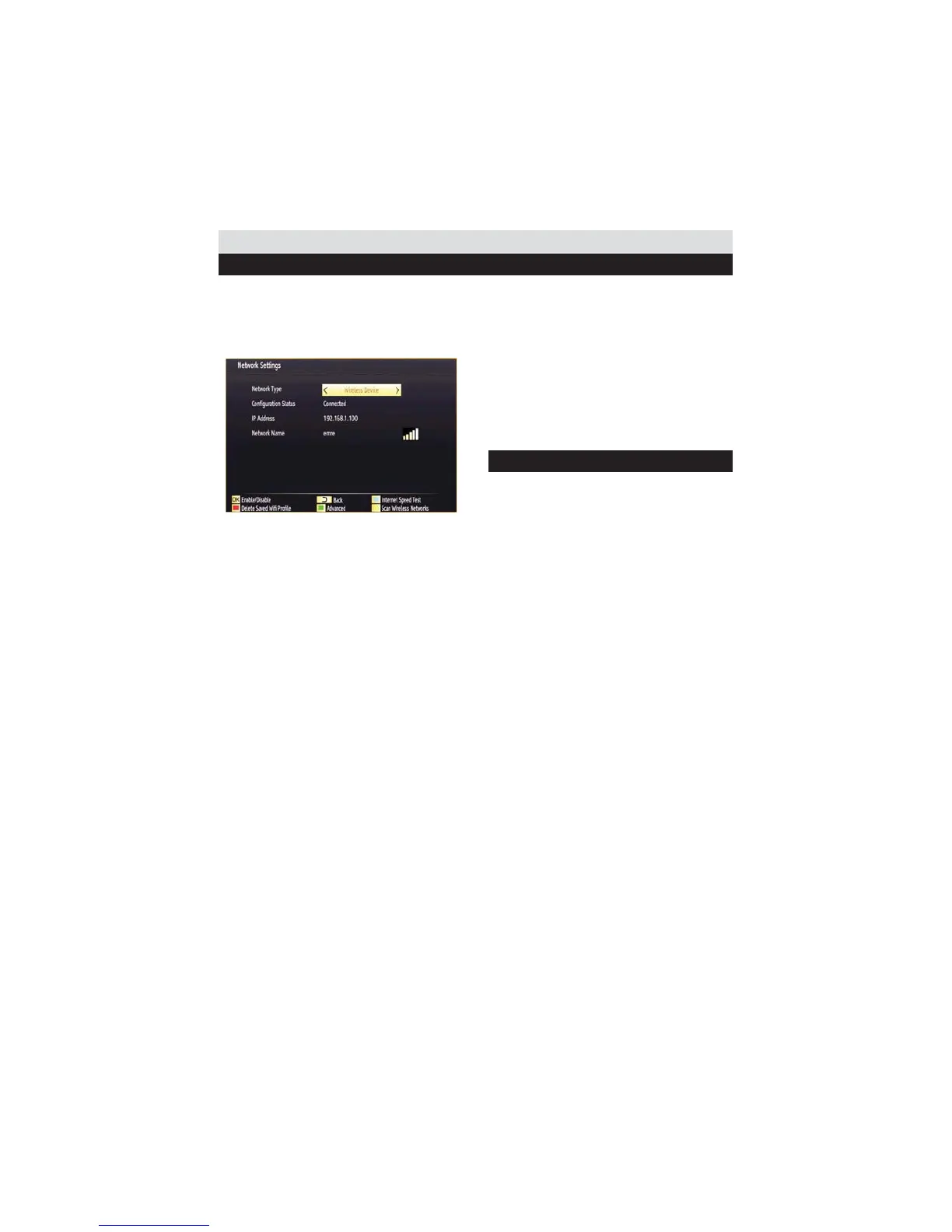
Press GREEN button to switch to advanced mode
and then press OK button to edit settings. This
means that the connection is now established. To
disconnect from a wireless network, you should
highlight and press OK.
You can navigate between menu tabs by pressing
left/right buttons. The help bar on the bottom of
the dialog shows features that you may use.
Press BLUE button to check your internet
connection speed.
You can check the signal strenght by using the
network settings menu for the wireless device
mode.
Information
connected or not connected.
IP Address: Displays the current IP address.
Network Name: Connected networks’ name will
be displayed.
button while wireless device selection osd is on
the screen.
Connecting to your Cell Phone via WiFi
(Optional)
connection via a router, in order to play content
from your phone. For this, your cell phone must
have an appropriate sharing software.
Connect to your router following the steps
section.
Afterwards, engage your cell phone with the
router and then activate sharing software on your
to share with your TV.
If the connection is established correctly, you
phone via the Media Browser of your TV.
Enter Media Browser menu and playback
device selection OSD will be displayed. Select
your cell phone’s ident and press OK to
continue.
Note: This feature may not be supported by
some cell phones.
Connectivity Troubleshooting
Wireless Network Not Available
the TV wireless connection. “Veezy 200” usb
properly (if available). If the wireless network
does not function properly, try using the wired
Connection section for more information on the
process.
If the Net TV does not function, check the
a problem, check the internet connection of your
modem.
Try searching for wireless networks again, using
the Network Settings menu screen.
Connection is Slow
See the instruction book of your wireless
modem to get information on the internal service
area, connection speed, signal quality and
other settings. You need to have a high speed
connection for your modem.
Distruption during playback or slow
reactions
You could try the following in such a case:
Keep at least three meters distance from
microwave ovens, mobile telephones, bluetooth
router.
45


 To Next Page