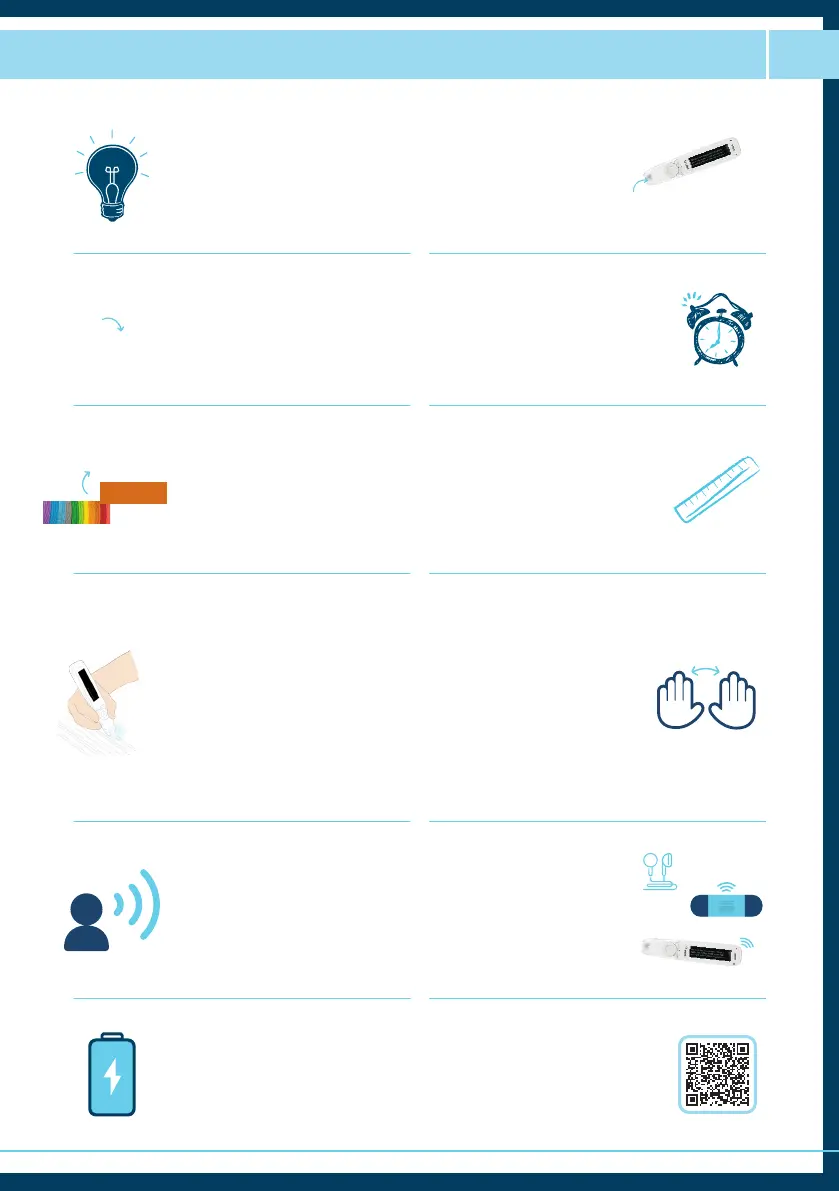
7
There are plenty of helpful webinars
every week on the Scanning Pens
website! You can access them by
scanning this QR code
Once charged, the battery
should last for 8 hours of
continual usage
There are three ways to hear the
text reader – through earphones,
the built-in speaker or you can
plug in an external speaker
The Talking Menu is a very
useful feature for visually
impaired users
Make sure that the light comes
on when you are scanning
words. This indicates that the
camera is working
Make sure that the word
or line that you wish to
scan is in the centre of the
scanning area
The centre of the
scanning area
To enlarge a word, and hear
it again, just press and hold
the centre button
You can customise the pen to suit the
user. You can change the speed of
the replay, as well as pause the replay
after punctuation or each word. Try
various combinations until you get
the setting that is right for you
text
text
Avoid narrow columns, or
scanning coloured words
on busy backgrounds and
laminated paper
If you are having trouble
scanning in a straight line, try
using a ruler or something with
a straight edge as a guide
text
text
Avoid scanning
these!
HINTS & TIPS
The pens have settings for both
right-handed and left-handed
users. In left handed mode, the
pen will scan in either direction
To get a good result hold the
pen at a 70-to-90-degree angle
(much like you would a normal
pen or highlighter).
Start scanning a little before the
first word and lift the pen just
after your last scanned word.
You don’t have to scan slowly.
You can also get an accurate
result if you scan quickly.


 To Next Page