EasyManua.ls Logo

C-Pen READER 2 - User Manual

C-Pen READER 2
12 pages
Print Icon
To Next Page IconTo Next Page
Loading...
USER GUIDE
NEW &
IMPROVED!
Text-to-speech
technology
hello.
Enables reading
independence
Creates inclusivity and
nurtures confidence
Assistive Technology
Product of the Year
TM
www.scanningpens.com.au

Other manuals for C-Pen READER 2

Question and Answer IconNeed help?

Do you have a question about the C-Pen READER 2 and is the answer not in the manual?

Summary

WELCOME

Pen Part Identification

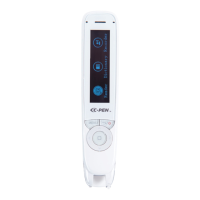
Identifies and labels the physical components of the C-Pen Reader 2 device.

FIRST-TIME SETUP

Run Wizard Setup

Guides the user through initial configuration of the pen's settings and preferences.

Quick Guide to Settings

Offers a concise overview of essential settings configuration for the pen.

Dictionary Settings Configuration

Details how to select and configure the dictionary settings on the pen.

Text Reader Settings Configuration

Explains how to adjust settings for the text reading functionality.

Other Available Settings

Lists additional configurable settings for the pen, such as brightness and auto-shut down.

HOW TO SCAN

Scanning Pen Holding Technique

Demonstrates the correct technique for holding the pen for accurate scanning.

Arrow Button Navigation

Explains the function of the arrow buttons for device navigation and option selection.

Setup and Reset Procedures

Instructs users to follow setup guidelines and details how to re-set the pen.

UNDERSTANDING PRACTICE MODE & LIBRARY MODE

Practice Mode Functionality

Explains the customisable word review mode for vocabulary building and revision.

Library Mode Functionality

Describes the storage and access of scanned text, voice recordings, and MP3 files.

HINTS & TIPS

Scanning Best Practices

Provides advice on scanning techniques, angles, and avoiding common scanning issues.

Customisation and Audio Options

Covers pen customisation, audio replay methods, and battery life information.

FAQS

Language and Font Support

Details supported languages and specifies which font types and sizes the pen can read.

Storage and File Management

Explains the pen's storage capacity and supported file types for recordings.

Device Reboot and Reset

Outlines the procedures for rebooting or performing a hard reset on the device.

Menu Guide P1

Scan to Read - Before Scanning Menu

Details menu options available before scanning text, including settings like speed and language.

Scan to Read - After Scanning Menu

Explains menu options accessible after scanning text, such as clear screen and save to library.

Dictionary - Before Scanning Menu

Outlines menu options for the dictionary function before scanning.

Menu Guide P2

Recorder Menu Options

Lists settings related to the recorder function, such as volume and file format.

Library Menu Options

Describes options for managing files within the pen's library.

Practice Menu Options

Details settings for the practice mode, including language and word selection.

Menu Guide P3

Settings - Run Wizard Configuration

Covers settings accessed via the Run Wizard, including language and scan settings.

Settings - Text Language & Read Settings

Details options for text language selection and read speed/pause settings.

Settings - Display, Date & Time

Explains settings for display, date, time, and system information.

Settings - System Settings

Lists system-level settings like software upgrade and default settings.

Overview

The C-Pen Reader 2 is an assistive technology device designed to help individuals with reading difficulties, low literacy levels, or those learning English as an additional language. It functions as a portable scanning pen that reads text aloud, aiming to boost self-confidence, reduce reading stress and anxiety, and promote reading independence. The device has received awards, including Australia's Assistive Technology Product of the Year.

Function Description:

The primary function of the C-Pen Reader 2 is to scan printed text and convert it into speech using Optical Character Recognition (OCR) technology. This text-to-speech capability allows users to hear words read aloud as they scan them, which can significantly improve comprehension and word recognition. The pen is equipped with a camera at its base that photographs the text, and all processing is done on the device itself, without the need for Wi-Fi or internet connection.

Beyond its core scanning and reading function, the C-Pen Reader 2 includes several other key features:

  • Dictionary Function: The pen has multiple built-in dictionaries (three English, one French, and one Spanish) that allow users to look up words and hear their definitions. This is particularly useful for vocabulary building and understanding unfamiliar terms.
  • Voice Recorder: The device can act as a dictaphone, recording voice memos or lectures. These recordings are saved as MP3 or WAV files in the Library, providing a way to capture and review audio information.
  • Library Mode: This mode serves as a storage hub for scanned text, voice recordings, and any MP3 files transferred to the pen. It allows users to access and review saved content at any time, transforming materials into personal learning and revision supports. The Reader 2 boasts double the storage of its predecessor, enabling more extensive content saving.
  • Practice Mode: This customisable word review mode supplements the scan-to-read journey. Users can create lists of words they have investigated further by highlighting or defining them during normal use. These lists can then be used to inform revision areas, vocabulary building, and strengthening word understanding.

Usage Features:

The C-Pen Reader 2 is designed for ease of use with a user-friendly interface and various customisable settings to suit individual needs.

  • Scanning: To use, the pen should be held at a 70-to-90-degree angle, similar to a normal pen or highlighter. Users press down to activate the scanning light and glide the pen over the text. For best results, scanning should begin slightly before the first word and lift just after the last scanned word. The pen can scan quickly and still achieve accurate results. It is important to ensure the word or line to be scanned is in the centre of the scanning area and that the scanning light is on, indicating the camera is active.
  • Text Recognition: The pen reads standard fonts (e.g., Arial, Courier, Tahoma, Times New Roman) and text sizes from 6-point to 22-point. It is not designed to read "fancy" fonts with swirls, condensed fonts, handwriting, computer screens, or mobile phone screens. For optimal scanning, users should avoid narrow columns, coloured words on busy backgrounds, or laminated paper. If scanning in a straight line is difficult, using a ruler or straight edge can help.
  • Audio Output: Text can be heard through earphones, the built-in speaker, or an external speaker plugged into the device.
  • Navigation: The device features a menu button, OK button, and up/down/left/right arrow buttons for navigating through settings and options. Pressing and holding the centre button can enlarge a word and replay its pronunciation.
  • Customisation: The C-Pen Reader 2 offers extensive customisation options:
    • Run Wizard: A first-time setup wizard guides users through initial settings such as turning the silent menu on/off, selecting menu and scan languages (English, French, Spanish), choosing a voice (Australian English, American, British, Indian, European/Canadian, European/Latin), setting left-hand/right-hand mode, and selecting dictionary language and type (OPD, Collins, NOAD, Cordial, Larousse).
    • Auto Read: Users can choose to have the pen automatically start reading once lifted from the paper ("On") or scan multiple lines/paragraphs and then initiate reading manually ("Off").
    • Speed and Volume: Reading speed (0-10) and volume (1-10, with Boost 1-5 options for speaker/headphones) can be adjusted.
    • Pauses: Word Pause (0-5) allows for a pause after each word, useful for students needing slower reading. Punctuation Pause (1-5) adds a pause after punctuation marks.
    • Scan Mode: Options include "Append" (adding scanned text to existing content) or "Replace" (overwriting previous scans).
    • Display: Brightness (0-15 | 5 dots) can be set.
    • Auto Shut Down: The device can be set to automatically shut down after 5, 10, 30 minutes, 1 or 2 hours of inactivity to conserve battery.
    • Talking Menu: A useful feature for visually impaired users, providing audio feedback for menu navigation.
    • Date & Time: Users can set the current date and time using a 12-hour clock.
    • Practice Mode Settings: Language (English), and words to practice (Today/Last 3 Days/Last Week/Last Month/Random) can be selected. The mode can be set to "Definitions" or "Words," with specific navigation instructions for each.
    • Exam Lock: An Exam Lock feature (On/Off) can restrict access to certain functions, potentially making it suitable for exam environments.

Maintenance Features:

The C-Pen Reader 2 is designed for durability and includes features to ensure its longevity and optimal performance.

  • Battery Life: Once fully charged, the battery is designed to last for 8 hours of continual usage.
  • Software Upgrades: The firmware of the pen can be upgraded. Users can visit the scanningpens website (www.cpen.com, Downloads section) to check if an upgrade is available for their device, typically identified by the serial number (S/N) on the back of the pen.
  • Reboot and Reset Options:
    • Hard Reset: A physical reset button is located on the back of the pen. Pressing it with a paperclip and then holding the on/off button for approximately 30 seconds performs a hard reset.
    • Soft Reset: A "Reboot" option is available under "System Settings" and "Default Settings." This option will delete data and voice files from the pen.
  • System Information: The device provides information on battery level, storage availability, and software/hardware versions.

For further support, Scanning Pens Australia provides contact information (Tel: 02 8855 7100, Email: auinfo@scanningpens.com) and offers helpful webinars accessible via a QR code on their website. Short video clips on YouTube (searching for "Reader Pen," "C-Pen," or "Scanning Pens") are also available for visual guidance.

C-Pen READER 2 Specifications

General IconGeneral
DisplayOLED Display
Text-to-SpeechYes
Weight50g
TypePortable Scanner
ConnectivityBluetooth, USB
BatteryRechargeable Lithium-Ion
Languages SupportedEnglish, Spanish, French, German, Italian
Audio OutputBuilt-in speaker
FunctionScanning, reading
CompatibilityWindows, MacOS
Dimensions135 x 32 x 19 mm

Related product manuals