Page 3
Using CA Essential Micro Docking Station with your Laptop and
an Optional USB Type C AC Power Adapter (Not Included)
- Power your Laptop computer with the CA Essential Micro Docking Station as well as slowly
charge the battery on your laptop.
- Connect your peripherals to the CA Essential Micro Docking Station and wirelessly charge
your devices.
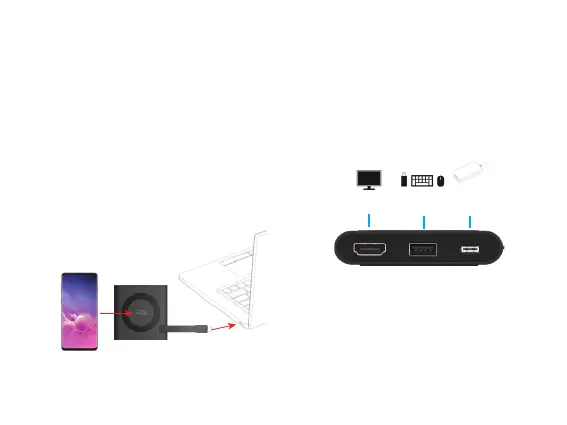
USB Type A
Gen 2 Port
USB Type C
Connection
to USB Type C
AC Power Adapter
HDMI Connection
to a TV or Monitor
Step 1: Connect CA Essential Micro Docking Station to an
USB Type C AC Power Adapter (Purchased separately)
as shown on Page 2.
Step 2: Connect CA Essential Micro Docking Station to your
Laptop.
Insert the end of the USB Type C
Docking Station Cable into the USB
Type C port on your Laptop as show
below.
Step 3: Connect your Peripherals to the CA Essential
Micro Docking Station.
Note: Power available for the attached peripherals and wireless charging are dependent on the power supplied by the type of
USB Type C AC Power Adapter used. For specic congurations supported and power delivered for the Qi Wireless Charger,
the USB and HDMI ports see page 4.
Step 4: Place your device supporting wireless charging
on the top of the CA Essential Micro
Docking Station.
Qi Wireless Charger


 To Next Page