8 Infotainment System
2. Drag the icon to the
applications tray.
To remove an item from the
applications tray, drag the icon
from the applications tray back
to the Home Page.
Adding or removing applications
from the applications tray will not
remove them from the Home Page.
Touchscreen Buttons
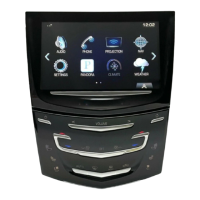
Touchscreen buttons show on the
screen when available. When a
function is unavailable, the button
may grey out. When a function is
selected, the button may highlight.
Proximity Sensing
The infotainment system uses
proximity sensing. When enabled,
certain screen buttons and features
will become visible when a hand
approaches the screen. When the
hand is removed, these features
fade. Proximity sensing can be
disabled in the Settings applications
in the Display menu options.
Haptic Feedback
Haptic feedback is a pulse that
occurs when a button is pressed on
the screen or when buttons below
the screen are pressed.
Infotainment Gestures
Use the following finger gestures to
control the infotainment system.
Press/Tap
Press/Tap is used to select a button
or option, activate an application,
or change the location inside a map.
Press and Hold
Press and hold can be used to start
another gesture, move, or delete an
application.



 To Next Page
 Loading...