Infotainment System 7
to the radio. Press to go to the next
or previous track when listening to a
media source.
x + or x − (Volume): Press to
increase or decrease the volume.
Using the System
Audio
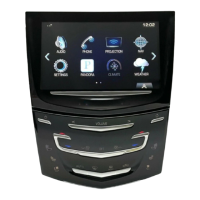
Press the AUDIO icon to display the
active audio source page. Available
sources are AM, FM, CD (if
equipped), My Media, USB, SD,
Bluetooth, and AUX Input.
Phone
Press the PHONE icon to display
the Phonemain page. See Bluetooth
(Overview) on page 91 or Bluetooth
(Infotainment Controls) on page 92
or Bluetooth (Voice Recognition) on
page 96.
NAV (Navigation, If equipped)
Press the NAV icon to display the
navigation map. See Using the
Navigation System on page 56.
Settings
Press the SETTINGS icon to display
the Settings menu. See Settings on
page 98.
Energy (If Equipped)
Press the ENERGY leaf icon to
display energy flow on the hybrid
vehicle. See the owner manual.
Climate
Press the CLIMATE icon to display
the Climate main page. See “Dual
Automatic Climate Control System”
in the owner manual.
Rear Climate (If Equipped)
Press the R. CLIMATE icon to
display the Rear Climate main page.
See “Rear Climate Control System”
in the owner manual.
Video (If Equipped)
Press the VIDEO icon to display the
video Rear Seat Entertainment main
page. See Rear Seat Entertainment
(RSE) System on page 24 or Rear
Seat Entertainment (RSE) System
(Platinum) on page 43.
Applications Tray
The applications tray is at the top
centre of the screen. The
applications tray can have three to
five applications.
To add an application from the
Home Page to the applications tray:
1. Press and hold any icon on the
Home Page to enter edit mode.



 To Next Page
 Loading...