Hard Keys
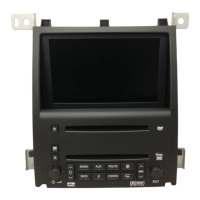
The following hard keys are located to the left of the
navigation screen:
MAIN: Press this key to access the Setup menu. See
Setup Menu on page 2-7.
LOAD: Press this key to load a CD(s). See “Playing a
CD” under Navigation Audio System on page 3-2.
PWR/VOL Knob: Press the power/volume knob to turn
the audio and navigation systems on and off. Turn
the knob to increase or decrease the volume to
the audio system or the volume of a voice prompt while
the prompt is playing.
NAV
b: Press the navigation repeat key to repeat the
current voice guidance navigation prompt.
TRAF: Press this key to enable traffic announcements.
See “Screen Features” under Navigation System
Overview on page 1-2 for more information.
INFO: Press this key to access the Vehicle Information
screen and to check the status of several of your
vehicle’s systems. See Driver Information Center (DIC)
in Section 3 of your vehicle’s owner manual for more
information.
NAV: If you are in a menu and are not on the map
screen, press the NAV key to view the current
map showing vehicle position.
If a route has not been planned, pressing this key will
display the map screen and the following information:
• North Up, Heading Up, or Birdview™ symbols
• Audio source
• GPS icon
• Map scale
If a route has been planned, the first press of the NAV
key will also display the following information:
• Number of miles/kilometers between current vehicle
position and the destination
• Estimated travel time to the destination
• Highlighted route or turn-by-turn instructions
Each time the NAV key is pressed, the reconfigurable
soft key descriptions to the right of the navigation screen
will “expand” to show a detailed description of each.
The prompts will return to their normal appearance after
about 10 seconds.
You will find more information on each feature found on
a map screen later in this manual.
2-3



 To Next Page
 Loading...