Playing the Radio
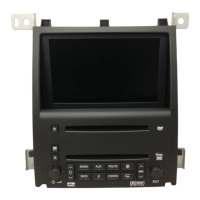
The BAND button is located on the left side of the
Navigation System screen. Press this button once to
access the audio system. You can also access the
audio system from the Navigation Main Menu.
See Main Menu on page 1-6 Main Menu. Use the
following controls to operate the audio system:
PWR/VOL (Power/Volume): Press this knob located to
the lower left of the display to turn the Navigation
System on and off.
Turn the knob to increase or decrease the volume
level. You can also adjust the volume level using the
steering wheel controls, if equipped. See “Audio Steering
Wheel Controls” in your vehicle’s owner manual for
more information.
Finding a Station
BAND: After you access the main radio display, press
this button repeatedly to scroll through the bands:
AM, FM1, FM2, XM1 and XM2 (USA only, if equipped).
The one currently selected is shown near the top of
the display. For example, Radio FM2 will be displayed
when the FM2 screen is selected.
TUNE/SEL (Select): Use this knob located to the lower
right of the display to manually tune the radio, access
the radio menus and scroll through the menu items.
See “FM Menu” listed previously in this section for more
information.
o SEEK/SCAN p: Press the left or right arrow to
seek to the previous or next station. The radio will go to
the next station with a strong signal only. If you wish
to continue seeking, press the arrow again. The volume
will mute while seeking.
To scan stations, press and hold the left or right arrow
for two seconds until you hear a beep. The radio
will go to the next or previous station, play for a few
seconds, then go on to the next station. The radio will
scan to stations with a strong signal only. The
volume will mute while scanning. Press either arrow
again to stop scanning.
To scan preset radio stations, press and hold the left or
right arrow for more than four seconds. You will hear
two beeps and Preset Scan will appear on the screen.
The radio will go to the first preset station stored,
play for a few seconds, then go on to the next preset
station. The radio will scan preset stations with a strong
signal only. The volume will mute while scanning.
Press the left or right arrow again to stop scanning
presets. See “Setting Preset Stations” later in this
section for more information.
3-8



 To Next Page
 Loading...