EasyManua.ls Logo

Cambridge Audio M1+ Multimedia Explorer - User Manual

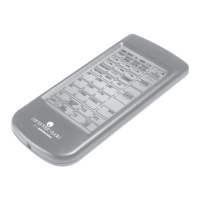
Cambridge Audio M1+ Multimedia Explorer
16 pages
Print Icon
To Next Page IconTo Next Page
Loading...
M1+
Multimedia Explorer
Question and Answer IconNeed help?

Do you have a question about the Cambridge Audio M1+ Multimedia Explorer and is the answer not in the manual?

Summary

Introducing your MI+

Unpacking your MI+

MI+ Features Overview

Overview of key features including touch screen display and macro function capabilities.

Identifying Components

IR Port Function

Direct the IR port at the device's IR receiver for operation.

LCD Panel Description

Describes the touch screen panel used for configuration and device operation.

Learning Eye Function

Enables the MI+ to learn device remote control functions from original remotes.

Getting Started

Opening Battery Case

Open the battery case cover by pushing it in the indicated direction.

Inserting Batteries

Ensure batteries are inserted correctly according to internal compartment markings.

Low Battery Indicator

Battery Low Icon

Icon displayed near the power button indicating low battery charge.

The LCD Touch Screen

Turning the LCD On

Tap the LCD panel with your finger to activate the display.

Touch Screen Precautions

Handle screen gently, keep dry, avoid sharp objects and extreme temperatures.

Touch Screen Buttons Usage

Using Touch Screen Buttons

Press screen buttons to activate functions; a beep confirms input.

Operating the MI+

Learning Function Precautions

Important warnings and guidelines to follow before using the learning function.

Using the Learning Function

Learning Function Steps

Detailed steps for learning remote control functions using the MI+ and its learning eye.

Mapping Device Buttons

Button Mapping Process

Map device remote control buttons to corresponding MI+ LCD buttons.

Exiting Learning Mode

Press the 'learn' button after mapping to exit the learning function.

Using the Delete Function

Deleting Device Button Commands

Clear commands for specific buttons within a particular device.

Managing Device Data

Deleting Specific Button Data

Press the desired button to delete its previously mapped data.

Deleting All Device Data

Press delete button in delete mode to erase all data for a selected device.

Deleting All Data

Press delete button for three seconds to erase all data from the MI+ remote.

Changing the LCD Layout

Editing LCD Button Appearance

Delete buttons or change icons on device menus for custom layout.

Saving LCD Layout Changes

Press the device button again to save changes and return to normal operation.

Macro Function Setup

Setting Up a Macro

Instructions and steps to set up a macro by recording a sequence of commands.

Macro Recording and Examples

Ending Macro Recording

Press the 'learn' button to conclude the macro recording process.

Macro Recording Example

Illustrates the process of recording a macro to understand its functionality.

LCD Backlight Control

Macro Time Delay Example

Example demonstrating how to set time delays between macro commands.

Adjusting LCD Backlight

Enable or disable the LCD backlight using specific button combinations.

Product Specifications

MI+ Specifications

Details on model, battery, dimensions, weight, and power saving features.

Troubleshooting Common Problems

Device Operation Issues

Solutions for problems encountered when you cannot operate the device.

Learning Process Errors

Solutions for errors displayed during the remote control learning process.

Operation Display Errors

Solutions for errors displayed during the normal operation of the MI+.

Blank LCD Screen

Troubleshooting steps for when the LCD screen shows no display.

Summary

Introducing your MI+

Unpacking your MI+

MI+ Features Overview

Overview of key features including touch screen display and macro function capabilities.

Identifying Components

IR Port Function

Direct the IR port at the device's IR receiver for operation.

LCD Panel Description

Describes the touch screen panel used for configuration and device operation.

Learning Eye Function

Enables the MI+ to learn device remote control functions from original remotes.

Getting Started

Opening Battery Case

Open the battery case cover by pushing it in the indicated direction.

Inserting Batteries

Ensure batteries are inserted correctly according to internal compartment markings.

Low Battery Indicator

Battery Low Icon

Icon displayed near the power button indicating low battery charge.

The LCD Touch Screen

Turning the LCD On

Tap the LCD panel with your finger to activate the display.

Touch Screen Precautions

Handle screen gently, keep dry, avoid sharp objects and extreme temperatures.

Touch Screen Buttons Usage

Using Touch Screen Buttons

Press screen buttons to activate functions; a beep confirms input.

Operating the MI+

Learning Function Precautions

Important warnings and guidelines to follow before using the learning function.

Using the Learning Function

Learning Function Steps

Detailed steps for learning remote control functions using the MI+ and its learning eye.

Mapping Device Buttons

Button Mapping Process

Map device remote control buttons to corresponding MI+ LCD buttons.

Exiting Learning Mode

Press the 'learn' button after mapping to exit the learning function.

Using the Delete Function

Deleting Device Button Commands

Clear commands for specific buttons within a particular device.

Managing Device Data

Deleting Specific Button Data

Press the desired button to delete its previously mapped data.

Deleting All Device Data

Press delete button in delete mode to erase all data for a selected device.

Deleting All Data

Press delete button for three seconds to erase all data from the MI+ remote.

Changing the LCD Layout

Editing LCD Button Appearance

Delete buttons or change icons on device menus for custom layout.

Saving LCD Layout Changes

Press the device button again to save changes and return to normal operation.

Macro Function Setup

Setting Up a Macro

Instructions and steps to set up a macro by recording a sequence of commands.

Macro Recording and Examples

Ending Macro Recording

Press the 'learn' button to conclude the macro recording process.

Macro Recording Example

Illustrates the process of recording a macro to understand its functionality.

LCD Backlight Control

Macro Time Delay Example

Example demonstrating how to set time delays between macro commands.

Adjusting LCD Backlight

Enable or disable the LCD backlight using specific button combinations.

Product Specifications

MI+ Specifications

Details on model, battery, dimensions, weight, and power saving features.

Troubleshooting Common Problems

Device Operation Issues

Solutions for problems encountered when you cannot operate the device.

Learning Process Errors

Solutions for errors displayed during the remote control learning process.

Operation Display Errors

Solutions for errors displayed during the normal operation of the MI+.

Blank LCD Screen

Troubleshooting steps for when the LCD screen shows no display.

Cambridge Audio M1+ Multimedia Explorer Specifications

General IconGeneral
BrandCambridge Audio
ModelM1+ Multimedia Explorer
CategoryRemote Control
LanguageEnglish

Related product manuals