Need help?
Do you have a question about the CAMBRIDGE CXR120/200 and is the answer not in the manual?
Connect speakers and sources, then set up via On-Screen Display (OSD).
Read, keep, heed warnings, follow instructions, avoid water, clean dry, ensure ventilation, avoid heat sources.
Polarized plug, grounding, unplug during storms, servicing by qualified personnel, risk of shock.
Do not expose to rain, moisture, liquids. Batteries not to be exposed to excessive heat.
Caution: Top surface may become hot during operation. Do not touch hot areas.
Ensure ample ventilation (20cm clearance), do not obstruct air inlets/outlets, avoid stacking units.
Avoid direct sunlight, heat sources, dust, moisture, vibration. Use a sturdy, level surface.
Product free from defects. Repair or replace at Cambridge Audio's option. Contact authorized dealer for service.
Excludes cosmetic damage, misuse, unauthorized repairs. Liability limited for incidental damages.
USB for media playback, MP3 for portable devices, HDMI/MHL for digital sources.
FM/AM aerials, Analogue audio inputs for CD, DVD/BD players, game consoles.
HDMI 2.0 compatible inputs, Digital coaxial and optical inputs for audio.
Ethernet for wired network. USB for Wi-Fi antenna or Bluetooth adapter.
Connect loudspeakers with nominal impedance of 8 ohms.
Select stereo or surround sound modes for optimal listening experience.
Switch power off before connecting. Ensure correct polarity. Use 4mm plugs or banana plugs.
Connect powered subwoofer using a Phono/RCA cable.
Connect DVD-A or SACD players via 5.1/7.1 Direct inputs for multi-channel audio.
Connect Blu-ray player via HDMI for digital audio/video. Set output to 'Raw' for best quality.
Supports 4K video resolution. Use a high-speed HDMI cable for 4K devices.
Search and add Internet Radio stations to presets via the Connect App.
Switch on rear panel, press front panel Standby/On. Select source via front panel or remote.
Choose Stereo or Surround modes for optimal listening based on source material.
Details Dolby TrueHD, Dolby Digital Plus, DTS-HD Master Audio, DTS-HD High Resolution Audio.
Explains Dolby Digital, EX, DTS, DTS ES Matrix/Discrete, and their capabilities.
Details Dolby Pro Logic II, IIx, and IIz for enhanced surround and height effects.
Diagrams for 5.1, 5.1 + Height, and 7.1 speaker setups.
Set SW Selection, Back Amp Configuration (Surround Back, Bi-Amp).
Automatically checks speaker connection, size, crossover, and distance.
Choose speaker setup type (e.g., 7.1, 5.1, 3.1, 2.1) for auto setup.
Set speaker size to 'Small', 'Large', or 'None' based on bass response.
Measure and enter speaker distances for accurate delay compensation.
Adjust speaker levels using test tone for balanced loudness at listening position.
Set crossover frequency to route bass to subwoofer for 'Small' speakers.
Configure source input selection, names, video inputs, and audio inputs.
Adjust audio delay to synchronize video for the current source.
Configure Zone 2 power, source, and power-on volume independently.
Route audio to Zone 2 via HDMI or speaker outputs. Select 'Follow Main Zone'.
Requires broadband internet and a Wi-Fi or wired network connection.
Connect via Ethernet cable to router/modem for reliable network connection.
Connect using the supplied wireless antenna to your router.
Scan for networks, select your Wi-Fi network, and enter your password.
Enables TV to send audio back to CXR via HDMI 1. Requires TV support.
Adjust Panorama, Centre Width, Dimension for Dolby Pro Logic II/IIx.
Electronically repositions speakers to match original studio layout for DTS-HD.
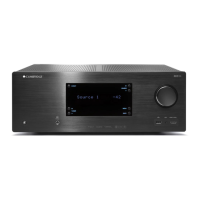
120W/ch, 7 HDMI in/2 out, 4K, Deep colour, toroidal transformer, network playback, Spotify Connect, auto speaker setup.
Supports ALAC, WAV, FLAC, AIFF, WMA, MP3, AAC, HE AAC, OGG Vorbis, DSD.


 To Next Page
 General