14
Loading a Design
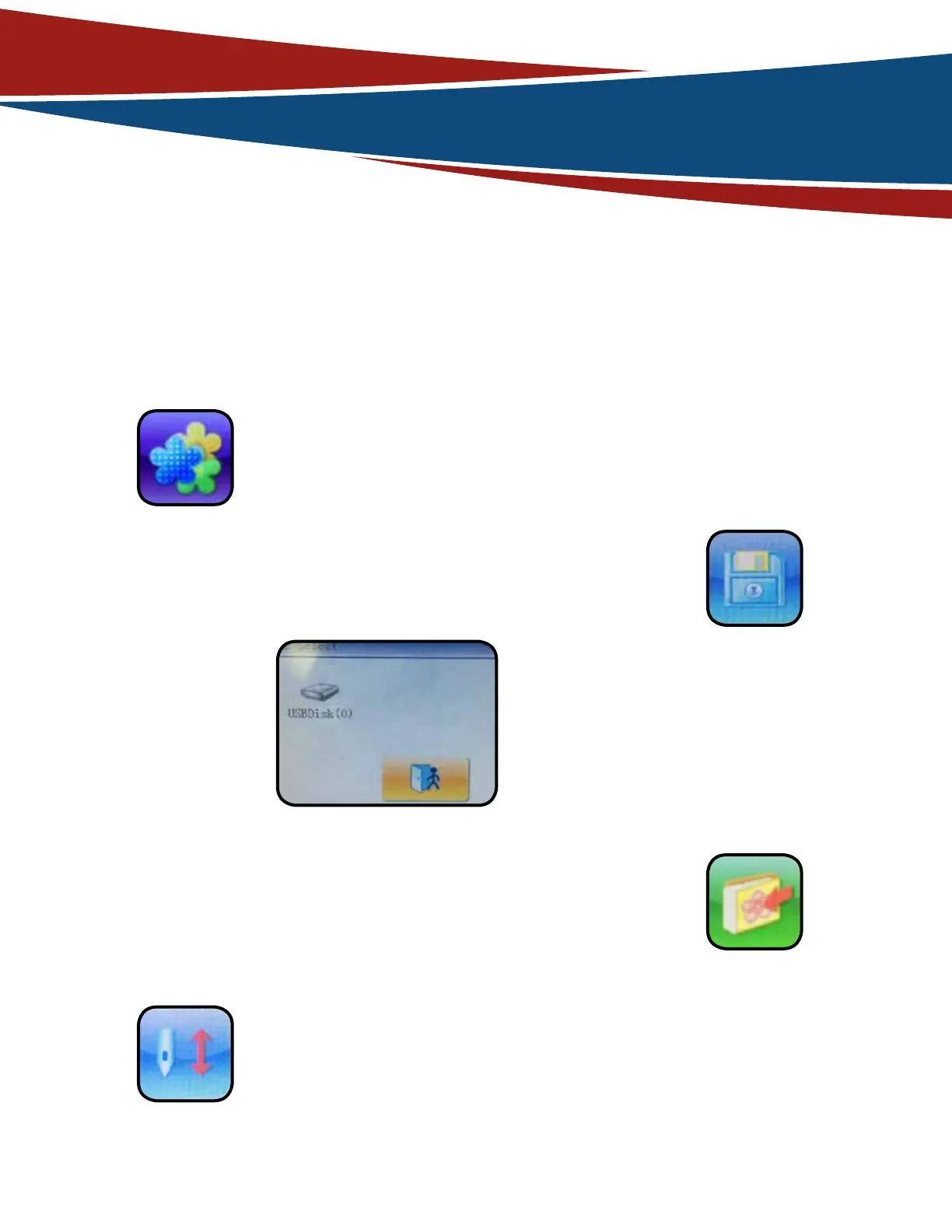
• In order to load your design into the Control Panel screen,
you must begin by pressing the “Activate design managing
function and other management functions” button (see below)
• On this screen it should
show the USB drive that
you connected earlier.
• Next press on the Floppy Disk button (see below) on the
bottom of the screen to open up the devices menu.
• Click the checkmark below to save the design.
• Choose your newly added design and press the “Emb
Confirm” operation (see below) and press yes.
• Next choose the design that you would like to upload onto
the embroidery machine’s internal memory.
• Then click the folder with an arrow pointing towards it to
access the Data Import menu, where you save the design
with a new name/ number for the internal folder.
• You have successfully uploaded your design to the workspace.


 To Next Page