Need help?
Do you have a question about the Canon AP 300 and is the answer not in the manual?
Important warnings and guidelines for safely installing and operating the typewriter in various environments.
Describes the purpose and operation of specific keys like Line Space Selector, Margin Release, Decimal Tab, Indent, Center, Shift, and Repeat.
Guides on how to set, reset, and manage left and right margins for typing.
Explains how to set, clear individual, and clear all tabs for efficient text alignment.
Procedures for correcting characters, words, or lines directly as they are being typed.
Methods for deleting or inserting characters and phrases in text that has already been displayed.
Instructions on how to set decimal tab stops for aligning numbers with decimal points.
Steps for verifying decimal tab positions and using the function to enter and align numerical data.
A guide to diagnosing and resolving typical issues encountered with the typewriter's operation.
A reference table showing key combinations with the CODE key to access automatic functions.
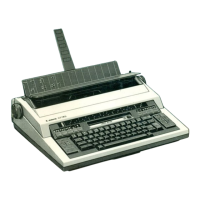
The Canon AP 300 is an electronic typewriter designed to simplify everyday typing tasks, reduce fatigue, and increase overall typing efficiency. It incorporates practical functions to save time and effort and minimize typing errors, making it user-friendly.
The AP 300 features a Display that allows users to see all entries and make necessary corrections, insertions, or deletions before the text is typed. Character entries are always displayed. The display also shows the current typing position via a green LED on the Pitch Scale, which corresponds to the pitch of the daisy wheel in use. A center mark on the pitch scale indicates the paper's center when inserted along the paper edge guide mark. Function command words and symbols like CODE, CENTER, INDENT, and DECIMAL TAB appear on the display when activated, indicating an automatic function is in use.
The Paper Support aids in viewing, positioning, and inserting paper. It has a paper scale with one-inch increments and vertical and horizontal guide marks for standard paper sizes. The paper support is detachable for storage or transport. Platen Knobs feed paper forward or backward. Pushing in the left platen knob activates a variable line spacer, allowing changes to the typing line or repositioning paper for corrections. The Paper Bail Release Lever releases the paper bail when pulled to the first forward position, and fully releases the paper for repositioning when pulled all the way forward.
The typewriter has a Power Switch to be kept on for regular use to preserve margins, tabs, and decimal tabs. For infrequent use or long periods of inactivity, it should be turned off. The typing position indicator lights for a few seconds when turned on, but margins, tabs, and decimal tabs must be reset if the power switch is turned off. The Keyboard Switch is the primary on/off control for daily use. When turned on, the typing position indicator lights, and the last margin, tab, and decimal tab settings are automatically activated, moving the carrier to the current left margin. When turned off, the indicator goes out, the one-line correction memory is cleared, and all current margins, tabs, and decimal tabs are retained.
The Line Space Selector offers single spacing (1), one and a half spacing (1½), and double spacing (2). The Automatic Underline Selector allows for normal typing (XX) or automatic underlining (XX). When using the display, underlined text appears between "I" and "I".
Keyboard Functions include:
The Keyboard Selector controls keys with two sets of characters: "I" for characters on the left side of the keytop and "II" for characters on the right. The Operation Selector sets the typing mode: "C" for conventional character-by-character typing, and "L" for line-by-line typing, where characters are displayed as entered and typed when the carrier returns or TAB/INDENT is depressed.
Under the typewriter cover, the Pitch Selector sets the typewriter to the pitch of the daisy wheel: "A" for automatic setting, "10" for 10 characters per inch, "12" for 12 characters per inch, and "15" for 15 characters per inch. The Automatic Carrier Return/Justified Printout Selector determines carrier return mode and right margin justification. "MANUAL" returns the carrier only when RETURN is pressed. "AUTO" returns the carrier automatically when a space or hyphen is entered in the hot zone. "JUST" automatically spaces text for an even right margin when the Operation Selector is "L", displaying text line by line and typing it out when a hyphen or space is entered in the hot zone. RETURN overrides justified printout.
The Numeric Punctuation Selector has three settings for decimal tab function, automatically punctuating integers: "X.X" for comma every third digit, "X X" for space every third digit, and "XX" for no commas or spaces. The Impression Selector determines typing impact, adjustable for different paper types and jobs. The Ribbon Selector must match the color of the thumbwheel on the ribbon cassette: orange/pink for correctable or single-strike ribbon, and blue for multi-strike ribbon.
The AP 300 supports setting Margins by ensuring the Operation Selector is at "C" and Auto/Just Selector at "MANUAL", then depressing LEFT MARGIN and RIGHT MARGIN. Margins are retained as long as the power switch is on. Tabs can be set (up to 20, including decimal tabs) by positioning the carrier and depressing TAB SET. Individual tabs can be cleared by tabbing to the position and pressing TAB CLEAR. All tabs are cleared by depressing CODE then TAB CLEAR.
Corrections on the current typing line involve positioning the carrier at the character, depressing CANCEL (or CANCEL and REPEAT for words/phrases/lines), then RELOCATE. For displayed characters, position the cursor, depress CANCEL (or CANCEL and REPEAT), then RELOCATE. Insertion involves positioning the cursor, typing the character, then RELOCATE. For other characters on previous lines, set Operation Selector to "C" and Auto/Just Selector to "MANUAL", position the carrier, depress CANCEL, and type the correct character. For underlined characters, move the Automatic Underline Selector to XX for correction, then back to XX.
Decimal Tabs align numbers by decimal point. They are set by positioning the carrier and depressing CODE then TAB SET. Checking decimal tabs involves CODE then DECIMAL TAB. Executing decimal tabs requires setting the Numeric Punctuation Selector, depressing DECIMAL TAB, entering the number, and repeating for columns. Individual decimal tabs are cleared by CODE, DECIMAL TAB, then TAB CLEAR. All decimal tabs are cleared by CODE then TAB CLEAR.
Indentation is set by positioning the carrier and depressing INDENT. This displays "INDENT" and moves the carrier to the indent position for subsequent lines until INDENT is pressed again to cancel. Centering text between margins or indent position and right margin involves positioning the carrier, depressing CENTER, RETURN, entering text, then RETURN again. Centering between tabs involves positioning the carrier, depressing CENTER, TAB, entering text, then TAB again.
Right Margin Alignment is achieved by tabbing to the right margin, depressing CENTER, entering text, then RETURN. The text is typed with the last character aligned on the right margin.
Permanent Hyphens and Spaces override Auto/Just Selector settings in the hot zone. Depressing CODE then HYPHEN creates a permanent hyphen, and CODE then B creates a permanent space.
Half-Backspacing moves the carrier back one-half space, useful for squeezing characters or creating ligatures. This is done by depressing CODE, BACKSPACE, then CODE.
Controlled Carrier Movement moves the carrier 1/60 of an inch at a time, for precise repositioning or correcting justified print mode characters. This is done by depressing CODE, SPACE (repeatedly), then CODE.
Auto Page End sets the number of typing lines on a page and triggers an alarm at the last line, locking the keyboard. To set, select line spacing, depress CODE and F, enter a 2-digit number (01-99) for lines, then TAB SET. To execute, set paper and line spacing, then depress CODE and G. To continue typing after page end, depress MARGIN RELEASE.
The AP 300 can store two Line Formats, T1 and T2. The last activated format is reactivated when the keyboard switch is turned on. Margins are retained until reset or power off; tabs and decimal tabs are retained unless cleared or power off. T2 is for frequently used formats, activated by CODE, T, 2. T1 is a changeable utility setting, automatically activated at power on, or by CODE, T, 1.
The Canon AP 300 uses Daisy Wheels as its print element. They are lightweight, durable, and easy to change. To remove, open the cover, remove the ribbon cassette, pull the positioning lever forward, and lift the daisy wheel. To replace, align the slot with the pin, press the center knob onto the spindle until it clicks, move the positioning lever back, and replace the cover.
Ribbon Cassettes come in correctable (orange), single-strike (pink), and multi-strike (blue) types. To remove, open the cover, press release levers down, and lift the cassette. To replace, position knobs in grooves, press cassette down until it clicks, take up slack with the thumbwheel, and close the cover.
Correction Tape is available in lift-off (for correctable ribbon) and cover-up (for single-strike and multi-strike ribbon). To remove, open the cover, remove the ribbon cassette, pull the daisy wheel positioning lever forward, pull the tape release lever, and lift off spools. To replace, separate spools, place the full spool on the left spindle, thread the tape, place the empty take-up spool on the right spindle, turn the take-up spool until the colored part is beyond the right roller, move the daisy wheel positioning lever back, replace the ribbon cassette, and close the cover.
The AP300's Platen can be removed if paper jams. To remove, pull the paper bail release lever, open the cover, raise the eraser table, grip the platen knobs, press down on the metal platen release lever, and lift the platen out. To replace, reposition the platen in the cradle, push down firmly on each end until it locks, lower the eraser table, close the cover, and push the paper bail release lever back to typing position.
For cleaning, only a soft, dry cloth should be used. Water or thinners may damage the covers, acrylic resin, or electronic circuitry.
 General
| Type | Electronic Typewriter |
|---|---|
| Printing Method | Impact Dot Matrix |
| Print Technology | Dot Matrix |
| Paper Handling | Friction Feed |
| Keyboard | QWERTY |
| Line Spacing | 1, 1.5, 2 |
| Pitch | 10 or 12 characters per inch |


 To Next Page