
 Need help?
Do you have a question about the Canon varioPRINT 135 Series and is the answer not in the manual?
Lists registered trademarks and other trademarks mentioned in the publication.
Explains attention-getters, symbols, and how to use the manual.
Provides a conversion table for commercial names versus generic terminology in user interfaces.
Lists separate operation guides, safety guides, and quick reference cards.
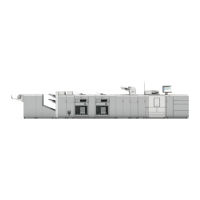
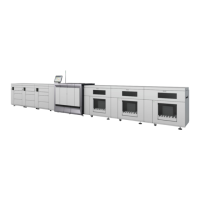
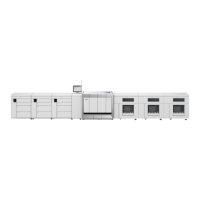
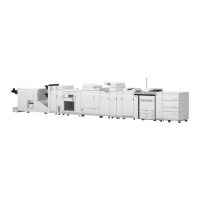
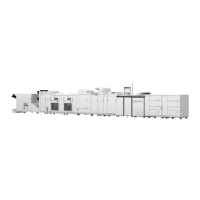
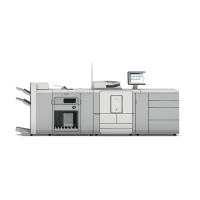
Illustrates and describes the main components of the printer and its accessories.
Describes the printer-only version of the varioPRINT 135 Series that cannot copy and scan.
Describes the main components of the control panel and their functions.
Explains the dashboard's role in displaying system status, supplies, current process, and instructions.
Details the internal and external paper modules, including tray capacities and specifications.
Describes the glass plate and automatic document feeder (ADF) for scanning originals.
Explains the meaning of the different colors of the operator attention light for monitoring printer status.
Describes the stacker/stapler unit and its main parts and functions.
Explains the printer's power buttons and different power modes (Off, Ready, Low power, Sleep, Deep sleep).
Provides a procedure for turning on the printer system.
Details the procedure for shutting down the printer and controller in a controlled way.
Explains how to restart the system via the Settings Editor or the control panel.
Guides users on how to access the web-based Settings Editor application.
Outlines settings accessible through the control panel for adapting the system.
Provides an overview of the [Setup] section within the [System] view for system configuration.
Explains how to use and customize default workflow profiles for optimizing print jobs.
Details the procedure to change the system language via the control panel.
Explains how to define the advance warning time for required operator actions.
Provides steps to disable the warning function for operator interaction.
Describes how to define job name truncation to identify jobs in lists more easily.
Guides on adjusting control panel brightness and contrast for better readability.
Explains how the printer handles media, including reloading and assignment through the control panel.
Details the functions of the [Trays] view for displaying tray content and assigning media.
Provides an overview of the [Media] section in the [System] view for managing media catalogs.
Covers actions like opening trays and loading media using the paper tray button.
Explains how to load and assign media using the [Trays] softkey on the control panel.
Details how to add temporary media to the media catalog for frequent use.
Provides recommendations on using the separation enhancer for specific media types.
Guides on repositioning paper guides to match new media sizes in bulk trays.
Explains how to adjust the size of the optional bulk tray for small formats like A5 or Statement.
Details the procedure for using the JIS B5 adapter in bulk trays for small media.
Explains how to use the [Pre-printed mode] function for processing pre-printed media.
Details how to use the [Wax mode] function to solve print quality issues with wax paper.
Describes how to adjust the [Paper quality] setting to improve print quality with lower grade media.
Explains the importance and causes of media registration for image alignment.
Provides examples of deviations that indicate the need for media registration.
Gives a general description and quick start for performing media registration.
Outlines the recommended order of actions for addressing media registration issues.
Details how to print and use the verification chart to check media registration optimality.
Describes the procedure for automatic media registration adjustment.
Explains manual media registration adjustment when automatic adjustment is not optimal.
Provides solutions for common issues encountered during media registration.
Introduces the print function and where to define print job settings.
Explains various methods for defining print job settings (PDL, Job Ticket, Hotfolder, Automated workflow, Control panel).
Details how to print a job using the printer driver, including its main features.
Describes how to prepare print jobs using the PRISMAprepare software.
Explains how to print documents from a USB drive.
Details manual and automatic methods to stop the printer.
Guides on how to select and delete print jobs from various locations.
Describes how to change print job settings directly on the control panel.
Explains how to manually send waiting jobs to the print queue.
Details how to give a print job priority using the [Print now] button.
Explains how to use the [To top] function to move a job to the second position in the queue.
Guides on how to move a scheduled job back to the list of waiting jobs to print it later.
Describes how to reprint jobs from the list of printed jobs.
Explains options for selecting multiple jobs for printing at once.
Details how to combine two or more jobs into one new job for printing.
Explains how to print a job ticket for an overview of job characteristics.
Guides on how to print a proof copy to check quality and layout before printing the full job.
Introduces the [Schedule] view as a daily planning board for print jobs.
Explains how to load and assign media directly within the [Schedule] view.
Details how to change output settings like 1-sided/2-sided printing on the control panel.
Guides on changing the binding position along the long or short edge of the media.
Explains how to select different media for a job than originally defined.
Details how to enable/disable covers and select media for front and back covers.
Explains using the [Align] function for rough image shifting, e.g., for staples or punch holes.
Guides on using [Margin shift] and [Image shift] for precise image positioning.
Details how to change print delivery settings like output location and sorting.
Explains how to change the stacking method (offset) for individual jobs.
Guides on adjusting print quality settings like brightness, contrast, and resolution.
Details how to change finishing methods like stapling and punching on the control panel.
Explains how to define finishing methods such as binding, folding, and trimming for print jobs.
Guides on how to change the number of sets for a job.
Explains how to check the first set of a print job before printing all other sets.
Details how to specify the page range for printing jobs.
Guides on enabling or disabling the use of separator sheets between sets or jobs.
Explains how to change job settings on a per-page basis using [Page programming].
Introduces automated workflows for programming print queues and operations.
Provides steps for adding custom automated workflows to improve productivity.
Guides on changing the attributes of an existing automated workflow.
Explains how to delete automated workflows when no longer needed.
Details how to restore the factory default automated workflow.
Introduces hotfolders as mapped network drives for recurring PDF workflows.
Guides on activating the hotfolder function, requiring system administrator privileges.
Explains how to create a hotfolder and link it to an automated workflow.
Describes creating a shared network folder on a workstation for hotfolder access.
Details how to create a default ticket file for hotfolder print jobs.
Explains how to send jobs with their settings to another PRISMAsync printer.
Introduces transaction printing and its requirements, including licensing.
Provides an overview of the [Transaction] section for printing transactional documents.
Guides on activating transaction printing mode and setting up the printer online.
Details the procedure to deactivate transaction printing and put the printer offline.
Explains how to shift images horizontally and vertically to correct misalignments in transaction printing.
Guides on creating, editing, and activating transaction setups for specific jobs.
Explains how to exchange transaction setups between printers with identical configurations.
Details media information (IPDS) and its role in transaction printing.
Explains normal and suppressed output recovery options for IPDS errors.
Describes how the printer handles media messages in PCL when media is missing.
Guides on responding to missing media messages in the Tray-to-Media mode.
Details how to handle missing media messages in the Tray-to-Tray mode.
Introduces the copy function, including manual settings and templates for copy jobs.
Lists and describes factory default templates for various copy job types.
Provides information on placing originals for scanning, including orientation and size detection.
Details the procedure for copying or scanning originals placed on the glass plate.
Explains how to copy or scan originals using the automatic document feeder (ADF).
Guides on accessing other system functions while defining copy or scan job settings.
Describes the settings available for defining copy job parameters for originals and output.
Explains how to create custom templates for recurring copy or scan jobs.
Guides on copying originals with non-standard sizes, including manual measurement.
Explains the [Zoom] function for reducing or enlarging images in copy and scan jobs.
Details how to apply finishing options like stapling, punching, folding, or trimming to the output.
Guides on renaming copy jobs for easier identification in job lists.
Explains how to combine multiple sets of originals into one document with subsets.
Details the process of inserting tab sheets as inserts in combined copy jobs.
Explains how to scan documents and print them later (postponed copying).
Outlines the setup required for scan functions like scan-to-file, SMB, and email.
Introduces the scan function for creating digital documents from paper originals.
Lists available scan types (file, SMB, email, USB, DocBox) and their output locations.
Details the settings required to configure the scan-to-file (FTP) function.
Explains the settings for configuring the scan-to-SMB function.
Details the settings for configuring the scan-to-email function.
Guides on configuring the LDAP server for scan-to-email recipient lookup.
Explains how to use the remote address list file for scan-to-email when an LDAP server is unavailable.
Details how to create scan profiles for specific scan jobs in the scan profiles file.
Describes the settings available for defining scan job parameters for originals and files.
Provides solutions for common scan quality problems and how to adjust settings.
Introduces the DocBox function for storing, grouping, editing, and reprinting documents.
Explains what DocBox is and its capabilities for job preparation and management.
Guides on creating a new DocBox, including securing it with a PIN.
Details the available settings for jobs within a DocBox, including print and scan job configurations.
Explains how to edit job properties, including page programming, within a DocBox.
Guides on combining multiple jobs from the same DocBox into a new job.
Details how to split a combined job in DocBox back into its original separate jobs.
Explains how to lock job settings in DocBox to prevent accidental changes.
Guides on unlocking a job in DocBox, typically required for splitting locked jobs.
Details how to move jobs between different DocBoxes.
Explains two ways to print jobs from DocBox: without urgency and with urgency.
Guides on printing an urgent job from DocBox immediately, pausing the active job.
Explains how to select and print multiple jobs from a DocBox simultaneously.
Introduces the removable hard disk option for the PRISMAsync controller and its location.
Illustrates and labels the main parts of the removable hard disk.
Provides a step-by-step procedure for removing the removable hard disk.
Details the procedure for inserting the removable hard disk into the printer.
Offers solutions for issues related to the removable hard disk, such as incorrect insertion.
Introduces Remote Service, its licensing, network requirements, and functionality.
Guides on configuring proxy server settings and testing remote connection.
Describes Remote Monitor as a web application for accessing printer status remotely.
Explains PRISMAsync Remote Manager for monitoring, operating, and sending jobs remotely.
Describes the billing and day counters available in the [Maintenance] section for tracking prints.
Provides the procedure to reset the day counters to zero.
Guides on printing a report containing figures of the configured billing counters.
Introduces the accounting function for charging costs and its basic requirements (license, log file).
Details accounting-related settings in the Settings Editor, such as saving log files and uploading account ID files.
Guides on enabling identification and verification of account IDs for job charging.
Explains the content and structure of the account ID file ('accid.csv') for managing account information.
Provides the procedure to download, edit, and upload the account ID file.
Details the format, data records, and fields of the account log file for job usage information.
Guides on saving account log files to a location for invoice creation.
Explains how to select an accounting mode ([Per job], [Fixed]) on the control panel.
Details how to enter an account ID for each job via the control panel.
Guides on entering an account ID using the printer driver's properties.
Explains how to check toner levels and understand low toner warnings.
Provides instructions on how to add toner bottles to the printer.
Details how to check staple cartridge status using the dashboard and system view.
Guides on replacing the staple cartridge in the stapler unit.
Explains how to replace the staple cartridge in the saddle stitch unit of the optional finisher.
Provides a procedure for cleaning the scanner sensors when copies contain stains.
Details the procedure for cleaning the Z sensor, especially in case of error code 16718.
Guides on manually starting the drum cleaning procedure when prints contain dots.
Explains the automatic drum cleaning function, which detects and cleans glue spots.
Introduces Printer Operation Care (POC) as a concept for user-replaceable parts to save costs and improve productivity.
Details the paper path registration process, which adjusts registration for bulk media.
Guides on replacing separation rollers in paper trays when indicated by the control panel.
Explains how to replace the heat exchanger foils, a POC action dependent on configurations.
Guides on replacing the spiral cleaner when indicated by maintenance icons on the control panel.
Details the procedure for removing paper from the TTF when indicated by the control panel.
Explains how to remove paper from the heat exchanger, requiring specific configurations.
Covers advanced maintenance for the High Capacity Stacker-G1, specifically replacing flip rings.
Provides a procedure for clearing paper jams in the lower input paper path of the registration unit.
Details the procedure for clearing paper jams within the registration unit.
Provides an overview of possible errors and their solutions, categorized by machine or job errors.
Guides on how to store logging information when a software error occurs for analysis.
Details how to update the printer with the latest PRISMAsync software from a server.
Explains the process of upgrading or downgrading the PRISMAsync software.
Guides on updating the printer with the latest Microsoft Windows upgrade.
Lists general specifications of the printer, including description, technology, dimensions, and weight.
Provides environmental specifications such as ozone emissions, temperature, humidity, and power consumption.
Details the maximum engine speeds in images per minute for various media types and weights.
Describes internal and external paper modules, including tray capacities, paper sizes, and feed technology.
Lists media types supported and their corresponding weights for internal and external paper modules.
Details specifications for printing, copying, and scanning functions, including resolution and features.
Lists specifications for the PRISMAsync controller, including processor, memory, OS, and features.
Provides information on supported printer drivers for various operating systems.
 General
| Brand | Canon |
|---|---|
| Model | varioPRINT 135 Series |
| Category | Typewriter |
| Language | English |







 To Next Page