What to do if my Canon VarioPrint 6000 has a paper jam?
- KKatherine ThomasAug 20, 2025
If your Canon Typewriter displays 'Paper jam', consult the control panel for specific instructions on how to safely remove the jammed paper and resume your work.
What to do if my Canon VarioPrint 6000 has a paper jam?
If your Canon Typewriter displays 'Paper jam', consult the control panel for specific instructions on how to safely remove the jammed paper and resume your work.
What to do if my Canon Typewriter shows a software error?
If your Canon Typewriter displays a 'Software error', consult the control panel for specific instructions on how to resolve the issue.
What to do if my Canon VarioPrint 6000 Typewriter says 'Service required'?
If your Canon Typewriter indicates 'Service required', consult the control panel for specific instructions.
How to fix toner pollution on first sheets of Canon Typewriter?
To address toner pollution on the initial sheets following the automatic black image cleaning on your Canon Typewriter, try the following: * Change the [Paper quality] setting from [Normal] to [Low]. * Use the [Paper quality test] to determine if this new setting is the right cleaning mode for this media. * The sheets of the 5th set must be totally toner free, also at the edges of the media size width. * When these sheets still show toner pollution, you can set the [Paper quality] setting to [Lower]. * Use the [Paper quality test] to verify that this new setting is the right cleaning mode for this media.
How to fix toner pollution along the edge of the sheet on Canon VarioPrint 6000?
To resolve toner pollution along the edge of the sheet (2-3 mm) after the automatic black image cleaning procedure on your Canon Typewriter, try the following: * Change the [Paper quality] setting from [Normal] to [Low]. * Use the [Paper quality test] to determine if this new setting is the right cleaning mode for this media. * The sheets of the 5th set must be totally toner free, also at the edges of the media size width. * When these sheets still show toner pollution, you can set the [Paper quality] setting to [Lower]. * Use the [Paper quality test] to verify that this new setting is the right cleaning mode for this media.
What to do if there is a combination of pollutions on my Canon Typewriter?
If you observe a combination of pollutions on your Canon Typewriter, try the following: * Change the [Paper quality] setting from [Normal] to [Low]. * Use the [Paper quality test] to determine if this new setting is the right cleaning mode for this media. * The sheets of the 5th set must be totally toner free, also at the edges of the media size width. * When these sheets still show toner pollution, you can set the [Paper quality] setting to [Lower]. * Use the [Paper quality test] to verify that this new setting is the right cleaning mode for this media.
What to do if my Canon VarioPrint 6000 says 'Maintenance required'?
If your Canon Typewriter displays 'Maintenance required', consult the control panel for specific instructions.
Why does my Canon VarioPrint 6000 have frequent paper jams in the input modules?
If you are experiencing frequent paper jams in the paper input modules of your Canon Typewriter, check the stack of sheets in the paper tray.
How to fix ghost images in mid and high toner coverage areas on Canon Typewriter?
If you see ghost images in mid and high toner coverage areas on your Canon Typewriter, try the following: * Change the [Paper quality] setting from [Normal] to [Low]. * If the print quality is still not optimal with respect to mentioned ghost images, you can set the [Paper quality] setting to [Lower].
What to do if my Canon VarioPrint 6000 says 'Unit reconditioning'?
If your Canon Typewriter displays 'Unit reconditioning', consult the control panel for specific instructions.

Explains typography, safety symbols, and important notes for manual usage.
Defines user roles and identifies the target audience for the operation guide.
Outlines the guide's structure, chapters, and descriptions of optional features.
Introduces the VarioPrint 6000 line, its Gemini Instant Duplex Technology, and print speeds.
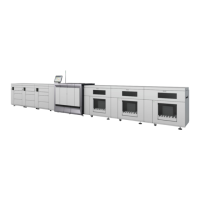
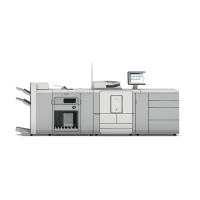
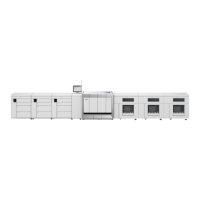
Identifies and describes the main hardware components of the VarioPrint 6000 line.
Details the paper modules, their trays, capacity, and control panel functions.
Describes the different output locations like stackers and optional finishers for print jobs.
Details optional devices like the Form Assist Module and EasyLift for enhanced functionality.
Highlights the VarioPrint 6000 line's multitasking print system functions and remote tools.
Describes the main components and functions of the printer's control panel.
Explains the web-based Settings Editor for configuring the print system and its features.
Introduces PRISMAsync Remote Manager for multi-printer scheduling and remote management.
Describes PRISMAsync Remote Match for aligning color, media, and workflow configurations across printers.
Explains the media catalog and its role in the media-based workflow for consistent print quality.
Illustrates and describes the document print job workflow from preparation to production.
Details the transaction printing mode for transactional documents and its differences from document printing.
Explains the sleep button and the different power modes (Off, Ready, Low power, Sleep).
Provides the procedure to turn on the printer system, typically via the sleep button.
Details the steps for safely shutting down the printer and connected finishing units.
Explains how to restart the print system using the Settings Editor or the control panel.
Covers procedures for logging in, logging out, and managing user passwords for system access.
Describes how to adjust display language, warning time, and job name truncation on the control panel.
Explains how to define how media attributes are handled when specified in a JDF ticket.
Recommends and describes default workflow profiles for optimizing print environments.
Outlines various methods for defining print job settings like PDL, Job ticket, Hotfolder, and Automated workflow.
Details how to use the PRISMAsync Remote Printer Driver to prepare print jobs from a desktop application.
Explains the use of PRISMAprepare software for page-level print job preparation and preview.
Describes submitting print jobs by dragging and dropping files onto hotfolders for recurring workflows.
Provides instructions on how to print documents directly from a USB drive via the control panel.
Explains how to add page numbers to PDF print jobs, including position, prefix, and suffix.
Introduces PRISMAsync Remote Manager for multi-printer scheduling and remote management.
Explains how to use the PRISMAsync Remote Control app on smartphones for real-time production monitoring.
Describes managing jobs in waiting lists, DocBox, scheduled, and printed job queues.
Explains the DocBox function for collecting, grouping, editing, and reprinting documents.
Details how the system prints jobs in sequence and how to adjust priorities or postpone jobs.
Describes the list of printed jobs and how to reprint, copy, or manage them.
Explains how to use search, filter, and select functions to quickly find and manage jobs.
Describes how to perform operations on selected jobs simultaneously using the select function.
Covers moving jobs between destinations like DocBox, waiting jobs, or to other printers.
Explains how to manually send waiting jobs to the scheduled list for controlled printing.
Details how to give a job priority and print it immediately, pausing the current job.
Describes using the 'Move to top' function to place a job second in line after the active job.
Explains how to move a scheduled job back to the waiting list to print it at a later time.
Describes how to combine multiple jobs into a single job for efficient printing and sorting.
Explains how to configure banner, trailer, and separator pages for jobs.
Details how to add notes for the operator to specific jobs for important instructions.
Introduces the DocBox function as a buffer for storing, grouping, and editing jobs.
Guides on creating new DocBox folders, optionally securing them with a PIN.
Describes how to preview and edit job settings for PDF print jobs within a DocBox.
Explains how to view and change job settings for waiting and scheduled jobs on the control panel.
Details how to change the 1-sided or 2-sided printing setting for a job.
Describes how to view and change the binding edge position for correct image orientation and layout.
Explains how to select different media for a job from the media catalog, provided requirements are met.
Guides on changing settings for front and back covers, including media selection and print sides.
Describes using the [Align] function for rough image shifting to create space for staples or punch holes.
Explains using [Margin shift] and [Image shift] for precise image positioning and layout correction.
Details how to change print delivery settings like output tray, sort method, offset stacking, and advanced options.
Explains how to change the offset stacking method per job, applicable when the workflow profile is set to 'As in job'.
Covers adjusting print quality settings like brightness, contrast, fattening, and minimum line width.
Explains how to change finishing methods such as stapling, folding, punching, and trimming.
Details how to change the number of sets for a job.
Describes the process of checking the first set of a job before printing all copies for quality assurance.
Explains how to specify a page range (from/to) for printing a job.
Guides on how to rename a job for easier identification in the job lists.
Explains how to enable or disable the use of separator sheets to separate jobs or sets.
Covers reprinting jobs from the list of printed jobs using the control panel.
Describes options for selecting multiple jobs for printing manually or using selection criteria.
Explains how to print a job ticket to get an overview of main job characteristics before printing.
Details how to print a proof copy of a job without affecting the total number of sets.
Explains manual and automatic methods to stop the printer, either after a set or as soon as possible.
Guides on how to duplicate jobs to use different print settings for the same source document.
Covers procedures for removing print jobs from various lists before or after printing.
Introduces Variable Data Printing (VDP) and its support for PPML and PDF/VT formats.
Explains how to instruct the system to handle a large document with variable data structure as a VDP job.
Introduces the transaction section for printing transactional documents, requiring a license.
Details the steps to activate the transaction printing mode and connect to the host.
Provides instructions on how to put the printer offline and switch off the transaction printing mode.
Explains how to shift images horizontally and vertically to correct misalignments in transaction printing.
Guides on selecting a transaction setup and printing jobs in transaction mode.
Describes how to activate a transaction setup during an ongoing transaction print job.
Explains how to create, edit, and manage transaction setups for specific transaction jobs.
Covers importing, exporting, and restoring transaction setup configurations.
Explains how to validate transaction setups to check media definitions and configurations.
Provides information about the media catalog and its role in IPDS printing.
Details normal and suppressed output recovery mechanisms in IPDS in case of errors.
Explains how the printer responds to media messages in PCL printing based on tray modes.
Guides on responding to missing media messages in tray-to-media mode for PCL printing.
Provides instructions for handling missing media messages in tray-to-tray mode for PCL printing.
Explains how to print a copy of the current sheet for quality and consistency checks during a print job.
Introduces the Schedule view as a daily planning board for print jobs and machine status.
Details how to load and assign media directly within the Schedule view.
Explains the dashboard's function in displaying system status, current process, and operator instructions.
Describes the operator attention light's colors and their meaning regarding machine status and required actions.
Provides an overview of status icons for jobs, paper trays, media, software updates, and Remote Match.
Introduces media support, sizes, weights, and the importance of handling light-weight media carefully.
Details the functions of the Trays view for displaying tray content, assigning media, and performing registrations.
Provides an overview of the Media section in System view for accessing the central media catalog.
Describes how to load media into paper trays, considering grain direction and handling light-weight media.
Guides on assigning media from the catalog to paper trays or changing currently assigned media types.
Explains how to add new media definitions and their attributes to the media catalog via the control panel.
Describes how to add media not in the catalog as temporary media and later add them to the catalog.
Explains the icons used to display media status, requirements, and definitions needing attention.
Details advanced settings like Low temperature mode, Double-sheet detection, Enhanced media mode, and Paper quality.
Covers system configuration for production, workflow, authorization, and security requirements.
Outlines operator responsibilities for consumables, waste removal, and manual cleaning tasks.
Details procedures for cleaning machine parts, improving image quality, and mechanical maintenance.
Explains how key operators and administrators can access and change system settings via the control panel.
Describes how to back up and restore the print system configuration for hardware failures or software updates.
Introduces the different types of counters (Billing, Day, Toner) for tracking system usage.
Explains methods for updating operating system and PRISMAsync software via remote service or USB.
Details the functionality of Remote Service for assistance, diagnostics, meter reading, and software upgrades.
Provides an overview of the Printer section in System view for checking toner, staplers, and finisher status.
Describes PRISMAlytics Dashboard as a set of business management tools for monitoring printer fleet performance.
Provides an overview of possible errors related to the machine, jobs, and toner pollution.
Details solutions and additional information for common job-related errors like missing supplies or impossible settings.
Addresses toner pollution issues caused by paper dust and suggests paper quality settings and tests.
Covers additional troubleshooting for the light-weight media module, including paper jams and filter checks.
Explains how to store logging data via USB when a software error occurs for service analysis.
Guides on creating and downloading log files with reports/trace files from Settings Editor or control panel.
Provides detailed specifications for the VarioPrint 6000 line, including media sizes, weights, toner, and printing capabilities.
Lists environmental requirements such as temperature, humidity, altitude, and sound power level.
Details the maximum print speeds in images per minute for different models and print sides.
Outlines the technical specifications of the PRISMAsync controller, including processor, memory, OS, and software support.
Lists supported printer drivers, including PS3 UPD, PS3 PPD, PCL6 UPD, and SAP device types.
| Brand | Canon |
|---|---|
| Model | VarioPrint 6000 Series |
| Category | Typewriter |
| Language | English |