Preparations
-
~
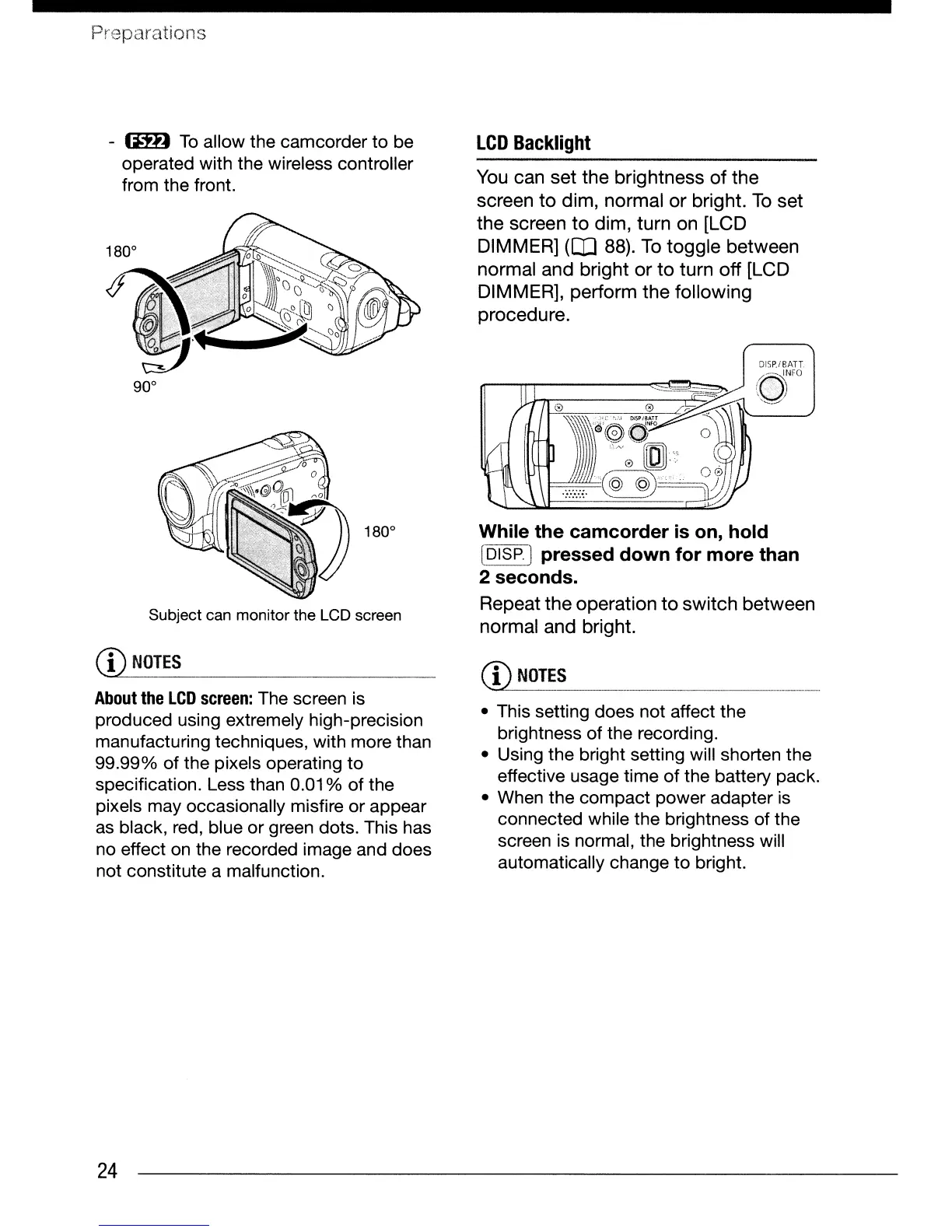
To
allow the camcorder to be
operated with the wireless controller
from the front.
Subject can monitor the LCD screen
CD
NOTES
About
the
LCD
screen:
The screen is
produced using extremely high-precision
manufacturing techniques, with more than
99.99% of the pixels operating
to
specification. Less than
0.01
%
of
the
pixels may occasionally misfire
or
appear
as
black, red, blue or green dots. This has
no effect
on
the recorded image and does
not constitute a malfunction.
24
LCD
Backlight
You can set the brightness
of
the
screen
to
dim, normal
or
bright.
To
set
the screen
to
dim, turn on [LCD
DIMMER]
(OJ
88).
To
toggle
between
normal and bright
or
to
turn
off
[LCD
DIMMER], perform
the
following
procedure.
While
the
camcorder
is
on
hold
~--
'
[~I_~~J
pressed
down
for
more
than
2
seconds.
Repeat
the
operation
to
switch
between
normal and bright.
C!2~~!~~
._.
__
..
____.
.
• This setting does not affect the
brightness of the recording.
• Using the bright setting will shorten the
effective usage time
of
the battery pack.
• When the compact power adapter is
connected while the brightness of the
screen is normal, the brightness will
automatically change
to
bright.


 To Next Page