EasyManua.ls Logo

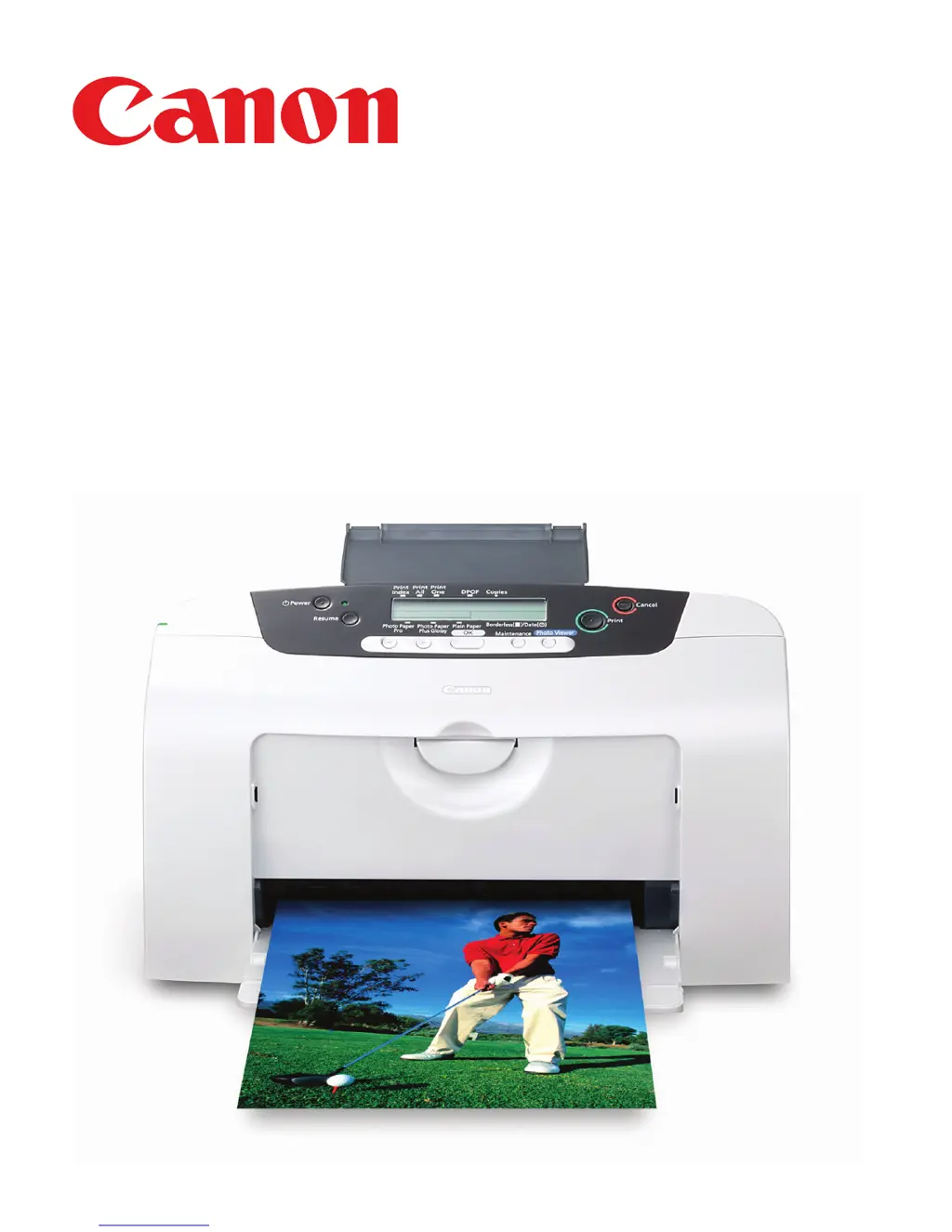
Canon i475D Series - User Manual

Canon i475D Series
70 pages
Print Icon
To Next Page IconTo Next Page
Loading...
Quick Start Guide
Quick Start Guide
Canon U.S.A., Inc.
One Canon Plaza, Lake Success, NY 11042, U.S.A.
Canon Inc.
30-2, Shimomaruko 3-chome, Ohta-ku, Tokyo 146-8501, Japan
Canon Canada, Inc.
6390 Dixie Road, Mississauga, Ontario, L5T 1P7, Canada
Canon Latin America, Inc.
703 Waterford Way, Suite 400, Miami, FL 33126, U.S.A.
Canon Mexicana S. de R.L. de C.V.
Periferico Sur No. 4124 Col. Ex-Rancho de Anzaldo, C.P. 01900, Mexico, D.F.
40-42526-0503
QA7-2840-V01 ©2003 Canon U.S.A., Inc. Printed in Vietnam
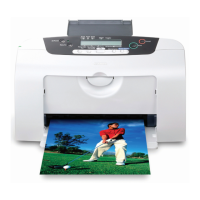
Desktop Photo Printer
i
475DSeries

Other manuals for Canon i475D Series

Questions and Answers

  • C
    christopherballardSep 9, 2025
    Why is my Canon Printer printing blurred or with wrong colors and ink does not come out if I use incorrect paper type?
    • A
      Ashley VelazquezSep 9, 2025
      If your Canon Printer is printing blurred images, displaying wrong colors, or if ink is not coming out because of incorrect paper type, on the operation panel, confirm that the MMMMeeedddddiiiiaaaa TTTTyyyyppppeeee selected matches the paper loaded.
  • G
    gonzalezvictoriaAug 23, 2025
    What to do if my Canon i475D Printer displays error 222200002222?
    • E
      Elizabeth MoodyAug 23, 2025
      If your Canon Printer displays the error code 222200002222, press the RRRReeeessssuuuummmmeeee button to recover from the error. Note that while you can print images for a while, you won't be able to print any more images once the waste ink tank is full.
  • Y
    Yvonne RossAug 25, 2025
    What to do if my Canon i475D Printer displays error 333300002222?
    • F
      fchavezAug 25, 2025
      If your Canon Printer displays the error code 333300002222, remove any jammed paper, load paper into the printer, and then press the RRRReeeessssuuuummmmeeee button.
  • J
    Joshua YuAug 26, 2025
    What to do if my Canon i475D Printer displays error 888800002222?
    • D
      Denise HowardAug 27, 2025
      If your Canon Printer displays error code 888800002222, turn off the printer, remove the power cord plug from the outlet, plug the power cord back in, and then turn the printer back on.
  • K
    Kelly RodriguezAug 27, 2025
    What to do if my Canon i475D displays error 333300001111?
    • R
      richardmeyerAug 27, 2025
      If your Canon Printer displays error code 333300001111, load paper into the printer and press the RRRReeeessssuuuummmmeeee button.
  • D
    Derek LopezAug 29, 2025
    How to fix Canon i475D Printer error 444400003333?
    • M
      michaelrasmussenAug 29, 2025
      To fix error code 444400003333 on your Canon Printer, turn off the printer by pressing the PPPPoooowwwweeeerrrr button, and then turn it on again.
  • C
    Carly BanksSep 18, 2025
    What to do if my Canon i475D displays error message 'Paper lever error' on camera?
    • S
      Shannon MyersSep 18, 2025
      If your Canon Printer displays the error message 'Paper lever error' on the camera, open the front cover and adjust the paper thickness lever to the left position.
  • M
    Mrs. Mary PattersonSep 18, 2025
    What to do if my Canon i475D Printer displays error message 'Printer error' on camera?
    • C
      calhounjoseSep 18, 2025
      If your Canon Printer displays the error message 'Printer error' on the camera, turn off the printer, unplug the power cord from the power supply, plug the power cord back in, and then turn on the printer.
  • F
    frankrileySep 7, 2025
    What does it mean when my Canon Printer displays error message 'Printer warming up' on camera?
    • E
      emilybullockSep 7, 2025
      If your Canon Printer displays the error message 'Printer warming up' on the camera, simply wait until the warm-up process is complete.
  • S
    Shirley AguilarSep 4, 2025
    How to fix Canon i475D Printer error 666611111111?
    • C
      Carlos MccormickSep 4, 2025
      To fix error code 666611111111 on your Canon Printer, press the RRRReeeessssuuuummmmeeee button. The digital camera will automatically turn on. If it does not, turn it on manually.

Summary

Basic Printing

Advanced Printing

Adjusting Print Quality for Photographs

Optimizing image quality and print settings for photos.

Printing Maintenance

Print Quality Issues

Troubleshooting faint prints or incorrect colors.

Print Head Cleaning

Procedures for cleaning clogged print head nozzles.

Aligning the Print Head

Steps to align the print head for accurate color registration.

Troubleshooting

Cannot Install the Printer Driver

Solutions for printer driver installation failures.

Print Quality Errors

Diagnosing and fixing poor print quality or errors.

Printer Hardware Issues

Troubleshooting printer hardware malfunctions and job stoppages.

Paper Handling Problems

Addressing issues like paper jams and improper feeding.

Error Messages and Indicators

Understanding and resolving printer error messages and warnings.

Canon i475D Series Specifications

General IconGeneral
Product TypeInkjet printer
FunctionsPrinter, copier, scanner
Print Resolution (Up to)4800 x 1200 dpi
Paper SizesLetter, Legal
ConnectivityUSB
Ink Cartridge CompatibilityBCI-3e Black, BCI-6 Color Cartridges

Related product manuals