3-31
3
Printer Properties
Edit Watermark
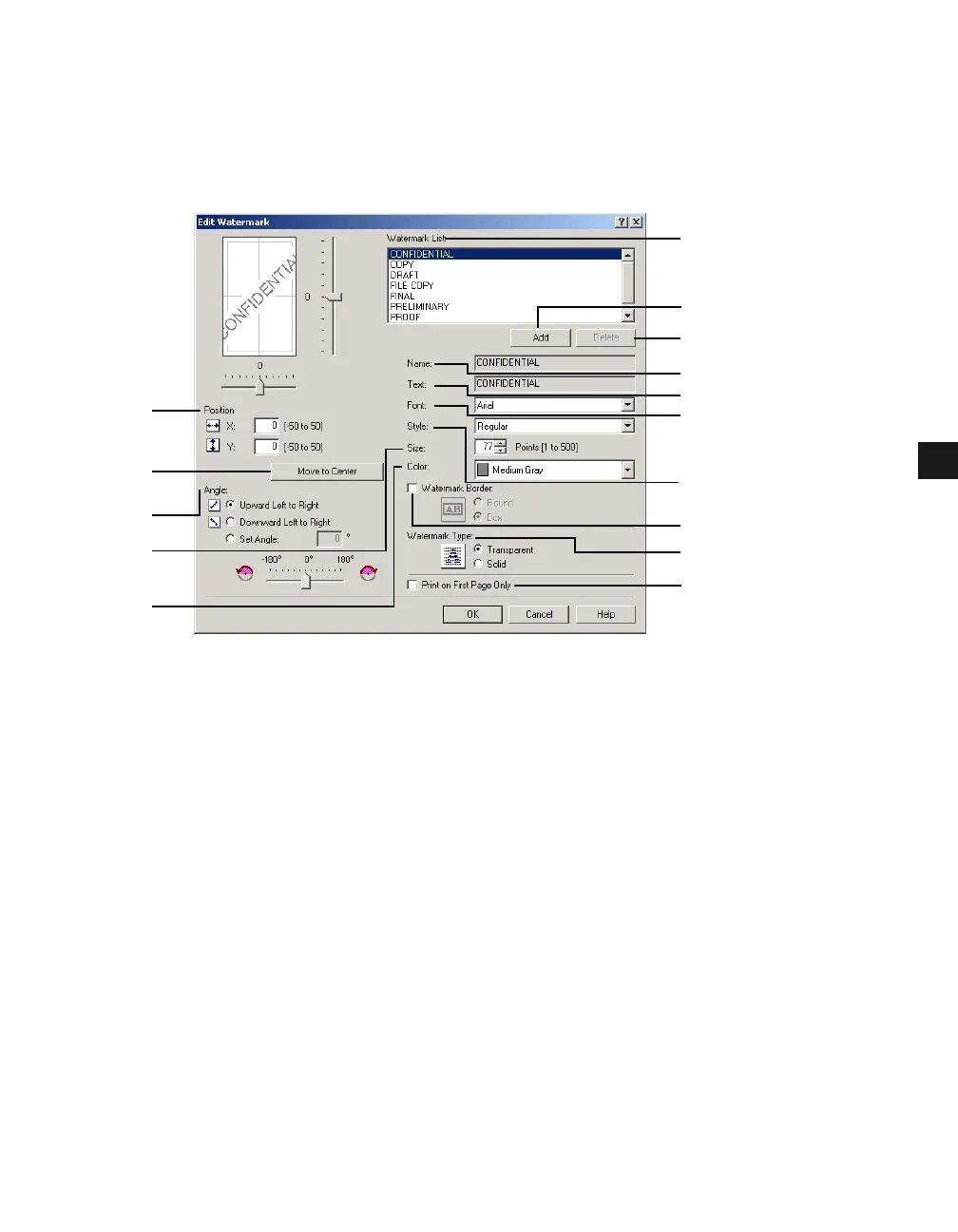
Clicking Edit Watermark in the Page Setup tab window opens the Edit Watermark dialog
box. This dialog box allows you to insert a text string as a watermark onto pages. This option
is enabled only when the Watermark checkbox is checked in the Page Setup tab window (
p. 3-29).
(1) Watermark List displays the names of registered watermarks. The Preview image in the
upper left part of the dialog box displays the selected watermark with the specified
settings reflected.
(2) Add lets you register a new watermark. Clicking this button adds a blank name field in
Watermark List (1) in which you enter the name of watermark to be registered. Up to 50
watermarks can be registered.
(3) Delete removes the selected watermark from Watermark List (1).
(4) Position lets you set the position where the watermark is printed on each page. To set the
position, specify the values in the X and Y edit boxes (in a range between –50 and +50),
or use the X and Y slide bars.
(5) Move to Center relocates the watermark to the page center.
(6) Angle lets you set the angle of watermark. To set the angle, select the corresponding radio
button, or use the slide bar.
(7) Name displays the name of the currently selected watermark.
(8) Text displays the text string of the currently selected watermark.
(9) Font lets you select the font type of the text watermark from the drop-down list.
(10) Style lets you select the font style of the text watermark from the drop-down list.
Available styles are [Regular], [Italic], [Bold], and [Bold Italic].
(1)
(4)
(5)
(6)
(11)
(12)
(7)
(8)
(15)
(14)
(13)
(10)
(2)
(3)
(9)














 To Next Page