9
En
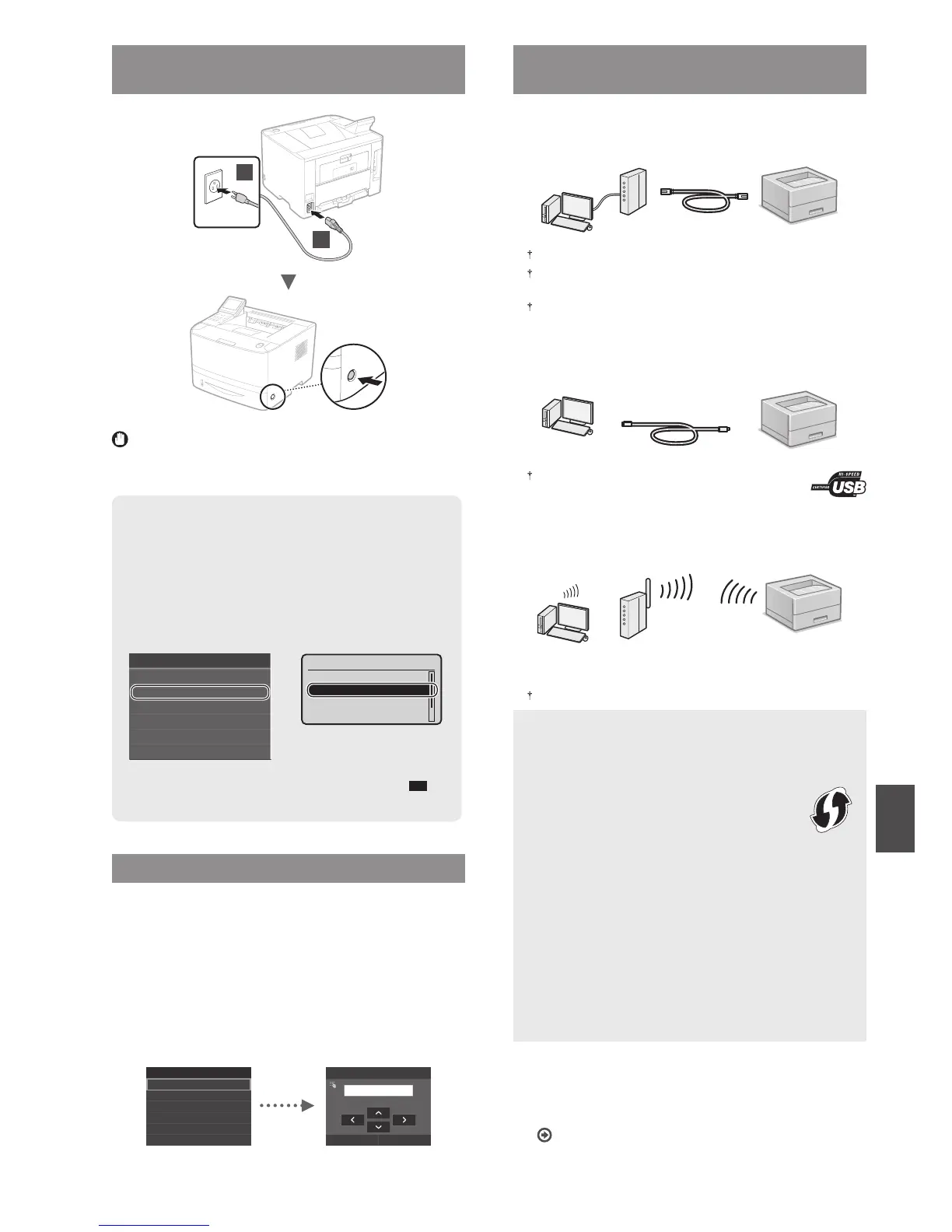
Connecting the Power Cord and Turning ON
the Power
1
2
Do not connect the USB cable at this time. Connect it when
installing software.
Principle of Describing the Operating Instructions
This Getting Started Guide describes the operating
instructions using illustrations of the LBP253dw's screen.
In following some operating instructions, such
as "select …," the operation you perform diers,
depending on the model of the machine.
Tap the item the
operating instruction
refers to.
●
LBP253dw
●
LBP251dw
Use [▲], [▼], [
◄
], or [
►
]
to select the item the
operating instruction
refers to, and press
OK
.
Paper Settings
Register Custom Paper
Drawer 2
Drawer 1
Multi-Purpose Tray
Register Custom Paper
Drawer 2
Drawer 1
Multi-Purpose Tray
Paper Settings
Specifying the Initial Settings
The rst time you turn ON the power, follow the instructions
on the screen. For details on navigating the menu and how to
input the numbers, see "Navigating the Menu and Text Input
Method" on p. 8.
●
Complete settings starting with language
and through to date and time
Follow the instructions on the screen, set the language,
region, time zone, and date and time.
Language
Spanish
French
Japanese
English
German
Italian
Current Date/Time Settings
Apply
10/10/2015 10:26 AM
(0:00-12:59)
Selecting the Method to Connect the
Machine
●
Connecting via a Wired LAN
You can connect the machine to a wired router. Use the LAN
cables to connect the machine to the wired router (access point).
Connect the computer to the router by cable or wirelessly.
Make sure that there is an available port in the router to connect
the machine and the computer.
Have a LAN Cable of Category 5 or higher twisted-pair cable ready.
●
Connecting via a USB cable
You can connect the machine to the computer using a USB
cable.
Make sure that the USB cable you use has the following
mark.
●
Connecting via a Wireless LAN
You can connect the machine to a wireless router*. Since it
is connected to wireless, no LAN cables are needed.
* A wireless router (access point), which supports IEEE802.11b/g/n,
is required.
Connect the computer to the router by cable or wirelessly.
Check if your router has a button
Select from the following two methods, depending on the
router (access point) that you are using.
●
There is a button.
You can easily setup if your router (access point)
has a button, and if the mark is on the router.
●
There is no button.
If there is no button on your router (access point), you
may manually select SSID and complete the settings.
NOTE
If you are looking to install your new device via a wireless
network connection, you can nd a video and written
guides with step-by-step instructions to assist you through
the process from the following URL:
www.usa.canon.com/WirelessHelp
Viewing these guides will ensure a smooth setup of the
device into your existing wireless environment.
●
Direct Connection
Connect a mobile device to the machine wirelessly and
directly without routing through a wireless LAN router (or
access point)
e-Manual "Can Be Used Conveniently with a Mobile
Device"
►
"Connecting to a Mobile Device"
►
"Make
Direct Connection (Access Point Mode)"








 To Next Page