8
En
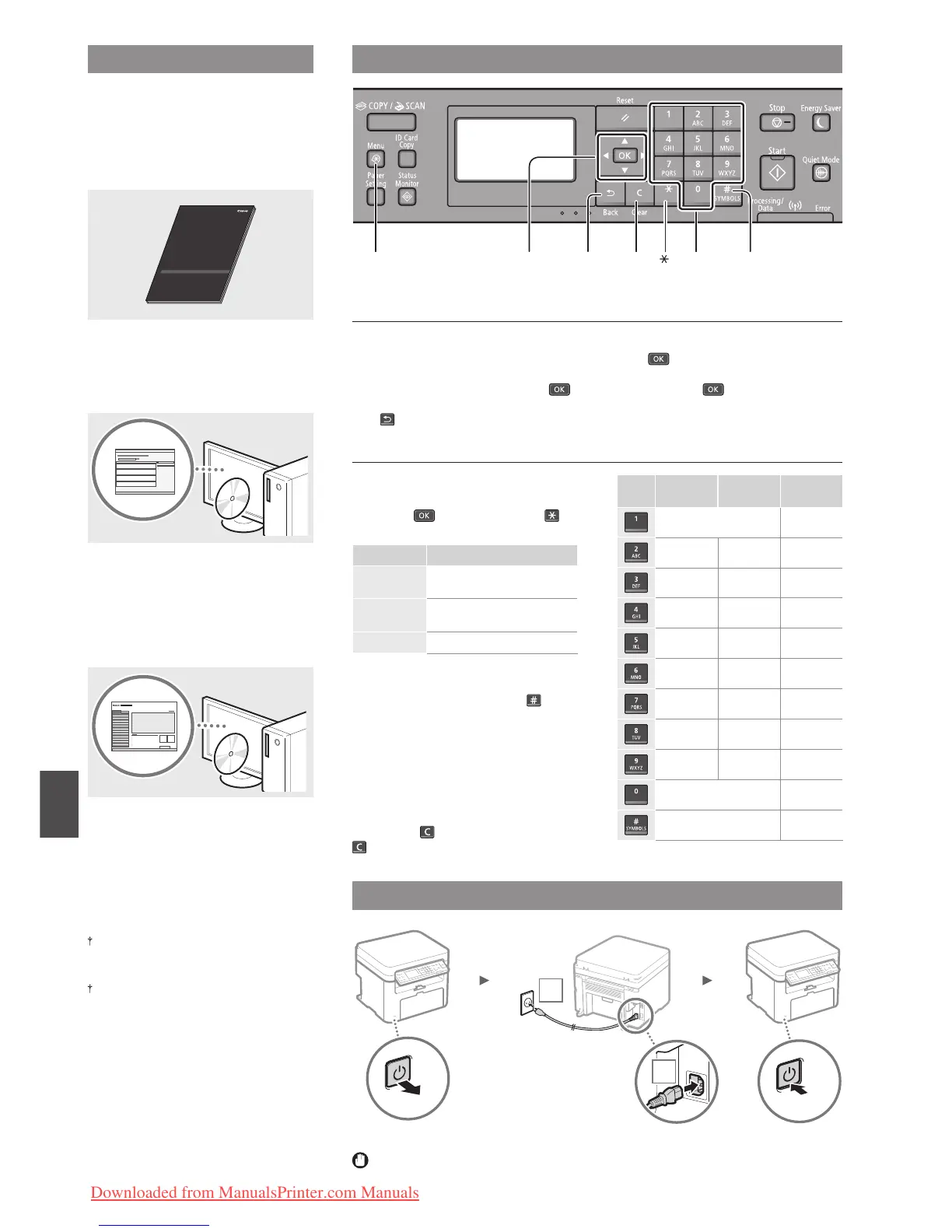
Navigating the Menu and Text Input Method
About the Supplied Manuals
Getting Started (This manual):
Read this manual rst. This manual
describes the installation of the
machine, the settings, and a caution. Be
sure to read this manual before using
the machine.
MF Driver Installation Guide (User
Software and Manuals DVD-ROM):
Read this manual next. This manual
describes software installation.
e-Manual
(User Software and Manuals DVD-
ROM):
Read the desired chapter to suit your
needs. The e-Manual is categorized by
subject to nd desired information easily.
Viewing the e-Manual from the DVD-
ROM
1 Insert the User Software and Manuals
DVD-ROM in your computer.
2 Click [Manuals].
3 Click [e-Manual].
Depending on the operating system you
are using, a security protection message
appears.
If the User Software and Manuals DVD-ROM
has been already inserted in your computer
and [Manuals] is not displayed, remove the
DVD-ROM and insert it again.
Connecting the Power Cord and Turning ON the Power
OFF
1
2
ON
Do not connect the USB cable at this time. Connect it when installing software.
Navigating the Menu
Item selection or moving the cursor
among the menu items
Select an item with [▲] or [▼].
Proceed to the next hierarchy with
or [▶]. Return to the previous hierarchy
with or [◀].
Setting con rmation
Press . However, when <Apply>
appears on the display, select <Apply>,
and then press .
Text Input Method
Changing entry mode
Press [▼] to select <Entry Mode>, and
then press
. You can also press to
change the entry mode.
Entry mode Available text
<A>
Uppercase alphabetic letters
and symbols
<a>
Lowercase alphabetic letters
and symbols
<12> Numbers
Entering text, symbols, and numbers
Enter with the numeric keys or
.
Moving the cursor (Entering a space)
Move with [◀] or [▶]. Move the cursor
to the end of the text and press [▶] to
enter a space.
Deleting characters
Delete with
. Pressing and holding
deletes all characters.
Entry mode:
<A>
Entry mode:
<a>
Entry mode:
<12>
@ . - _ / 1
ABC abc 2
DEF def 3
GHI ghi 4
JKL jkl 5
MNO mno 6
PQRS pqrs 7
TUV tuv 8
WXYZ wxyz 9
(Not available) 0
(space) - . * # ! “ , ; : ^ ` _ = / | ‘
? $ @ % & + \ ˜ ( ) [ ] { } < >
(Not available)
▲▼◀▶OK
Back
Menu #Clear Numeric keys
Downloaded from ManualsPrinter.com Manuals











 To Next Page