17
Connecting to the Computer
1
USB Connection
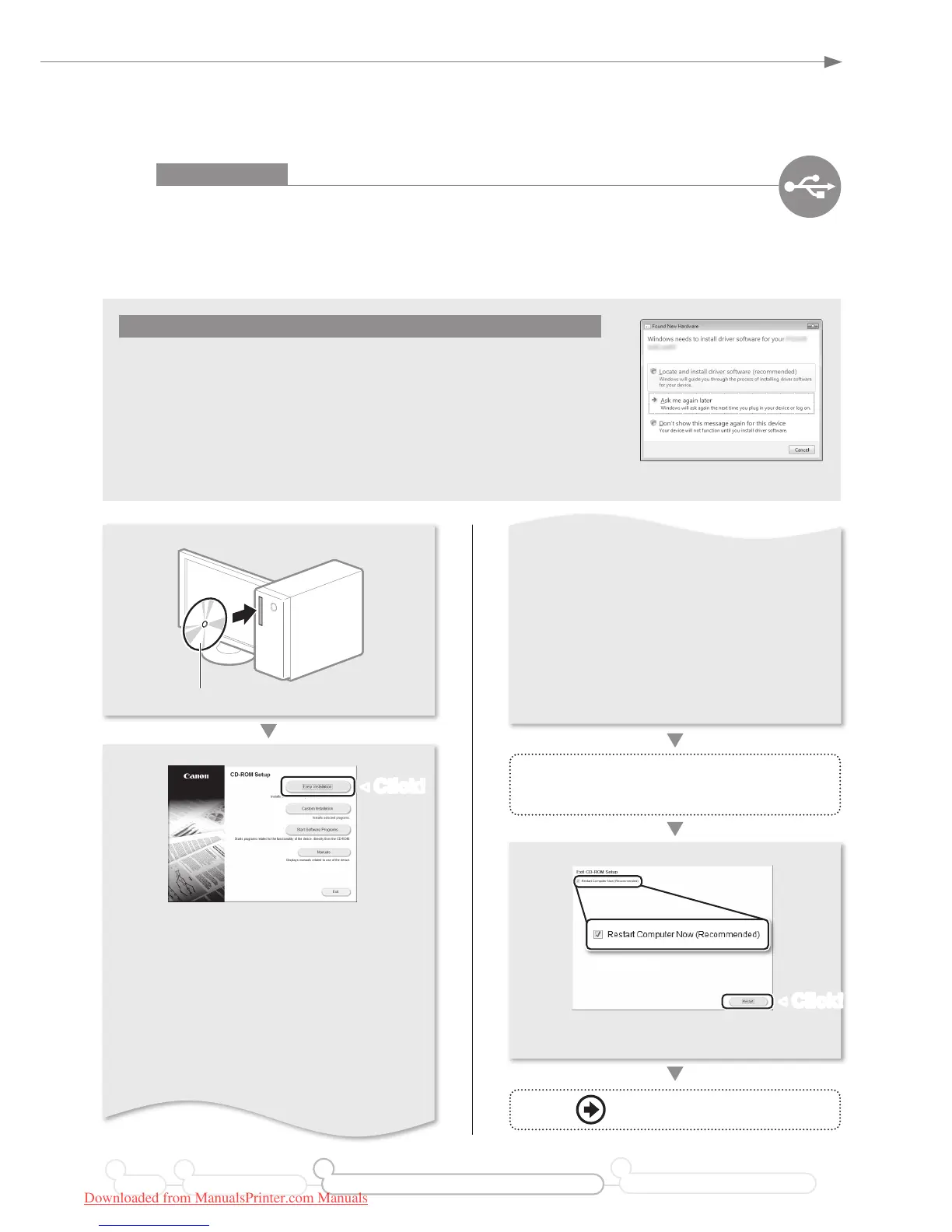
Install the Software.
Install the MF Drivers and the MF Toolbox. Make sure that the machine is turned ON, and log on to Windows as a
user with administrative privileges. Shut down all applications that are running. See MF Driver Installation Guide for
details about installation.
Do not connect the USB cable yet.
Connect the USB cable after installing the MF Drivers and the MF Toolbox.
If you already connected the USB cable:
Windows 7/8:
Disconnect the USB cable from the computer,
and then
proceed to step
.
Windows XP/Vista:
If the dialog box on the right appears, disconnect the USB cable
from the computer*,
click [Cancel],
and then proceed to step
.
* If the USB cable is disconnected and the dialog box disappears, proceed to step
.
For Windows XP/Vista
• Printer, fax, scanner drivers and MF Toolbox
will be installed.
• Select [Custom Installation] to install Presto!
PageManager and the e-Manual.
If the screen is not correctly displayed:
• Windows XP
[Start] Menu → [Run] → enter [D:\MInst.exe]*
→ [OK]
• Remove the CD-ROM, if necessary.
Follow the instructions
on the screen to continue.
User Software CD-ROM
▲
• Windows Vista/7
[Start] Menu → [Search programs and les]
(or [Start Search]) → enter [D:\MInst.exe]* →
press the [Enter] key
• Windows 8
Right-click the lower-left corner of the screen
→ select [Run] → enter [D:\Minst.exe]* → [OK]
* The CD-ROM drive name is indicated as "D:" in this
manual.
Proceed to P. 18
Preface Installing the Machine
21
Connecting to a Computer and Installing the Drivers
3
Configuring and Connecting the Fax
4
◀
Click!
▲
Select ✔
◀
Click!
Downloaded from ManualsPrinter.com Manuals






 To Next Page