EasyManua.ls Logo

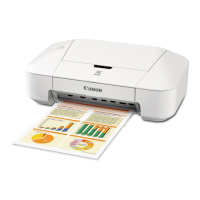
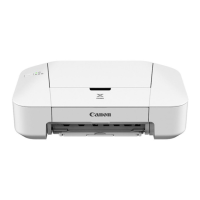
Canon IP2800 series - User Manual

Canon IP2800 series
326 pages
Print Icon
To Next Page IconTo Next Page
Loading...
iP2800 series
Online Manual
Read Me First
Useful Functions Available on the Printer
Overview of the Printer
Printing
Troubleshooting
English

Table of Contents

Other manuals for Canon IP2800 series

Questions and Answers

  • B
    Bryan DayAug 15, 2025
    How to fix Canon Printer when printing does not start?
    • L
      lauren39Aug 16, 2025
      If your Canon printer isn't starting to print, ensure the power plug is securely connected and the printer is turned on. Also, check that the USB cable is properly connected to both the printer and the computer. If you're using a USB hub, try connecting the printer directly to the computer. A faulty USB cable can also cause this issue, so consider replacing it. Clear any unnecessary print jobs and verify that you've selected the correct printer driver for your device in the Print dialog. If all else fails, try restarting your computer.
  • B
    Betty ArellanoAug 18, 2025
    What to do if my Canon Printer cannot be powered on?
    • S
      Shelly HerreraAug 19, 2025
      If your Canon printer will not power on, ensure the power plug is securely plugged into the printer's power cord connector. If it's still not working, unplug the printer from the power supply, wait at least 2 minutes, then plug it back in and try turning it on again.
  • C
    Courtney CastroAug 21, 2025
    Why my Canon IP2800 cannot connect to computer properly?
    • A
      Amy SimsAug 21, 2025
      If your Canon printer cannot connect to the computer properly, check the compatibility of your USB ports, cables, and operating systems.
  • M
    Michelle ArroyoAug 25, 2025
    Why is ink not ejecting from my Canon Printer?
    • M
      Marissa DavisAug 26, 2025
      If ink is not ejecting from your Canon printer, the possible causes are: * A FINE cartridge runs out of ink, so replace it with a new one. * The FINE cartridge is not installed securely, so retract the output tray extension and the paper output tray, open the cover, then remove the FINE cartridges and install them again. * The print head nozzles are clogged, so print the Nozzle Check Pattern to determine whether the ink ejects properly from the print head nozzles.
  • M
    Mark FullerAug 27, 2025
    How to resolve 'No Paper' error on Canon Printer?
    • K
      katherine92Aug 28, 2025
      To resolve a 'No Paper' error or improper paper feed on your Canon printer, first, ensure that paper is loaded correctly. When loading paper, align the edges of the sheets, do not exceed the load limit, load paper in portrait orientation, and ensure the print side is facing up. If the paper type or environmental conditions are a factor, reduce the number of sheets you load. Check that the paper isn't too thick or curled. When loading envelopes, prepare them before printing and load them in portrait orientation. Also, confirm that the media type and paper size settings match the loaded paper. Finally, check for and remove any foreign objects in the rear tray and clean the paper feed roller.
  • R
    Randy ValdezAug 30, 2025
    Why does my Canon IP2800 stop printing before the job is completed?
    • S
      Sonya AcevedoAug 30, 2025
      If your Canon printer stops printing before completing the job, make sure that paper is loaded. If you are printing documents with many photographs or illustrations, wait until the process is complete. If the printer has been printing continuously for a long period, wait for a while without operation. If the printing still does not resume, interrupt your print session and turn the printer off for at least 15 minutes.
  • H
    Helen ShafferSep 2, 2025
    What to do if FINE Cartridge Holder does not move on Canon IP2800?
    • Z
      zimmermanshelleySep 2, 2025
      If the FINE cartridge holder doesn't move to the replacement position on your Canon printer, ensure the POWER lamp is on by closing the cover and turning the printer on. If the Alarm lamp is flashing, close the cover, note the number of flashes, and take action to resolve the error. If the cover has been open for over 10 minutes, close and reopen it. If the printer has been printing continuously, wait for the holder to move.
  • D
    Douglas CareySep 6, 2025
    How to stop my Canon IP2800 Printer from turning off unintentionally?
    • C
      Carolyn MorrisSep 6, 2025
      To prevent your Canon printer from turning off unintentionally, deactivate the setting that automatically turns the unit off.
  • K
    Kathleen HoffmanSep 8, 2025
    What to do if my Canon IP2800 Printer cannot print to the end of the job?
    • S
      Scott ClarkeSep 8, 2025
      If your Canon printer cannot print to the end of the job, delete unnecessary files to free disk space on your computer, as insufficient hard disk space may be the cause.
  • S
    Sean DavisSep 12, 2025
    Why are my Canon IP2800 print results not satisfactory?
    • J
      James HessSep 12, 2025
      If your Canon printer's print results are unsatisfactory, first confirm that the page size and media type settings match the size and type of paper you're using. Also, ensure that the appropriate print quality is selected in the printer driver. If the problem persists, there may be other underlying causes.

Summary

Overview of the Printer

Safety Guide

Introduction to safety precautions and regulatory information for printer operation.

Printing

Troubleshooting

Problems with Printing

Solutions for common printing issues like 'Printing Does Not Start' and 'Paper Jams'.

Problems with Printing Quality

Troubleshooting steps for unsatisfactory print results, blurred prints, and color issues.

Problems with the Printer

Solutions for issues like the printer not powering on or not connecting to the computer.

About Errors;Messages Displayed

Information on understanding and resolving printer error codes and messages shown on the computer.

Canon IP2800 series Specifications

General IconGeneral
Print TechnologyInkjet
Max Print Resolution4800 x 600 dpi
ConnectivityUSB
Output Tray Capacity50 sheets
Dimensions426 x 235 x 134 mm
Print Speed (Black)8.0 ipm
Print Speed (Color)4.0 ipm
Paper SizesA4, Letter, Legal, Envelopes (DL, COM10)
Paper CompatibilityPlain Paper, Photo paper, Envelopes
Paper Input Capacity60 sheets
InterfaceUSB
Operating System SupportWindows XP/Vista/7, Mac OS X v10.4.11 or later

Related product manuals