Access the menu for Ink Tank replacement
1
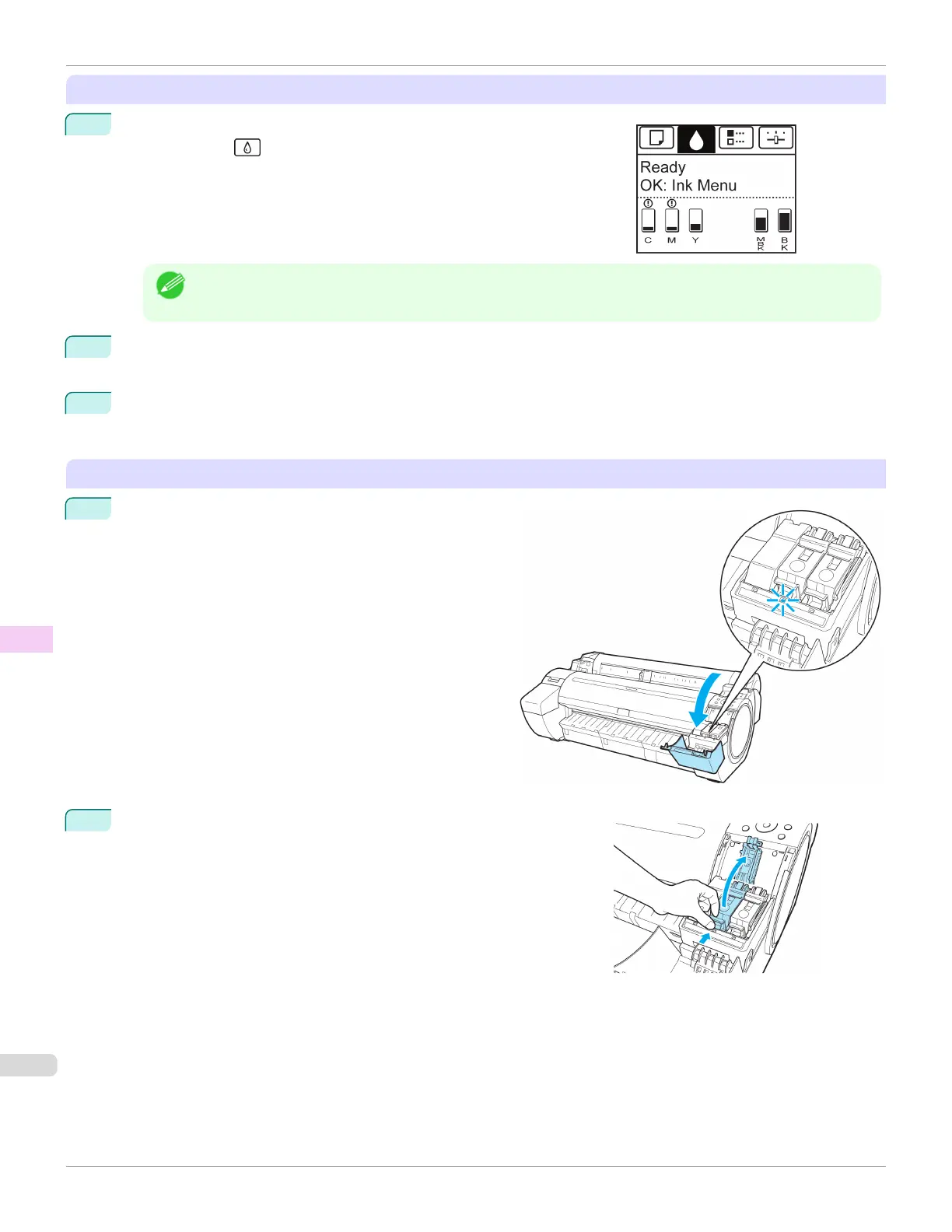
On the Tab Selection screen of the Control Panel, press ◀ or ▶ to se-
lect the Ink tab ( ).
Note
• If the Tab Selection screen is not displayed, press the Menu button.
2
Press the
OK button.
The Ink Menu is displayed.
3
Press ▲ or ▼ to select Rep. Ink Tank, and then press the OK button.
A message on the Display Screen requests you to open the Ink Tank Cover.
Remove the Ink Tank
1
Open the Ink Tank Cover and check the ink lamps.
Ink lamps flash when there is little ink left.
2
Press the tip of the Ink Tank Lock Lever of the color for replacement
horizontally and pull the Ink Tank Lock Lever up to open it.
Replacing Ink Tanks
iPF780
User's Guide
Maintenance and Consumables Ink Tanks
540













 To Next Page