EasyManua.ls Logo

Canon IXUS 150 - User Manual

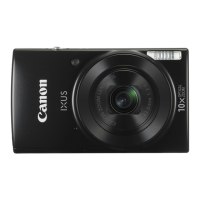
Canon IXUS 150
119 pages
Print Icon
To Next Page IconTo Next Page
Loading...
1
Before Use
Basic Guide
Advanced Guide
Camera Basics
Auto Mode
Other Shooting
Modes
P Mode
Playback Mode
Setting Menu
Accessories
Appendix
Index
Camera User Guide
ENGLISH
©CANON INC. 2014 CDD-E570-010
• Click the buttons in the lower right to access other pages.
: Next page
: Previous page
: Page before you clicked a link
• To jump to the beginning of a chapter, click the chapter
title at right.
From chapter title pages, you can access topics by
clicking their titles.
• Make sure you read this guide, including the “Safety
Precautions” section (=
7), before using the camera.
• Reading this guide will help you learn to use the camera
properly.
• Store this guide safely so that you can use it in the
future.
Downloaded From camera-usermanual.com Canon Manuals


Table of Contents

Other manuals for Canon IXUS 150

Questions and Answers

  • Q
    qpetersonSep 4, 2025
    Why are subjects in flash shots too bright, highlights washed-out on my Canon IXUS 150?
    • U
      uthomasSep 4, 2025
      If subjects in flash shots look too bright with washed-out highlights, try these solutions: * Shoot within flash range. * Set the flash mode to [!].
  • T
    Tina BallardSep 18, 2025
    Why is no date stamp added to images on my Canon IXUS 150 Digital Camera?
    • T
      thomasdoyleSep 18, 2025
      Configure the [Date Stamp] setting. Note that date stamps are not added to images automatically, merely because you have configured the [Date/Time] setting. Date stamps are not added in shooting modes in which this setting cannot be configured.
  • I
    Ian CarpenterSep 16, 2025
    Why are there white dots or similar image artifacts in flash shots taken with my Canon IXUS 150 Digital Camera?
    • T
      teresa15Sep 16, 2025
      This issue is caused by light from the flash reflecting off dust or airborne particles.
  • J
    Jennifer FernandezSep 14, 2025
    Why does my Canon IXUS 150 show strange display on the screen when shooting?
    • L
      Lisa MarquezSep 14, 2025
      The screen may darken under bright light. The screen may flicker under fluorescent or LED lighting. Purplish banding may appear on the screen if you compose a shot that includes a bright light source.
  • S
    Scott BowenSep 13, 2025
    Why are shooting settings or FUNC. menu settings not available on my Canon IXUS 150 Digital Camera?
    • S
      Sarah BrooksSep 13, 2025
      Available setting items vary by shooting mode. Refer to “Functions Available in Each Shooting Mode”, “FUNC. Menu”, and “Shooting Tab Menu”.
  • U
    uabbottSep 12, 2025
    Why is the lens not retracted on my Canon IXUS 150 Digital Camera?
    • B
      Brianna VazquezSep 12, 2025
      Do not open the memory card/battery cover while the camera is on. Close the cover, turn the camera on, and then turn it off again.
  • J
    Jane WilliamsSep 9, 2025
    Why is recording to the memory card slow, or continuous shooting slow on my Canon IXUS 150?
    • W
      Wendy MyersSep 9, 2025
      If recording to the memory card takes too long, or continuous shooting is slower, use the camera to perform low-level formatting of the memory card.
  • C
    Curtis TaylorSep 7, 2025
    What to do if shots look too dark despite the flash firing on my Canon Digital Camera?
    • J
      jerry81Sep 7, 2025
      If your shots look too dark even when the flash fires: * Shoot within flash range. * Increase the ISO speed.
  • D
    Donna StrongSep 5, 2025
    What to do if no AF frames are displayed and the camera does not focus when the shutter button is pressed halfway on my Canon IXUS 150 Digital Camera?
    • L
      Laura LewisSep 5, 2025
      To display AF frames and ensure the camera focuses correctly, compose the shot with higher-contrast subject areas centered before pressing the shutter button halfway. Otherwise, try pressing the shutter button halfway repeatedly.
  • D
    Daniel OneillAug 21, 2025
    What to do if shots are out of focus with my Canon Digital Camera?
    • T
      Tina KellerAug 21, 2025
      If your shots are out of focus, try the following: 1. Press the shutter button halfway to focus on subjects before pressing it all the way down to shoot. 2. Ensure subjects are within focusing range. 3. Set [Lamp Setting] to [On]. 4. Deactivate unneeded functions such as macro. 5. Try shooting with focus lock or AF lock.

Summary

Before Use

Safety Precautions

Crucial safety guidelines and warnings to prevent injury and property damage.

Basic Guide

Initial Preparations

Steps for setting up the camera, including attaching strap, holding, and charging.

Trying the Camera Out

Instructions for turning on the camera, shooting, and viewing images.

Advanced Guide

Camera Basics

Explains basic operations like on/off, shutter button, and display options.

Auto Mode

Shooting with Camera-Determined Settings

Guide to using Smart Auto mode for automatic scene detection and optimal settings.

Common, Convenient Features

Details on features like digital zoom and self-timer for easier shooting.

Other Shooting Modes

Specific Scenes

Using scene modes like Portrait, Low Light, Snow, and Fireworks for optimal shots.

Applying Special Effects

Adding various effects to images during shooting, like vivid colors or poster effect.

P Mode

Shooting in Program AE ([P] Mode)

Customizing settings in Program AE mode for preferred shooting style.

Image Brightness (Exposure)

Adjusting image brightness using exposure compensation.

Playback Mode

Viewing

How to play back and browse images and movies on the camera screen.

Protecting Images

Methods to protect important images from accidental erasure.

Setting Menu

Adjusting Basic Camera Functions

Customizing common functions like sound, volume, and hints for convenience.

Formatting Memory Cards

Guide to formatting memory cards to prepare them for camera use.

Accessories

Optional Accessories

Details on various optional accessories like battery packs, chargers, and flashes.

Appendix

Troubleshooting

Solutions for common camera problems and error messages.

On-Screen Information

Explains various icons and indicators displayed on the camera screen.

Canon IXUS 150 Specifications

General IconGeneral
Megapixel20 MP
Camera typeCompact camera
Sensor typeCCD
Image stabilizerYes
Total megapixels20.5 MP
Image sensor size1/2.3 \
Image formats supportedJPG
Supported aspect ratios4:3, 16:9
Maximum image resolution5152 x 3864 pixels
Still image resolution(s)5152 x 3864\\r 3648 x 2736\\r 2048 x 1536\\r 640 x 480\\r 5152 x 2896
Digital zoom4 x
Optical zoom10 x
Combined zoom40 x
Focal length range4.3 - 43 mm
Maximum aperture number6.9
Minimum aperture number3
Maximum focal length (35mm film equiv)240 mm
Minimum focal length (35mm film equiv)24 mm
FocusTTL
Normal focusing range0.05 - ∞ m
Auto focusing (AF) modes-
Macro focusing range (wide)0.01 - 0.5 m
Auto Mode focusing range (tele)1 - ∞ m
Auto Mode focusing range (wide)0.01 - ∞ m
Light meteringCentre-weighted, Evaluative (Multi-pattern), Spot
ISO sensitivity100, 1600, Auto
Light exposure modesAuto, Manual
ISO sensitivity (max)1600
ISO sensitivity (min)100
Light exposure controlProgram AE
Light exposure correction± 2EV (1/3EV step)
Fastest camera shutter speed1/2000 s
Slowest camera shutter speed15 s
Flash modesAuto, Flash off, Flash on, Slow synchronization
Flash range (tele)1 - 2 m
Flash range (wide)0.5 - 4 m
Flash recharging time10 s
Power source typeBattery
Video resolutions640 x 480, 1280 x 720 pixels
Motion JPEG frame rate25 fps
Video formats supportedAVC, H.264, MOV, MPEG4
Maximum video resolution1280 x 720 pixels
Analog signal format systemNTSC, PAL
Resolution at capture speed1280x720@25fps, 640x480@30fps
Audio formats supportedLPCM
Memory slots1
Internal memory- MB
Compatible memory cardsSD, SDHC, SDXC
Maximum memory card size32 GB
Field of view100 %
Display diagonal2.7 \
Display resolution (numeric)230000 pixels
HDMINo
Scene modesFireworks, Portrait, Snow
Image editingRotating
White balanceAuto, Cloudy, Custom modes, Daylight, Fluorescent, Fluorescent H, Tungsten
Playback modesNext, Normal, Previous, Rotation, Shuffle, Slideshow
Shooting modesAuto, Movie, Scene
Camera playbackMovie, Single image, Slide show
Image processorDIGIC 4+
Self-timer delay2, 10 s
Camera file systemDPOF 1.1, Exif 2.3
Battery voltage3.7 V
Battery capacity800 mAh
Battery life (CIPA standard)230 shots
Product colorSilver
Operating temperature (T-T)0 - 40 °C
Operating relative humidity (H-H)10 - 90 %
Weight and Dimensions IconWeight and Dimensions
Depth23.7 mm
Width95.3 mm
Height56.8 mm
Weight125 g
Weight (including battery)142 g

Related product manuals