EasyManua.ls Logo

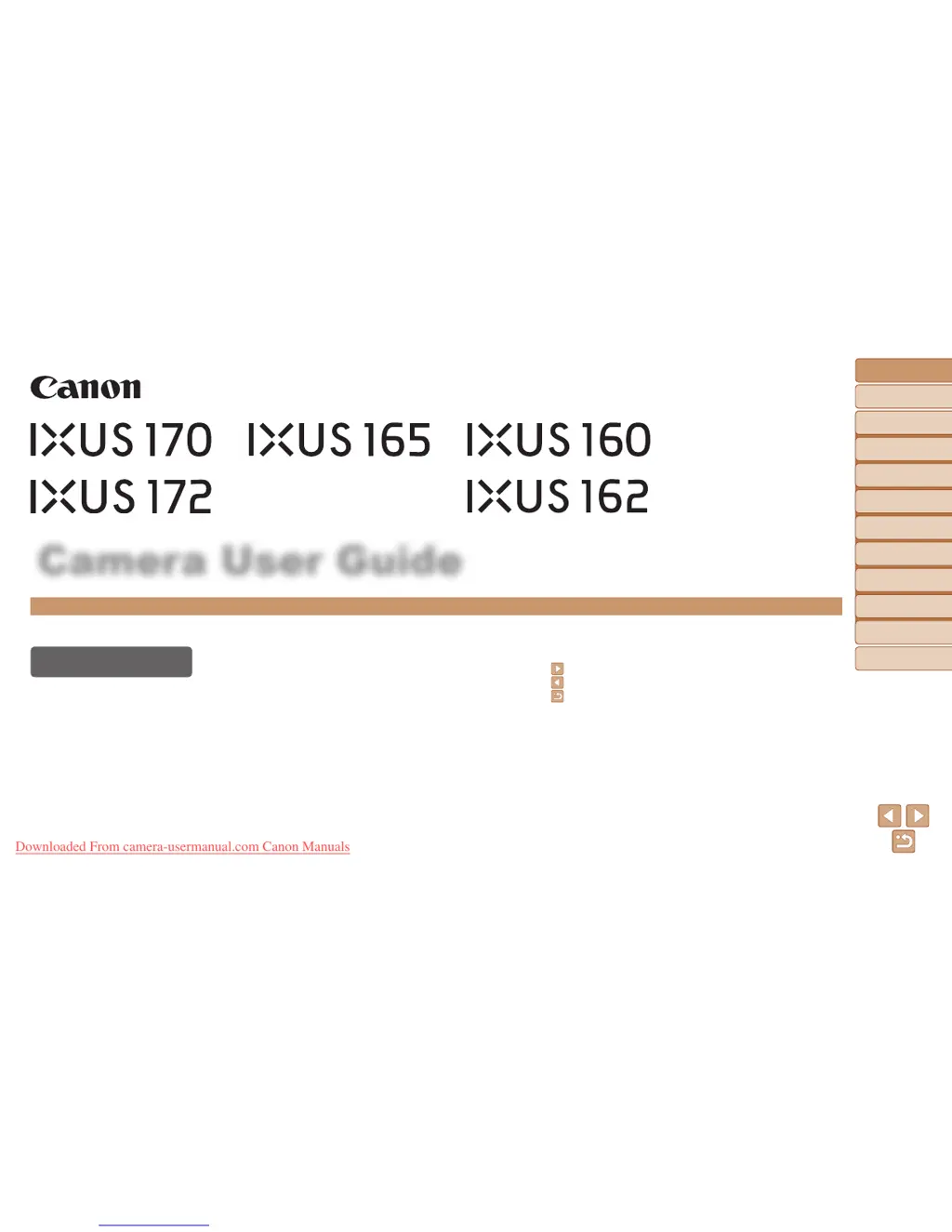
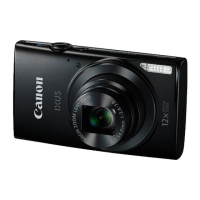
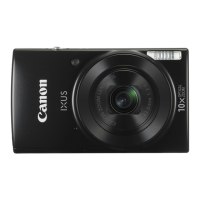
Canon IXUS 172 - User Manual

Canon IXUS 172
117 pages
Print Icon
To Next Page IconTo Next Page
Loading...
1
Before Use
Basic Guide
Advanced Guide
Camera Basics
Auto Mode
Other Shooting
Modes
P Mode
Playback Mode
Setting Menu
Accessories
Appendix
Index
Camera User Guide
ENGLISH
© CANON INC. 2015 CEL-SV6XA210
• Click the buttons in the lower right to access other pages.
: Next page
: Previous page
: Page before you clicked a link
• To jump to the beginning of a chapter, click the chapter
title at right.
From chapter title pages, you can access topics by
clicking their titles.
• Make sure you read this guide, including the “Safety
Precautions” section (=
6), before using the camera.
• Reading this guide will help you learn to use the camera
properly.
• Store this guide safely so that you can use it in the
future.
Downloaded From camera-usermanual.com Canon Manuals

Table of Contents

Other manuals for Canon IXUS 172

Questions and Answers

  • K
    Kim HawkinsSep 8, 2025
    How to reduce red-eye in Canon Digital Camera photos?
    • F
      fvargasSep 8, 2025
      To reduce red-eye in your Canon Digital Camera photos, set [Lamp Setting] to [On] to activate the red-eye reduction lamp when using the flash. Alternatively, you can edit images later using red-eye correction software.
  • S
    Stephanie HillAug 23, 2025
    Why is my Canon IXUS 172 not focusing when I press the shutter button halfway?
    • M
      Miss Karen BaxterAug 23, 2025
      If no AF frames are displayed and your Canon Digital Camera isn't focusing when you press the shutter button halfway, try composing the shot with higher-contrast subject areas centered before pressing the shutter button. If that doesn't work, try pressing the shutter button halfway repeatedly.
  • S
    Susan MeltonAug 25, 2025
    How to fix sluggish camera operation on a Canon Digital Camera?
    • J
      Joseph GordonAug 25, 2025
      If your Canon Digital Camera operation becomes sluggish, try setting [Eye-Fi trans.] to [Disable].
  • C
    Cassandra GuzmanAug 26, 2025
    What to do if subjects in my Canon Digital Camera photos look too dark?
    • R
      Ronald EdwardsAug 26, 2025
      If subjects in your Canon Digital Camera photos appear too dark, try setting the flash mode to [h]. You can also adjust brightness using exposure compensation, adjust contrast using i-Contrast, or use AE lock or spot metering.
  • O
    obrienjoelAug 27, 2025
    What to do if Canon IXUS 172 Digital Camera shots are too dark even with flash?
    • K
      Kenneth BradleyAug 27, 2025
      If your Canon Digital Camera shots are too dark even when the flash fires, ensure you are shooting within the flash range. You might also want to increase the ISO speed.
  • T
    Travis MillerSep 19, 2025
    Why is playback not possible on my Canon Digital Camera?
    • S
      Steven CampbellSep 22, 2025
      Image or movie playback may not be possible on your Canon Digital Camera if a computer is used to rename files or alter the folder structure.
  • H
    Heather MedinaSep 16, 2025
    Why is there no sound during Canon IXUS 172 Digital Camera movies?
    • J
      juanvaldezSep 16, 2025
      If there is no sound during movies on your Canon Digital Camera, adjust the volume if you have activated [Mute] or if the sound in the movie is faint.
  • J
    jhooverSep 18, 2025
    Why does my Canon IXUS 172 Digital Camera display [ ] and stop shooting?
    • O
      Oscar OrtizSep 18, 2025
      If your Canon Digital Camera displays [ ] and stops shooting automatically, try using the camera to perform low-level formatting of the memory card. You can also lower the image quality or switch to a memory card that supports high-speed recording.
  • T
    Trevor NavarroSep 7, 2025
    Why do my Canon IXUS 172 Digital Camera shots look grainy?
    • S
      stephanie62Sep 7, 2025
      If your Canon Digital Camera shots look grainy, try lowering the ISO speed. High ISO speeds in some shooting modes can cause grainy images.
  • E
    ejacobsSep 4, 2025
    How to fix overexposed highlights in Canon IXUS 172 photos?
    • S
      Steven SmithSep 4, 2025
      If the subjects look too bright and the highlights are washed-out in your Canon Digital Camera photos, try setting the flash mode to [!]. Alternatively, adjust brightness using exposure compensation, use AE lock or spot metering, or reduce the lighting on the subjects.

Canon IXUS 172 Specifications

General IconGeneral
TypeCompact
Optical Zoom8x
Digital Zoom4x
Image Sensor TypeCCD
Image Sensor Size1/2.3 inch
ISO Range100-1600
Battery TypeLi-ion
Image stabilizationOptical
Dimensions95.2 x 54.3 x 22.1 mm
Megapixels20 MP
Video Resolution1280 x 720 (HD)
Maximum Aperturef/3.2
Focal Length28 - 224 mm
Weight126 g (including battery and memory card)
Shutter Speed1 – 1/2000 sec. (Auto mode) 15 – 1/2000 sec. (Total range – varies by shooting mode)

Related product manuals