EasyManua.ls Logo

Canon IXUS i - User Manual

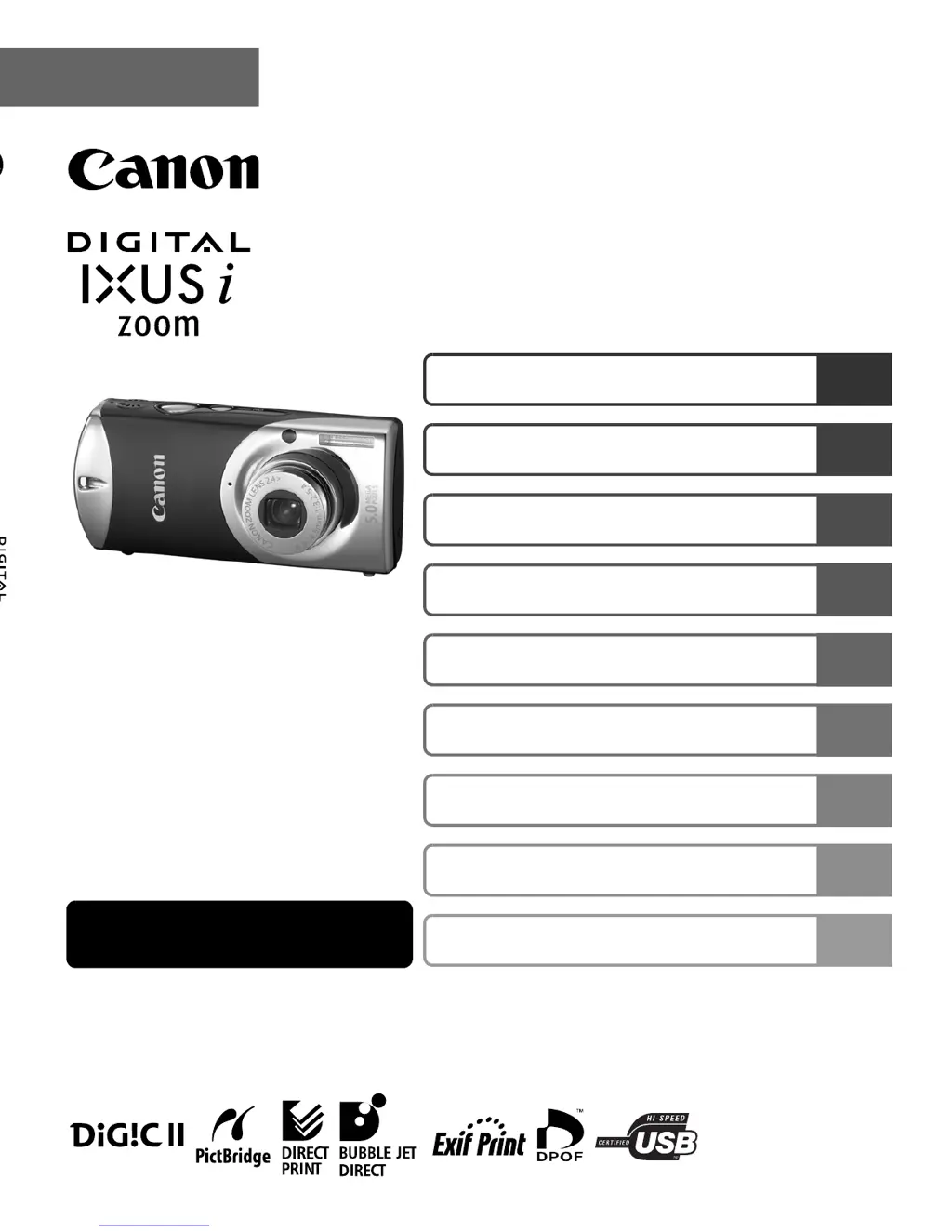
Canon IXUS i
129 pages
Print Icon
To Next Page IconTo Next Page
Loading...
Camera User Guide
Advanced
DIGITAL CAMERA
Advanced Camera User Guide
Before Using the Camera
Shooting
Playback/Erasing
Print/Transfer Settings
Viewing Images on a TV set
Customizing the Camera
Troubleshooting
List of Messages
This guide explains camera features and procedures in detail.
Appendix
© 2005 CANON INC. CEL-SF2UA210
ENGLISH

Table of Contents

Questions and Answers

  • K
    Kimberly PayneAug 13, 2025
    Why will my Canon IXUS i Digital Camera not record?
    • E
      evansmonicaAug 13, 2025
      If your Canon Digital Camera won't record, first, ensure the mode switch is set to the appropriate recording mode ( or ). Also, verify that the camera is not in the camera station. If the flash is charging, wait until the indicator light turns orange, then press the shutter button. Check if the memory card is full; if so, insert a new one or download images to a computer and erase them from the card. Finally, ensure the SD memory card is not write-protected by sliding the write protect tab upward. If the memory card is not formatted correctly, format it. If reformatting does not work, the memory card logic circuits may be damaged. Consult the nearest Canon Customer Support Help Desk.
  • K
    Kirsten BrownAug 17, 2025
    Why my Canon IXUS i will not operate?
    • G
      gvaughanAug 17, 2025
      If your Canon Digital Camera will not operate, first, ensure the power is turned on by pressing the power button. Check that the memory card slot/battery cover is securely closed. If the battery voltage is insufficient (indicated by a "Change the battery pack" message), insert a fully charged battery or use the compact power adapter. If there is poor contact between the camera and battery terminals, polish the terminals with a soft cotton swab before charging or using the battery.
  • B
    Brad KellyAug 21, 2025
    How to fix a blurred or out of focus image on my Canon IXUS i?
    • R
      Russell StoneAug 21, 2025
      If your Canon Digital Camera images are blurred or out of focus, ensure the AF-assist Beam is set to [On] in dark environments, being careful not to obstruct the beam with your hand. If the camera moves when pressing the shutter button, use the self-timer (2 seconds) or place the camera on a stable surface or tripod. Make sure the subject is within the correct shooting distance. If the subject is hard to focus on, use the focus lock feature.
  • T
    Tracy BuchananAug 25, 2025
    How to unlock card on Canon Digital Camera?
    • M
      Mr. Brandon MoralesAug 26, 2025
      If the "Card locked!" message appears on your Canon Digital Camera, it means the SD memory card's write protect tab is set to "Write protect". When recording to, erasing from, or formatting the SD memory card, slide the tab upward.
  • K
    Katherine McmahonAug 28, 2025
    What to do if subject in recorded image is too dark on Canon Digital Camera?
    • M
      mcclainstephanieAug 28, 2025
      If the subject in your Canon Digital Camera image is too dark, and there is insufficient light for shooting, set the flash to (auto). If the subject is dark in contrast to the background, set the exposure compensation to a positive (+) setting or use the spot metering function. If the subject is too far away for the flash to reach, shoot within the correct shooting distance or raise the ISO speed.
  • A
    Amy MyersSep 1, 2025
    Why is the subject in my Canon Digital Camera image too bright?
    • J
      Justin BautistaSep 1, 2025
      If the subject in your Canon Digital Camera image is too bright, ensure you are shooting within the correct shooting distance when using the built-in flash, as the subject may be too close, making the flash too strong. If the subject is bright in contrast to the background, set the exposure compensation to a negative (-) setting or use the spot metering function. If too much light is shining directly into the camera or being reflected off the subject, change the shooting angle. Also, check if the flash is set to on; if so, set it to (flash off).
  • K
    Karen ThomasSep 5, 2025
    Why does my Canon IXUS i image flash white and contain noise?
    • M
      Monica JamesSep 5, 2025
      If your Canon Digital Camera image flashes white or contains noise, it may be because the ISO speed is too high. Higher ISO speeds increase image noise. To take cleaner images, use as low an ISO speed as possible. In,,, and modes, the ISO speed increases and noise can appear.
  • M
    mharrisSep 8, 2025
    Why does the Date/Time menu appear on my Canon IXUS i?
    • C
      Carol HansenSep 8, 2025
      If the Date/Time menu appears on your Canon Digital Camera, it indicates that the built-in rechargeable lithium battery charge is low. Recharge the built-in battery immediately.

Summary

Before Using the Camera

Conventions Used in this Guide

Explains the icons and conventions used throughout the manual.

Handling Precautions

Provides important safety and usage guidelines before operating the camera.

Safety Precautions

Details essential safety measures for correct camera operation and to prevent injury.

Preventing Malfunctions

Offers advice on avoiding common issues like magnetic fields and condensation.

The Components Guide

Identifies and describes the various parts of the camera.

Basic Operations

Covers fundamental camera operations like using the wireless controller and LCD monitor.

Formatting Memory Cards

Explains the process and importance of formatting memory cards for camera use.

Setting the World Clock

Details how to set the camera's time zone for accurate date/time recording.

Menus and Settings

Guides users on navigating camera menus and adjusting various settings.

Resetting Settings to Default Values

Describes how to restore all camera settings to their original factory defaults.

Shooting

Changing Resolution and Compression

Explains how to adjust image resolution and compression settings for still photos.

Digital Zoom

Details how to use the camera's digital and optical zoom features.

Continuous Shooting

Covers the function for capturing multiple shots in rapid succession.

Postcard Date Imprint Mode

Explains how to imprint dates on images for postcard printing.

Using the Self-Timer

Guides on setting and using the self-timer for delayed shots.

Shooting Vertically

Describes how to shoot with the camera held vertically using the shutter release.

Movie Shooting

Details the different modes and settings for recording video.

Shooting Panoramic Images

Explains the Stitch Assist feature for creating panoramic photos.

Focusing Modes

Covers switching between different autofocus modes like AiAF.

Metering Modes

Explains how to select different metering methods for exposure.

Exposure Compensation

Guides on adjusting exposure levels to achieve desired brightness.

White Balance

Details how to adjust white balance for accurate color reproduction.

Photo Effect

Explains how to apply creative photo effects to images before shooting.

My Colors Mode

Covers features for altering colors and tones in images.

ISO Speed

Explains how to adjust ISO sensitivity for different lighting conditions.

Auto Rotate Function

Details the feature that automatically rotates images based on camera orientation.

Creating Image Folders

Guides on organizing images by creating new folders.

File Numbering

Explains how to manage file numbering and resetting options.

Playback;Erasing

Magnifying Images

Explains how to zoom in and navigate images during playback.

Index Playback

Describes viewing multiple images simultaneously in a grid format.

Viewing Movies

Guides on playing back recorded movie files.

Editing Movies

Details how to trim or delete portions of recorded movies.

Rotating Images

Explains how to rotate images clockwise by 90 or 270 degrees.

Transition Effects

Covers selecting transition effects for image playback.

Attaching Sound Memos

Guides on adding short audio notes to still images.

Slide Shows

Explains how to set up and view automated slide shows.

Protecting Images

Details how to protect important images from accidental deletion.

Erasing All Images

Covers the process of deleting all images from the memory card.

Print Settings;Transfer Settings

DPOF Print Settings

Explains how to set print options for compatible printers using DPOF.

DPOF Transfer Settings

Details how to specify transfer settings for images to a computer using DPOF.

Viewing Images on a TV set

Customizing the Camera

My Camera Settings

Guides on personalizing camera settings like startup images and sounds.

Registering My Camera Settings

Explains how to save custom settings and sounds to the camera.

Troubleshooting

Camera Issues

Addresses problems related to the camera not operating or powering on.

LCD Monitor Issues

Covers display problems like darkening, flickering, or bars of light.

Shooting Issues

Addresses problems encountered during shooting, like camera not recording.

Image Focus and Blur

Helps resolve issues with blurred or out-of-focus images.

Image Brightness Issues

Covers problems with images being too dark or too bright.

Red-Eye Correction

Addresses the issue of red-eye appearing in photos.

Movie Shooting Issues

Troubleshoots problems with movie recording and playback.

Playback Issues

Covers problems encountered during image playback.

Battery Issues

Addresses problems related to battery consumption and charging.

List of Messages

Provides explanations for various messages displayed on the LCD monitor.

Appendix

Battery Handling

Provides guidelines for handling and maintaining the camera's battery.

Memory Card Handling

Offers precautions and best practices for handling memory cards.

Formatting Memory Cards

Details the memory card formatting process and its implications.

Battery Charger

Explains how to use the battery charger to recharge the camera battery.

Externally Mounted Flash

Guides on attaching and using an optional external flash unit.

Camera Care and Maintenance

Provides instructions on cleaning and maintaining the camera body, lens, and LCD.

Specifications

Lists the technical specifications and features of the camera.

Battery Capacity

Details the battery life and performance under various conditions.

Memory Cards and Capacities

Provides estimated capacities of memory cards with different resolutions.

Image Data Sizes

Estimates the file sizes for images based on resolution and compression.

Component Specifications

Lists specifications for memory cards, battery, and camera station.

Power Adapter and Controller Specs

Details specifications for the compact power adapter and wireless controller.

Battery Charger Specs

Lists the specifications for the battery charger.

Functions Available in Each Shooting Mode

Canon IXUS i Specifications

General IconGeneral
ModelCanon IXUS i
TypeDigital Camera
Image SensorCCD
Optical Zoom2.4x
ISO Range50, 100, 200, 400
Image ProcessorDIGIC II
Sensor TypeCCD
LCD Screen Size1.5 inches
Video RecordingYes
BatteryNB-3L Lithium-ion
Shutter Speed15 - 1/2000 sec
Storage MediaSD
Supported Flash MemorySD

Related product manuals