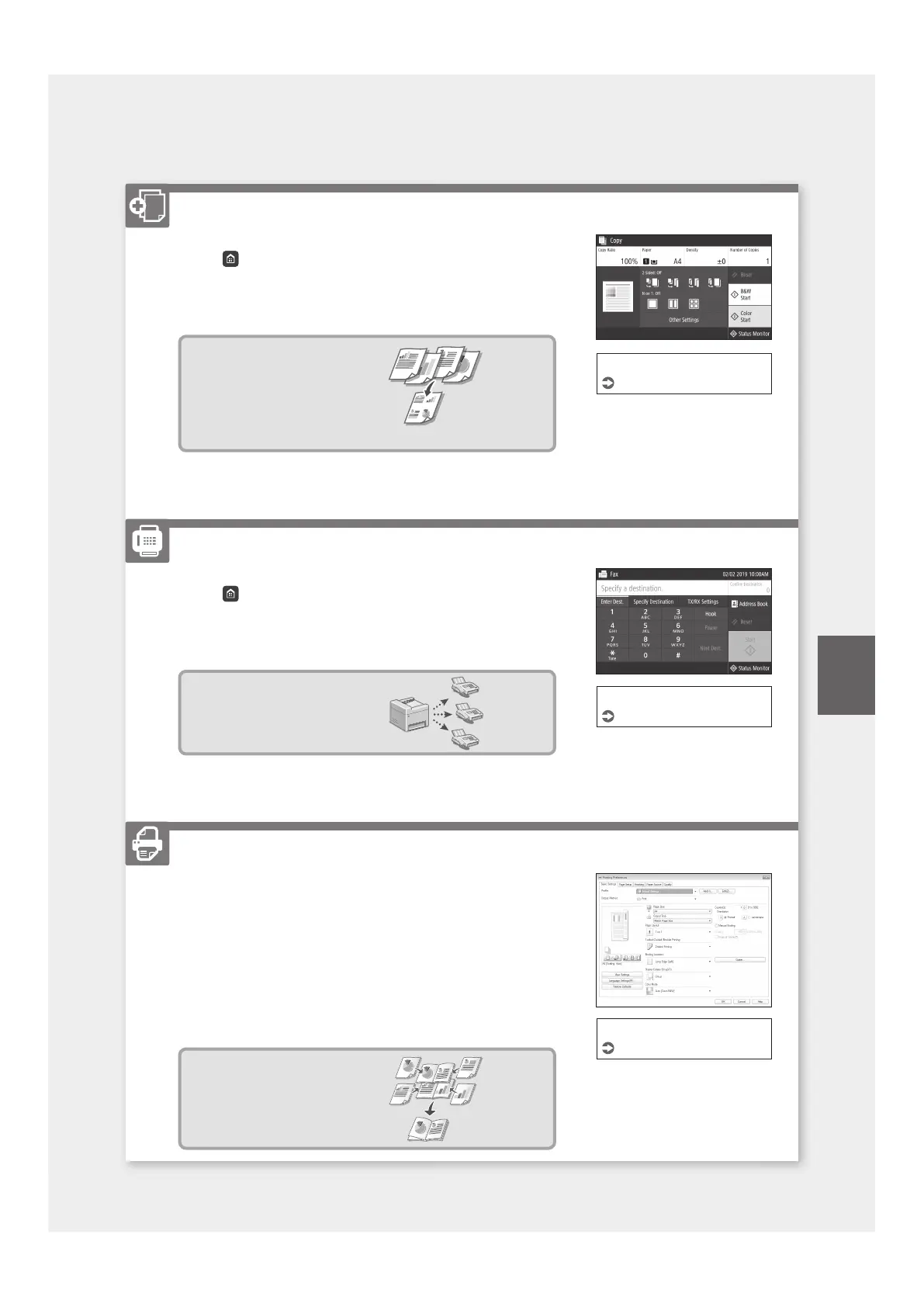
1. Place the original.
2. Press
, and then select <Copy>.
3. Enter the desired number of copies.
4. Specify the copy settings, as necessary.
5. Select <B&W Start> or <Color Start>.
Useful copy functions
■
N on 1
■
2-Sided or 1-Sided
■
Enlarging or reducing
■
Copying ID cards
■
Passport Copy
1. Place the original.
2. Press
, and select <Fax>.
3. Enter the destination information.
4. Specify the fax settings, as necessary.
5. Select <Start>.
Useful fax functions
■
Sequential Broadcast
■
Memory Reception
■
PC Fax
1. Open the document to print, and select the print function of the
application.
2. Select the printer driver for the machine, and select [Preferences] or
[Properties].
3. Specify the paper size.
4. Specify the paper source and paper type.
5. Specify the print settings, as necessary.
6. Select [OK].
7. Select [Print] or [OK].
Useful print settings
■
2-sided
■
N on 1
■
Booklet Printing
For details
"Copying" in the User's Guide
Faxing*
* This function may not be available, depending on the model of the machine.
For details
"Faxing" in the User's Guide
Printing
For details
"Help" on the printer driver
15
Quick Operation
Copying
En





 To Next Page