EasyManua.ls Logo

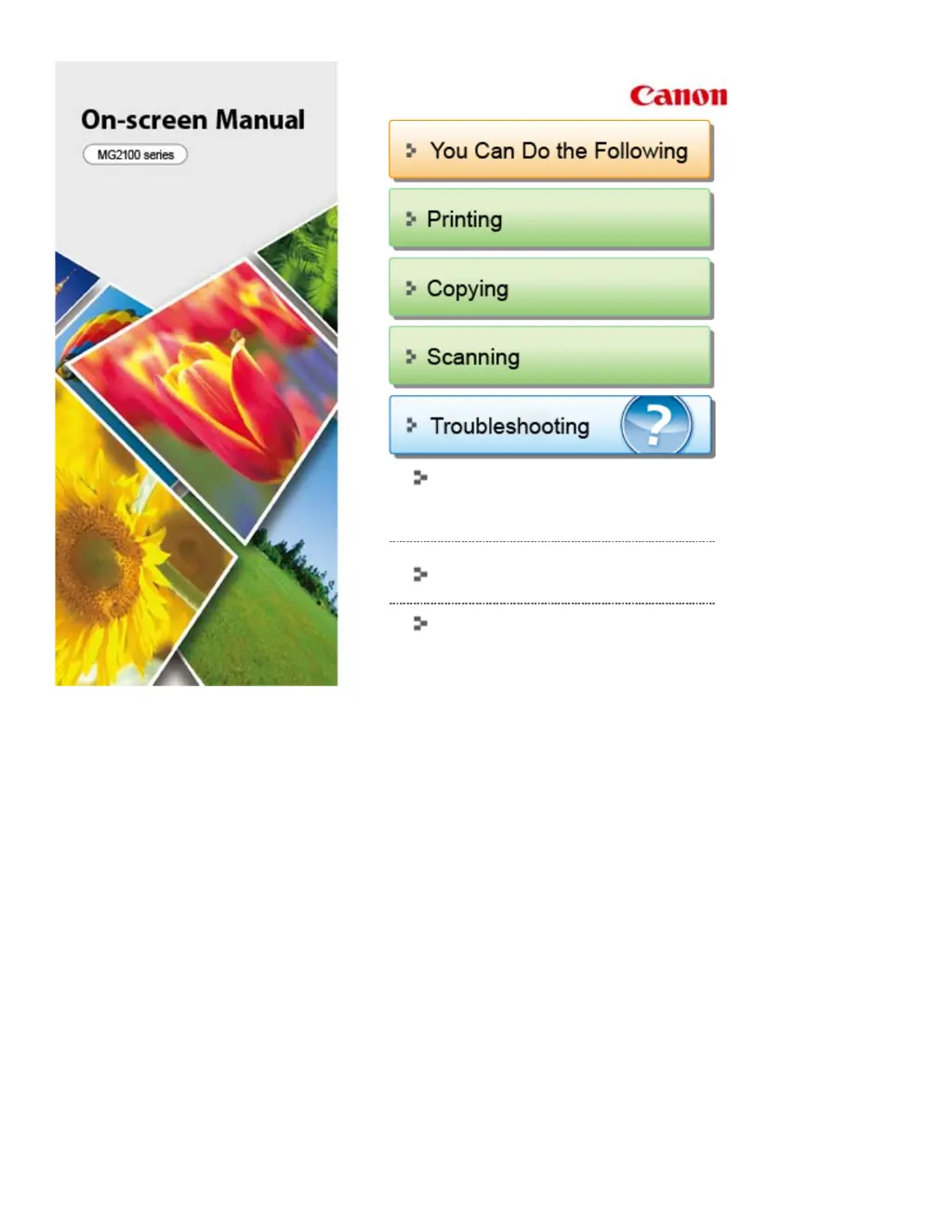
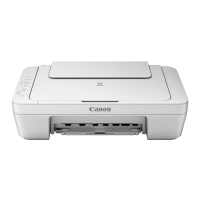
Canon MG2100 Series - User Manual

Canon MG2100 Series
731 pages
Print Icon
To Next Page IconTo Next Page
Loading...
Overview of the Machine
(Including Proper Care and Setting
Changes)
How to Use the On-Screen Manuals, Printing
Procedures
Useful Software
MC-5801-V1.10
Page 1 of 731 pagesCanon On-screen Manual - MG2100 series
This manual downloaded from http://www.manualowl.com

Table of Contents

Other manuals for Canon MG2100 Series

Questions and Answers

  • M
    Michelle ObrienAug 18, 2025
    What to do if my Canon MG2100 says 'Ink cartridge not installed'?
    • D
      Daniel CollinsAug 18, 2025
      If your Canon Printer displays an 'Ink cartridge not installed' message, first, re-set the ink cartridge properly. Then, check the carriage contact pins for any foreign material, damage, or bending. If the issue persists, replace the ink cartridge.
  • S
    Steven WhiteAug 20, 2025
    How to fix Canon MG2100 when it says 'No paper in the front tray'?
    • G
      Gregory KirbyAug 20, 2025
      If your Canon Printer indicates that there is no paper in the front tray, set the paper in the front tray and then press the OK button. Also, check for any foreign material in the paper path, including the front tray and inside the rear cover. Ensure that the paper guides are set properly.
  • A
    Alicia AlexanderAug 23, 2025
    What to do if my Canon MG2100 says non-genuine ink cartridge are installed?
    • J
      jasonruizAug 23, 2025
      If your Canon Printer displays a 'Premium Contents print error' message, the cause is non-genuine ink cartridge are installed. To resolve this, install the supported (Canon-genuine) ink cartridges.
  • S
    Stephanie TaylorAug 26, 2025
    What to do if my Canon MG2100 Printer has packing material not removed?
    • T
      Tina CarterAug 26, 2025
      If your Canon Printer indicates that packing material has not been removed, open the paper output cover, remove the tapes and packing material from the carriage, and then close the paper output cover.
  • K
    khawkinsAug 28, 2025
    What to do if my Canon Printer has a carriage error?
    • J
      James WoodsAug 28, 2025
      If your Canon Printer displays a carriage error, it means there's foreign material obstructing the carriage movement. Remove any foreign material to resolve the issue.
  • M
    Maria DrakeAug 30, 2025
    What to do if my Canon Printer has a line feed error?
    • B
      benjamin81Aug 31, 2025
      If your Canon Printer displays a line feed error, it indicates foreign material in the LF drive (gear). Remove any foreign material to fix the problem.
  • T
    Tara SmithSep 2, 2025
    What to do if my Canon Printer has a print head temperature rise error?
    • T
      travis79Sep 2, 2025
      If your Canon Printer shows a print head temperature rise error, check the remaining ink amount and replace the ink cartridge if it's low.
  • A
    Alice MaldonadoSep 4, 2025
    How to fix Canon MG2100 when paper output cover is open?
    • J
      Jeremy CrossSep 5, 2025
      If your Canon Printer indicates that the paper output cover is open, close the paper output cover.
  • B
    bradleyellisSep 7, 2025
    How to fix Canon MG2100 when paper output tray is closed?
    • M
      Marissa WilsonSep 7, 2025
      If your Canon Printer indicates that the paper output tray is closed, open the paper output tray.
  • S
    Sheila Myers MDSep 9, 2025
    Why my Canon MG2100 cannot perform automatic double-sided printing?
    • I
      Isaiah CarrSep 9, 2025
      Automatic double-sided printing cannot be performed because the paper length is not supported for double-sided printing. Press the OK button to eject the paper. Note that the data intended for the back side of the paper will be skipped.

Canon MG2100 Series Specifications

General IconGeneral
Print TechnologyInkjet
Max Print Resolution4800 x 1200 dpi
Scanner TypeFlatbed
Max Scan Resolution1200 x 2400 dpi
ConnectivityUSB 2.0
Print Speed (Black)8.4 ipm
Print Speed (Color)4.8 ipm
FunctionsPrint, Scan, Copy
Paper Sizes SupportedA4, A5, B5, Letter, Legal, Envelopes
Operating System CompatibilityWindows

Related product manuals