EasyManua.ls Logo

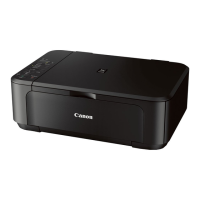
Canon MG2260 - User Manual

Canon MG2260
34 pages
Print Icon
To Next Page IconTo Next Page
Loading...
(1/34)
MG2100 series, MG3100 series, MG4100 series
MG2200 series, MG3200 series, MG4200 series
SIMPLIFIED SERVICE MANUAL
( MG2110 / MG2120 / MG2130 / MG2140 / MG2150 / MG2160 / MG2170 / MG2180,
MG3110 / MG3120 / MG3130 / MG3140 / MG3150 / MG3160 / MG3170 / MG3180,
MG4110 / MG4120 / MG4130 / MG4140 / MG4150 / MG4160 / MG4170 / MG4180,
MG2210 / MG2220 / MG2240 / MG2250 / MG2260 / MG2270,
MG3210 / MG3220 / MG3230 / MG3240 / MG3250 / MG3260 / MG3270,
MG4210 / MG4220 / MG4230 / MG4240 / MG4250 / MG4260 / MG4270 / MG4280)
QY8-13DL-020
Rev.00: August 2011
Rev.02: April 2013
Canon Inc.

Questions and Answers

  • D
    Daniel JimenezAug 17, 2025
    What to do if my Canon MG2260 says 'Ink cartridge not installed'?
    • J
      Jeremy CombsAug 18, 2025
      If your Canon Printer displays an 'Ink cartridge not installed' message, first, re-set the ink cartridge properly. Then, check the carriage contact pins for any foreign material, damage, or bending. If the issue persists, replace the ink cartridge.
  • A
    Alejandro BenitezAug 20, 2025
    How to fix Canon MG2260 when it says 'No paper in the front tray'?
    • A
      Ann MilesAug 20, 2025
      If your Canon Printer indicates that there is no paper in the front tray, set the paper in the front tray and then press the OK button. Also, check for any foreign material in the paper path, including the front tray and inside the rear cover. Ensure that the paper guides are set properly.
  • D
    Dale JohnstonAug 22, 2025
    What to do if my Canon MG2260 says non-genuine ink cartridge are installed?
    • K
      Kyle CervantesAug 22, 2025
      If your Canon Printer displays a 'Premium Contents print error' message, the cause is non-genuine ink cartridge are installed. To resolve this, install the supported (Canon-genuine) ink cartridges.
  • C
    cody61Aug 26, 2025
    What to do if my Canon Printer has packing material not removed?
    • M
      Mark DayAug 26, 2025
      If your Canon Printer indicates that packing material has not been removed, open the paper output cover, remove the tapes and packing material from the carriage, and then close the paper output cover.
  • D
    Daniel RomanAug 27, 2025
    What to do if my Canon MG2260 Printer has a carriage error?
    • B
      Brandon CampbellAug 28, 2025
      If your Canon Printer displays a carriage error, it means there's foreign material obstructing the carriage movement. Remove any foreign material to resolve the issue.
  • K
    kcolonAug 30, 2025
    What to do if my Canon MG2260 Printer has a line feed error?
    • V
      Valerie FitzgeraldAug 30, 2025
      If your Canon Printer displays a line feed error, it indicates foreign material in the LF drive (gear). Remove any foreign material to fix the problem.
  • M
    Mr. Dylan Morrison Jr.Sep 2, 2025
    What to do if my Canon MG2260 has a print head temperature rise error?
    • S
      scurrySep 2, 2025
      If your Canon Printer shows a print head temperature rise error, check the remaining ink amount and replace the ink cartridge if it's low.
  • J
    James MccoySep 4, 2025
    How to fix Canon Printer when paper output cover is open?
    • J
      Joel NealSep 4, 2025
      If your Canon Printer indicates that the paper output cover is open, close the paper output cover.
  • J
    Jose HaleySep 7, 2025
    How to fix Canon MG2260 when paper output tray is closed?
    • C
      Christopher OneillSep 7, 2025
      If your Canon Printer indicates that the paper output tray is closed, open the paper output tray.
  • D
    Daniel MillerSep 9, 2025
    Why my Canon MG2260 cannot perform automatic double-sided printing?
    • B
      Brittney BurnsSep 9, 2025
      Automatic double-sided printing cannot be performed because the paper length is not supported for double-sided printing. Press the OK button to eject the paper. Note that the data intended for the back side of the paper will be skipped.

Summary

Troubleshooting Printer Errors

Operator Call Error

Details operator call errors indicated by the Alarm LED and solutions.

Service Call Error

Explains service call errors based on LED blinking patterns and provides troubleshooting steps.

Printer Adjustment and Settings

Service Mode Operations

Details procedures for entering and operating the printer's service mode for diagnostics and settings.

Printer Adjustment Procedures

Outlines various printer adjustments like destination settings and ink absorber counter resets.

User Mode Functions

Describes functions available to the user, including printing tests and head alignment.

Assembling Notes

Provides critical guidance for assembling printer components, including carriage and chassis adjustments.

Grease Application Guide

Details specific points and quantities for applying grease to printer parts for smooth operation.

Special Servicing Notes

Ink Absorber Configuration

Explains the structure, location, and replacement methods for ink absorbers.

Main Ink Absorber Replacement

Provides step-by-step instructions for replacing main ink absorbers using easy or regular methods.

Preventive Ink Absorber Replacement

Guides on when to proactively replace ink absorbers based on life and counter values.

Print Head Alignment Procedures

Details procedures for aligning the print head to correct text doubling and line mis-alignment.

Detecting Remaining Ink Levels

Explains how the printer detects and displays ink levels, including warning and error messages.

New Service Test Pattern

Introduces a new service test pattern for improved visibility and faster printing during servicing.

Encoder Film Cleaning

Describes how to clean the encoder film to resolve errors related to print position or streaks.

Printer External View and Parts

External View Diagrams

Shows exploded views of printer parts and their assemblies for identification.

Comprehensive Parts List

Lists part numbers, descriptions, quantities, and remarks for various printer components.

Canon MG2260 Specifications

General IconGeneral
FunctionsPrint, Copy, Scan
Print Resolution4800 x 1200 dpi
Print Speed (Black)8.4 ipm
Print Speed (Color)4.8 ipm
ConnectivityUSB 2.0
Operating System CompatibilityWindows, Mac
Dimensions449 x 304 x 152 mm
Scanner TypeFlatbed
Scanner Resolution1200 x 2400 dpi
TypeInkjet
Paper SizesA4, A5, B5, Letter, Legal, Envelopes

Related product manuals