EasyManua.ls Logo

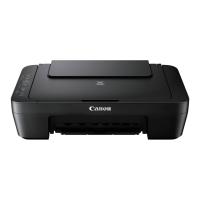
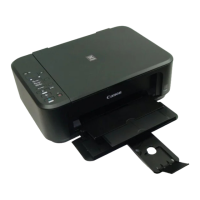
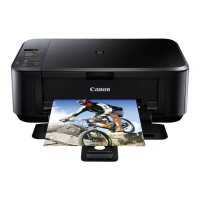
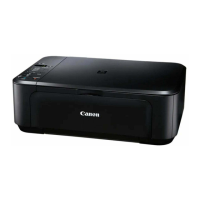
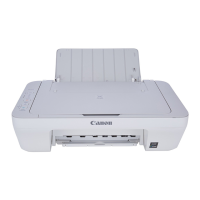
Canon MG2500 Series - User Manual

Canon MG2500 Series
172 pages
Print Icon
To Next Page IconTo Next Page
Loading...
MG2500 series
Online Manual
Scanning
English

Table of Contents

Other manuals for Canon MG2500 Series

Questions and Answers

  • N
    nmooreAug 19, 2025
    How to fix Canon Printer that cannot be powered on?
    • T
      Thomas NortonAug 19, 2025
      If your Canon Printer won't turn on, first, press the ON button. If that doesn't work, ensure the power plug is securely connected to the machine's power cord connector, then try turning it on again. As a last resort, unplug the printer from the power supply, wait at least 2 minutes, then plug it back in and try turning it on.
  • A
    Anna DiazAug 21, 2025
    Why does my Canon Printer turn off unintendedly?
    • D
      Denise CampbellAug 21, 2025
      To stop your Canon Printer from turning off unexpectedly, deactivate the auto power off setting. You can also open the printer driver setup window, go to 'Auto Power' under the Maintenance sheet, and select 'Disable' for Auto Power Off.
  • G
    garciamadisonAug 23, 2025
    What to do if my Canon cannot connect to computer properly?
    • A
      Anthony LynchAug 25, 2025
      If your Canon printer isn't connecting to the computer, verify your system supports Hi-Speed USB connections. Use a certified Hi-Speed USB cable, preferably no longer than 10 feet (3 meters). Update your computer with the latest updates. Finally, obtain the newest Hi-Speed USB driver version compatible with your hardware and reinstall it.
  • C
    Chelsea BentonAug 26, 2025
    What should I do if an error occurs on my Canon Printer?
    • S
      Susan YoungAug 26, 2025
      If an error occurs, follow the instructions provided in the error message. Also, check the status of the lamps and the message displayed, and then take the necessary steps to resolve the error.
  • D
    Denise MurrayAug 28, 2025
    What to do if Canon FINE cartridge holder does not move?
    • J
      jonescarolynAug 28, 2025
      If the FINE cartridge holder doesn't move to the replacement position, check if the ON lamp is lit. Also, close the cover, note the number of times the Alarm lamp flashes, address the error accordingly, and then reopen the cover. Note that if the cover remains open for over 10 minutes, the cartridge holder will move to a protective position. Also, if the machine prints continuously for a long time, the print head may overheat.
  • A
    amandagarciaAug 30, 2025
    What to do if Canon scanned image is enlarged on the computer monitor?
    • J
      Joshua ZimmermanAug 30, 2025
      If a scanned image appears enlarged (or reduced) on your computer monitor, try changing the display setting in the application you are using. Alternatively, adjust the resolution setting in ScanGear (the scanner driver) and scan the image again.
  • C
    Carly JenningsSep 1, 2025
    How to fix Canon scanned image surrounded by extra white areas?
    • A
      aaron21Sep 1, 2025
      To fix extra white areas around a scanned image, click the (Auto Crop) button in the whole image view of ScanGear (scanner driver). This will automatically display the cropping frame (scan area) according to the size of the item.
  • E
    Emma CooperSep 4, 2025
    What to do if Canon scanned image is slanted?
    • M
      Morgan McgrathSep 4, 2025
      If the scanned image is slanted even when the item is placed correctly, and 'Document' or 'Magazine' is selected as the item type, deselect the 'Correct slanted text document' checkbox and scan the item again.
  • J
    James ChenSep 6, 2025
    What to do if the color tone of images is different from the original document on Canon?
    • S
      Scott MathewsSep 6, 2025
      If the color tone of scanned images differs from the original document, on the Advanced Mode tab of ScanGear, set 'Image Adjustment' in 'Image Settings' to 'None'. Alternatively, on the Color Settings tab in the Preferences dialog box of ScanGear, adjust 'Color Matching'.
  • K
    kcrossSep 8, 2025
    What to do if Canon Printer status monitor is not displayed?
    • S
      Sydney ShepardSep 9, 2025
      If the Printer Status Monitor is not displayed, ensure that 'Enable Status Monitor' is selected in the Option menu of the printer status monitor. Alternatively, open the printer driver setup window, click 'View Printer Status,' and then select 'Enable Status Monitor' on the Option menu if it's not already selected.

Summary

Scanning Operations

Scan from Computer

Learn how to scan items from your computer using the scanner.

Scan with IJ Scan Utility

Detailed steps and features for scanning using the IJ Scan Utility software.

Scan with ScanGear Application

Utilize ScanGear (scanner driver) with other applications for advanced control.

Image Correction and Color Adjustment

Enhance scanned images with correction and color adjustment features.

Placing Items for Scanning

Learn how to correctly place items on the scanner platen for optimal scanning.

Useful Scanning Information

Provides helpful tips and information to improve scanning quality and efficiency.

Other Scanning Methods

Explore alternative methods for scanning documents and images.

Canon MG2500 Series Specifications

General IconGeneral
Print TechnologyInkjet
FunctionsPrint, Copy, Scan
Print ResolutionUp to 4800 x 600 dpi
Print Speed (Black)Approx. 8.0 ipm
Print Speed (Color)Approx. 4.0 ipm
Scanner TypeFlatbed
Scanner Resolution600 x 1200 dpi
ConnectivityUSB 2.0
Paper Input Capacity60 sheets
Dimensions426 x 306 x 145 mm
Copy Speed (Color)1.6 cpm
Copy Resolution600 x 300 dpi
Compatible Operating SystemsWindows, macOS
Paper Sizes SupportedA4, A5, B5, Letter, Legal, 4 x 6"
Weight3.5 kg
Ink Cartridge CompatibilityPG-145 (Black), CL-146 (Color) Optional: PG-145XL (Black), CL-146XL (Color)

Videos

How To Setup Canon PIXMA MG2500 Series To Computer With a USB Cable

How To Do a Print Head Alignment in Canon PIXMA MG2500 Series Printer

Related product manuals