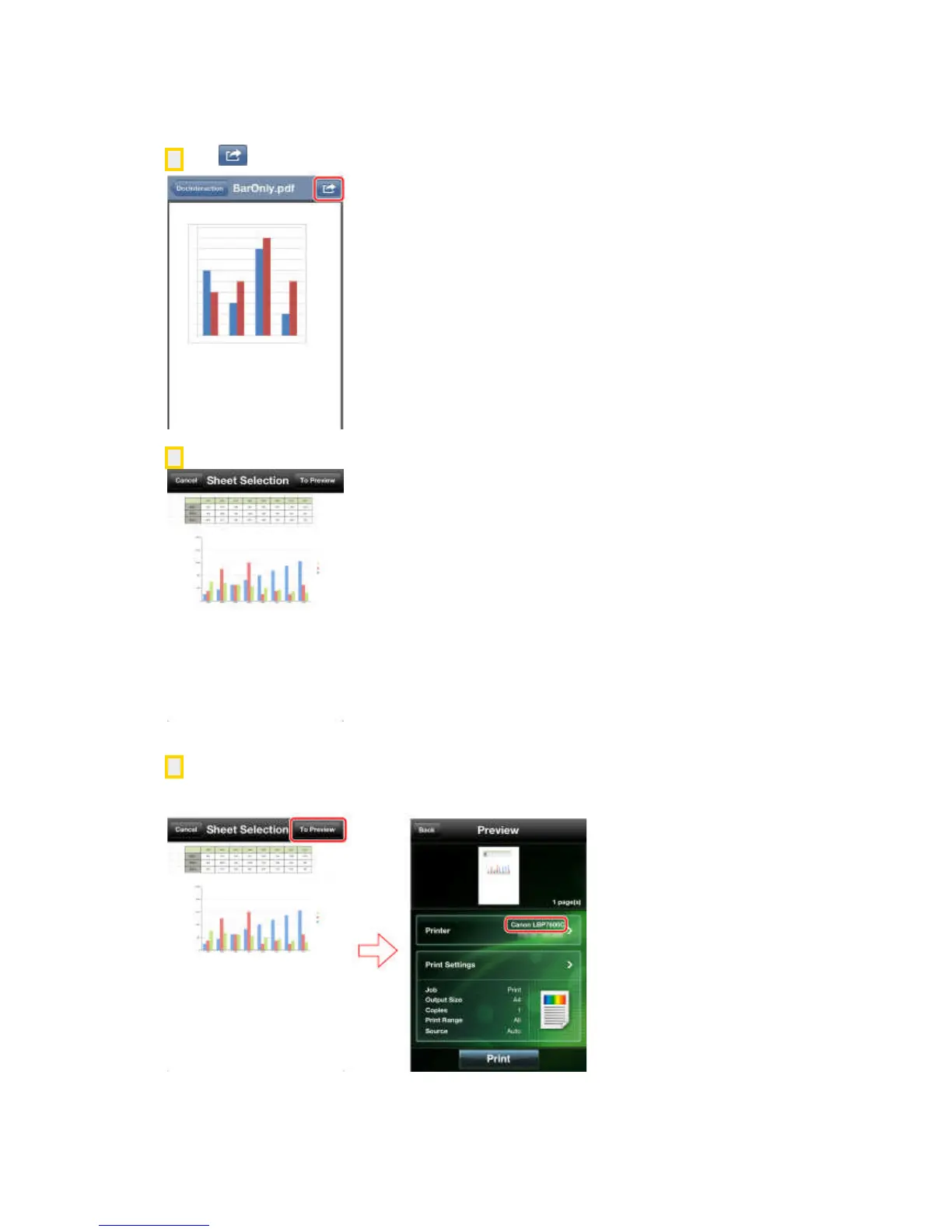
2. Tap [ ]/[Open in] in the upper right corner of the screen → tap [Canon M Print].
Canon Mobile Printing starts and the preview is displayed.
3. Check the preview image.
For files that consist of multiple sheets (Microsoft Excel, iWorks Numbers), you can select the sheets
to print in [Sheet Selection].
4. Confirm or select the printer you want to use.
iPhone:
Tap [To Preview] → check whether the printer name is displayed in [Printer] in the [Preview] screen.
If it is not, tap [Printer] → select the printer you want to use from the list of automatically detected
printers → tap [Back].



 To Next Page