EasyManua.ls Logo

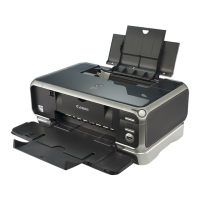
Canon PIXMA iP4200 Series - User Manual

Canon PIXMA iP4200 Series
104 pages
Print Icon
To Next Page IconTo Next Page
Loading...
QA7-3537-V01 XXXXXXXX ©CANON INC.2005 PRINTED IN THAILAND
Quick Start Guide
Canon U.S.A., Inc.
One Canon Plaza, Lake Success, NY 11042, U.S.A.
Canon Inc.
30-2, Shimomaruko 3-chome, Ohta-ku, Tokyo 146-8501, Japan
Canon Canada, Inc.
6390 Dixie Road, Mississauga, Ontario, L5T 1P7, Canada
Canon Latin America, Inc.
703 Waterford Way, Suite 400, Miami, FL 33126, U.S.A.
Canon Mexicana S. de R.L. de C.V.
Periferico Sur No. 4124 Col. Ex-Rancho de Anzaldo, C.P. 01900, Mexico, D.F.
Series
Photo Printer
Quick Start Guide
The following ink tanks are compatible with this printer.
For details on ink tank replacement, refer to “Replacing an Ink Tank” in this guide.

Other manuals for Canon PIXMA iP4200 Series

Questions and Answers

  • J
    Jorge LaraAug 2, 2025
    How to resolve if my Canon PIXMA iP4200 printed paper curls or has ink blots?
    • R
      Richard PageAug 2, 2025
      If your Canon Printer is producing curled paper or ink blots, the issue may stem from: * **Paper being too thin:** Use High Resolution Paper, Photo Paper Pro, or other Canon specialty paper. * **Incorrect paper type:** Ensure that the Media Type selected in the printer driver matches the paper loaded.
  • L
    Laura MorrisonAug 6, 2025
    What to do if my Canon PIXMA iP4200 scratches the printed surface or smudges the back of the paper?
    • D
      donald41Aug 6, 2025
      If your Canon Printer is scratching the printed surface or smudging the back of the paper, consider these factors: * **Inappropriate paper type:** Check if the paper is too thick or curled. Ensure the paper is compatible with Borderless Printing, if used. * **Dirty paper feed roller:** Clean the paper feed roller. * **Dirty inside of the printer:** Periodically clean the inside of the printer.
  • J
    Jesse MorrisonAug 11, 2025
    How to resolve cannot install the Canon PIXMA iP4200 driver?
    • V
      victoriaporterAug 11, 2025
      If you cannot install the Canon Printer driver: * **Installation procedure not followed correctly:** Follow the Easy Setup Instructions. If the installer was terminated due to an error, restart your computer and reinstall the driver. * **Other applications running:** Close all open software applications before reinstalling the printer driver. * **Installation does not start automatically:** Double-click the CD-ROM icon in My Computer to start installation. If the CD-ROM icon is not displayed, there is a problem with the CD-ROM. * **Unable to proceed beyond the Printer Connection screen:** Reinstall the printer driver, checking the cable connection and restarting the computer.
  • F
    Francisco HuntAug 15, 2025
    How to fix if my Canon PIXMA iP4200 printing speed is slow or USB 2.0 Hi-Speed connection does not work?
    • E
      ekennedyAug 15, 2025
      If your Canon Printer's printing speed is slow or the USB 2.0 Hi-Speed connection isn't working, it might be due to compatibility issues. To resolve this, ensure that: * The USB port on your PC supports USB 2.0 Hi-Speed connection. * Both the USB cable and USB hub support USB 2.0 Hi-Speed connection, using a certified cable no longer than 3 meters. * Your PC supports the USB 2.0 Hi-Speed connection by installing the latest OS update. * The USB 2.0 Hi-Speed driver operates properly; update it to the latest version.
  • D
    Dr. Brenda Brown MDAug 19, 2025
    How to fix displaced ruled lines on my Canon Printer?
    • R
      Renee HernandezAug 19, 2025
      If the ruled lines are displaced when printing with your Canon Printer, try these solutions: * **Misaligned Print Head:** Align the Print Head. * **Print Quality not set properly:** Set the Print Quality setting to High in Windows, or Fine in Macintosh. If the print quality does not improve, select Custom, click Set and then adjust the Quality bar for higher print quality.
  • K
    Kelly Hernandez MDAug 25, 2025
    What causes Canon PIXMA iP4200 to not print to end of job?
    • M
      Mr. Thomas Dickson Jr.Aug 25, 2025
      Your Canon Printer might not print to the end of the job because: * **Incorrect page size is selected:** Ensure that the page size setting in your application and printer driver matches the paper loaded. * **The size of the print data is too large:** Reduce the spool data size in the printer properties. * **Performing automatic duplex printing:** Select Use reduced printing in the printer driver.
  • Z
    zvillaOct 28, 2025
    What to do if my Canon PIXMA iP4200 Printer ink does not eject properly, prints blurred, has wrong colors, or shows white streaks?
    • C
      Christopher HoganOct 28, 2025
      If your Canon printer is experiencing issues like ink not ejecting properly, blurred prints, wrong colors, or white streaks, consider the following: * **Clogged Print Head nozzles:** Check if all ink tank lamps are lit. If a specific color is missing, clean the Print Head. * **Misaligned Print Head:** Perform Automatic Print Head Alignment. If the problem persists, align the Print Head manually. * **Paper loaded wrong side up:** Check the print side of the paper and follow the instructions for loading. * **Incorrect paper type:** Ensure the Media Type selected in the printer driver matches the paper loaded. * **Using glossy photo paper other than Canon specialty media:** Select Other Photo Paper from Media Type. * **Print Quality not set properly:** Set the Print Quality setti...

Summary

Getting Help from Canon

Customer Technical Support Sequence

Lists various methods for obtaining technical assistance from Canon.

Basic Printing

Loading Paper and Media

Guides on loading various paper types and avoiding incompatible media.

Advanced Printing

Printing Maintenance

Replacing Ink Tanks

Step-by-step guide for replacing empty or low ink cartridges.

Print Quality Troubleshooting

Troubleshooting steps for print quality issues due to clogged nozzles.

Print Head Cleaning

Guide to cleaning the print head to resolve print quality problems.

Aligning the Print Head

Steps to align the print head for accurate color registration.

Troubleshooting

Appendix

Safety Precautions

Important safety warnings and guidelines for printer usage.

Canon PIXMA iP4200 Series Specifications

General IconGeneral
Print TechnologyInkjet
Max Print Resolution9600 x 2400 dpi
Ink Cartridge Configuration5 individual ink tanks
Ink CartridgesPGI-5BK, CLI-8BK, CLI-8C, CLI-8M, CLI-8Y
Ink Cartridge CompatibilityPGI-5BK, CLI-8BK, CLI-8C, CLI-8M, CLI-8Y
ConnectivityUSB 2.0
Duplex PrintingYes
Print Speed (Black)Up to 29 ppm
Print Speed (Color)Up to 19 ppm
Paper Sizes SupportedLetter, Legal, 4" x 6", 5" x 7", Envelopes
4" x 6" photo print speedApproximately 51 seconds
Operating Systems SupportedWindows 2000/XP, Mac OS X

Related product manuals