EasyManua.ls Logo

Canon PIXMA iP6000D - User Manual

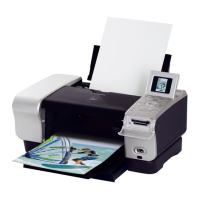
Canon PIXMA iP6000D
92 pages
Print Icon
To Next Page IconTo Next Page
Loading...
Photo Printer
Photo PrinterPhoto Printer
Photo Printer
Quick Start Guide
Quick Start GuideQuick Start Guide
Quick Start Guide
US_iP6000D_QSG.book Page i Thursday, June 10, 2004 2:44 PM

Other manuals for Canon PIXMA iP6000D

Questions and Answers

  • P
    Patrick LawsonAug 16, 2025
    What to do if my Canon PIXMA iP6000D Printer failed to align print head?
    • C
      choAug 16, 2025
      If the Canon Printer displays a message indicating a failure to align the print head, try the following: 1. Press the RESUME button. 2. Open the cover and check ink levels, replacing ink tanks if empty. 3. Print a nozzle check pattern to ensure the print nozzles are clean. 4. Move the printer out of direct sunlight and attempt automatic print head alignment again. 5. If the problem continues, perform a manual print head alignment.
  • O
    Oscar BrownAug 22, 2025
    Why does my Canon PIXMA iP6000D Printer not feed paper properly?
    • M
      Mark NortonAug 22, 2025
      If your Canon printer isn't feeding paper correctly, it might be due to several reasons. The paper you are using might be too thick, so check the paper type. Ensure that the inner cover is closed. The paper feed roller may be dirty and require cleaning. There might be foreign objects inside the sheet feeder or cassette; if so, turn off the printer and unplug it before attempting to remove them. Finally, ensure that the paper is loaded correctly.
  • A
    alvaradodeannaAug 25, 2025
    What to do if Canon Printer stops during print jobs?
    • V
      valenzuelatoddAug 26, 2025
      Your Canon printer may stop during print jobs if the card slot is write-enabled; change the card slot setting to the read-only mode. The print head may have overheated due to long periods of continuous printing; stop printing and turn the printer off for at least 15 minutes to allow the print head to cool down. Also, printing high-resolution photographs and graphics can take time; wait until the print job finishes, and the POWER lamp stops flashing green.
  • A
    Anthony AndersonAug 27, 2025
    What to do if Canon PIXMA iP6000D Printer says waste ink absorber almost full?
    • B
      Barbara NguyenAug 27, 2025
      If your Canon Printer displays a message indicating that the waste ink absorber is almost full, press the RESUME button to temporarily clear the error and continue printing. Be aware that printing will eventually be disabled once the waste ink absorber becomes completely full.
  • M
    morrisontaylorAug 31, 2025
    What to do if my Canon Printer has paper jams?
    • M
      Marie DavidAug 31, 2025
      If your Canon printer is experiencing paper jams, the location of the jam determines the removal procedure. If the paper is jammed in the sheet feeder or paper output slot, slowly pull the paper out. If the paper is jammed inside the transport unit, open the rear cover to remove it. If the paper is jammed in the duplex transport section, remove the cassette to access and clear the jam.
  • C
    Christopher PalmerSep 3, 2025
    What to do if Canon Printer cannot print to end of job?
    • T
      Tyler PowellSep 3, 2025
      If your Canon printer cannot print to the end of a job, ensure that the page size setting matches the size of the paper loaded in the printer. Check the available space on your computer’s hard disk. For Windows XP and Windows 2000, if the size of the data is too large, part of it may be lost. When performing automatic duplex printing, select 'Use reduced printing' in the printer driver, as the printable area is narrower, and the bottom edge may not be printed otherwise.
  • J
    Joshua RobinsonSep 6, 2025
    Why does my Canon PIXMA iP6000D say read-write mode enabled?
    • M
      mariasmithSep 6, 2025
      If your Canon Printer displays an error related to read-write mode being enabled, it means the memory card utility on your computer has write-enabled the card slot, preventing the printer from printing. To resolve this, after writing data to the card, select the read-only mode to allow the printer to access the card.
  • K
    keithtiffanySep 12, 2025
    How to resolve Canon Printer writing error?
    • J
      julie80Sep 12, 2025
      A writing, output, or communication error on your Canon printer can be caused by several factors. First, ensure that the POWER lamp is green, indicating the printer is ready. Load paper and press the RESUME button if paper is not loaded. If the paper is not loaded correctly, remove it, fan the sheets, and reload it properly into the sheet feeder or cassette. Verify that the printer port setting matches the interface connected to the printer. Check that the printer cable is securely connected to the computer. If the printer driver is not installed properly, uninstall and then reinstall it.
  • R
    Richard BrownNov 17, 2025
    How to fix Canon PIXMA iP6000D Printer poor print quality?
    • T
      Terry Ellis PhDNov 18, 2025
      Poor print quality or errors may occur in Canon printer output for several reasons: * The ink tanks may not be seated properly or could be empty. Check that the ink tanks are firmly seated, correctly installed, and that all orange tape has been removed. Replace empty ink tanks. * The print head may be misaligned and need alignment. * The print head nozzles could be clogged, requiring a nozzle check pattern print and possible cleaning. * The wrong side of the paper may be loaded, or the paper type selected in the printer driver may not match the paper loaded. Ensure the correct paper type is selected in the printer driver's Main tab or Quality & Media settings. * If using glossy photo paper, especially non-Canon media, select 'Other Photo Paper' as the media type. Load one sheet ...

Summary

Basic Printing

Printing with Windows

Printing with Macintosh

Printing Maintenance

When Printing Becomes Faint or Colors are Incorrect

Troubleshooting steps for print quality issues.

Print Head Cleaning

Cleaning print head nozzles to resolve print issues.

Print Head Deep Cleaning

Advanced cleaning for stubborn nozzle clogs.

Troubleshooting

Print Quality is Poor or Contains Errors

Diagnosing and fixing print quality problems.

Paper Does Not Feed Properly

Steps to resolve paper feeding problems.

Paper Jams

Procedures for clearing paper jams.

Handling Error Messages

Interpreting and resolving printer error codes.

An Error Message Appears on the Screen

Troubleshooting screen-based error messages.

Canon PIXMA iP6000D Specifications

General IconGeneral
Print TechnologyThermal Inkjet
Maximum Resolution4800 x 1200 dpi
ConnectivityUSB 2.0, PictBridge
Paper Capacity150 sheets
Borderless PrintingYes
Paper SizesLetter, Legal, Envelopes
Duplex PrintingYes
Ink Cartridge Configuration6 individual ink tanks
Direct PrintingYes
Printer TypeInkjet Photo Printer

Related product manuals