EasyManua.ls Logo

Canon PIXMA iP90 - User Manual

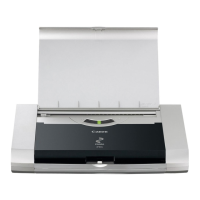
Canon PIXMA iP90
208 pages
Print Icon
To Next Page IconTo Next Page
Loading...

Table of Contents

Other manuals for Canon PIXMA iP90

Questions and Answers

  • M
    Michelle MossSep 13, 2025
    Why is the back of the paper smudged when printing with my Canon PIXMA iP90 Printer?
    • D
      Darren RamirezSep 13, 2025
      Smudging on the back of printed paper from your Canon Printer can occur if the inside of the printer is dirty; periodically clean it. A dirty paper feed roller may also cause this issue. Additionally, if the media is curled, gently bend it in the opposite direction to uncurl it.
  • G
    George RamirezAug 22, 2025
    What to do if I am unable to proceed beyond the Printer Connection Screen when installing Canon PIXMA iP90 Printer?
    • S
      Shannon BergerAug 23, 2025
      If you cannot proceed beyond the Printer Connection screen: when connecting with a USB cable, click Cancel, then Start Over, then Back, then Exit, remove the CD-ROM, turn the printer off, restart the computer, and reinstall the printer driver. When connecting through infrared communication, click Cancel, then Start Over, then Back, then Custom Install, then Next, then Install, then Yes on the License Agreement screen, then Manual Selection on the Printer Connection screen, then select a port.
  • R
    Robert LopezAug 27, 2025
    Why is the print quality poor on my Canon PIXMA iP90 Printer?
    • P
      Philip SmithAug 28, 2025
      Poor print quality on your Canon Printer can stem from several factors. The ink tank may not be seated properly; ensure it's firmly in place. Clogged print head nozzles could also be the culprit; run a nozzle check pattern and clean the print head if needed. Additionally, verify that the media type selected in your print settings matches the paper you're using. If you're using glossy photo paper, selecting 'Other Photo Paper' might help. Finally, ensure your print quality setting is set to 'High' for Windows or 'Fine' for Macintosh.
  • D
    Daniel GordonAug 29, 2025
    How to install Canon PIXMA iP90 driver?
    • M
      mark42Aug 29, 2025
      To properly install the Canon Printer driver, follow the Easy Setup Instructions. If the installation was interrupted, remove the CD-ROM, restart your computer, and reinstall the driver. Before reinstalling, close all open software applications. If the installation doesn't start automatically when you insert the CD-ROM, go to My Computer, double-click the CD-ROM icon to start the installation. If there are issues with the CD-ROM, contact the Customer Care Center.
  • A
    April RamosAug 31, 2025
    Why Canon Printer print quality is poor?
    • M
      Melinda JacksonAug 31, 2025
      If the print quality from your Canon printer is poor or contains errors, several factors could be responsible. First, check that the ink tanks are properly seated in the print head and reseat them if necessary. Next, the print head nozzles could be clogged; print a nozzle check pattern to verify ink output and clean the print head if a specific color is missing or ink supply is uneven. Also, ensure that the media type selected in the print settings matches the paper loaded in the printer. If you are using glossy photo paper, selecting 'Other Photo Paper' from Media Type may help, and load one sheet at a time. Lastly, confirm that the print quality setting is set to 'High' for Windows or 'Fine' for Macintosh.
  • D
    Dwayne KingSep 1, 2025
    What to do if back of paper is smudged Canon PIXMA iP90?
    • C
      Cassandra WileySep 2, 2025
      If the back of the paper is smudged when printing with your Canon printer, the inside of the printer may be dirty. Clean the inside of the printer periodically. Also, a dirty paper feed roller can cause smudging, so clean the paper feed roller. If the media is curled, gently bend the corners in the opposite direction to uncurl it, as the print side may be smudged by touching the Print Head.
  • D
    david33Nov 25, 2025
    What to do if cannot proceed beyond the Printer Connection Screen Canon PIXMA iP90?
    • L
      Laura BrewerNov 25, 2025
      To resolve the issue of not being able to proceed beyond the Printer Connection Screen with your Canon Printer, follow these steps: When connecting with a USB cable, click 'Cancel'. When the 'Installation Failure' screen appears, click 'Start Over'. When the 'Easy Install' screen is displayed, click 'Back', then 'Exit', and remove the CD-ROM. Turn the printer off and restart the computer. Reinstall the printer driver, carefully following the Easy Setup Instructions. When connecting through infrared communication, click 'Cancel'. When the 'Installation Failure' screen appears, click 'Start Over'. When the 'Easy Install' screen is displayed, click 'Back', then 'Custom Install', and 'Next'. Click 'Install' and then 'Yes' on the License Agreement screen. Click 'Manual Selection' on the Printer...
  • L
    lramseySep 15, 2025
    Why is the printed surface scratched when using my Canon Printer?
    • M
      Mason MunozSep 15, 2025
      Scratches on the printed surface from your Canon Printer can be due to using inappropriate paper. Check if the paper is too thick or curled. Also, ensure that the Paper Thickness Lever is set in the suitable position for your media.
  • M
    martinrebeccaSep 12, 2025
    How to fix displaced ruled lines on my Canon Printer?
    • C
      Christopher SanchezSep 12, 2025
      Displaced ruled lines on your Canon Printer can be due to a misaligned print head. In this case you should align the Print Head. The incorrect Paper Thickness Lever position may also cause this problem, so set the Paper Thickness Lever according to the printing paper type. Also, make sure that the Print Quality setting is set to High for Windows or Fine for Macintosh.
  • R
    racostaSep 8, 2025
    Why Canon PIXMA iP90 cannot print to end of job?
    • A
      Andrew StuartSep 8, 2025
      If your Canon printer cannot print to the end of a job, ensure that the page size setting matches the size of the paper loaded in the printer. Check the Paper Size setting within your application and the Page Setup tab in the Printer Properties dialog box (for Windows) or the Page Setup dialog box (for Macintosh) to ensure they match the paper size. If you are using infrared communication, make sure that infrared rays are not interrupted and that another infrared communication unit is not operating nearby. If infrared communication is interrupted for ten seconds or longer, the paper will be ejected and the printer will reset. Remove any obstacles and retry printing. Do not operate other infrared communication units, like a television remote control, during printing.

Summary

How to Use This Manual

Manual Configuration

Explains the manual's three-screen structure: Contents, Menu, and Description.

Using The Contents Screen

Details how to navigate the manual using the Contents screen and expand/collapse topics.

Using The Menu Screen

Describes the navigation options available via the Menu screen: Index, Contents, and FAQs.

Using the Description Screen

Explains how to use the Description screen for viewing content and navigating pages.

Safety Precautions

Choosing a location

Provides guidance on selecting a safe and appropriate location for the printer.

Power supply

Outlines critical safety instructions related to the printer's power connection and usage.

Cleaning the printer

Details safe procedures for cleaning the printer, avoiding hazardous substances.

Maintaining the printer

Covers safety aspects related to printer disassembly, modification, and general maintenance.

Printer Parts and Their Function

Front View

Identifies and describes the various parts of the printer visible from the front.

Operation Panel

Explains the function of each button and indicator light on the printer's control panel.

Rear View

Identifies and describes the various ports and connectors on the printer's rear.

Inside the Printer

Details the internal components of the printer, including the print head holder.

Further Printing Techniques

Printing Photographs

Guides users on printing digital photographs, including software usage and settings.

Printer Driver Functions

Details various settings and options available within the printer driver interface.

Checking the Status of the Printer

BJ Status Monitor Functions

Explains how to use the BJ Status Monitor to check printer status, errors, and ink levels.

Printer Setup Utility (or Print Center)

Guides users on checking print job progress using the Printer Setup Utility or Print Center.

Using the Canon iP90 Setup Utility

Function of the Canon iP90 Setup Utility

Describes the utility's purpose: setting media type, size, and print layout for infrared/PictBridge.

Starting the Canon iP90 Setup Utility

Provides instructions on launching the Canon iP90 Setup Utility on Windows and Macintosh.

Routine Maintenance

When Printing Becomes Faint or Colors are Incorrect

Provides steps to resolve print quality issues like faint printing or incorrect colors.

Print Head Cleaning

Explains the procedure for cleaning the printer's print head to improve print quality.

Replacing an Ink Tank

Guides users through the process of replacing an ink tank with a new one.

Troubleshooting

Cannot Install Printer Driver

Offers solutions for issues encountered during the printer driver installation process.

Print Quality is Poor

Lists common print quality problems and their potential solutions.

The POWER Lamp Flashes Orange

Explains the meaning of the orange POWER lamp flashes and how to resolve associated errors.

Canon PIXMA iP90 Specifications

General IconGeneral
Print TechnologyInkjet
Max Resolution4800 x 1200 dpi
Print Speed (Color)12 ppm
ConnectivityUSB, IrDA
Weight4.0 lbs
Ink Droplet Size2 picoliters
Print Speed (Black)16 ppm
Paper SizesLetter, Legal, A4, A5, B5, Envelopes
Mobile PrintingNo
Operating Systems SupportedWindows, Mac
Ink Cartridge ConfigurationBlack

Related product manuals