7
Canon Direct Printing with CP Printers
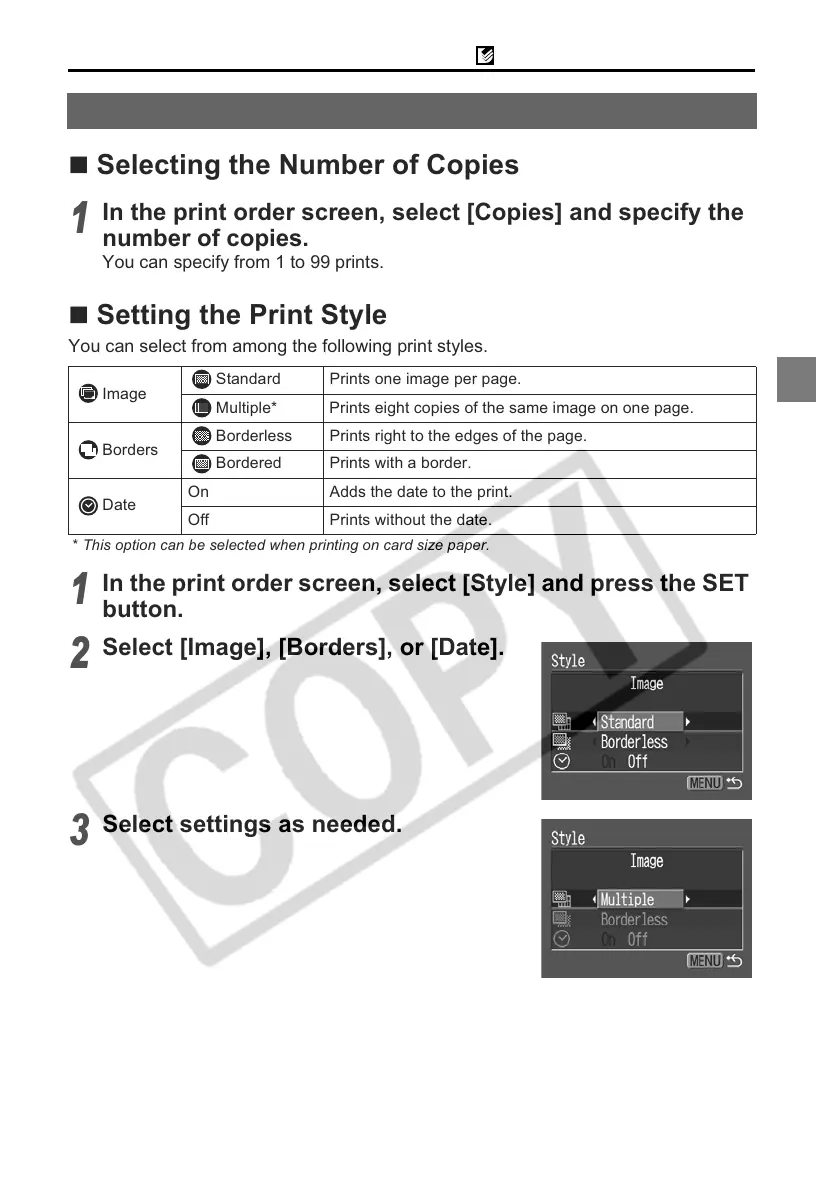
Selecting the Number of Copies
Setting the Print Style
You can select from among the following print styles.
* This option can be selected when printing on card size paper.
Selecting Print Settings
1
In the print order screen, select [Copies] and specify the
number of copies.
You can specify from 1 to 99 prints.
Image
Standard Prints one image per page.
Multiple* Prints eight copies of the same image on one page.
Borders
Borderless Prints right to the edges of the page.
Bordered Prints with a border.
Date
On Adds the date to the print.
Off Prints without the date.
1
In the print order screen, select [Style] and press the SET
button.
2
Select [Image], [Borders], or [Date].
3
Select settings as needed.



 To Next Page
 Loading...