Displaying Image in Full-screen
3
Displaying Image in Full-screen
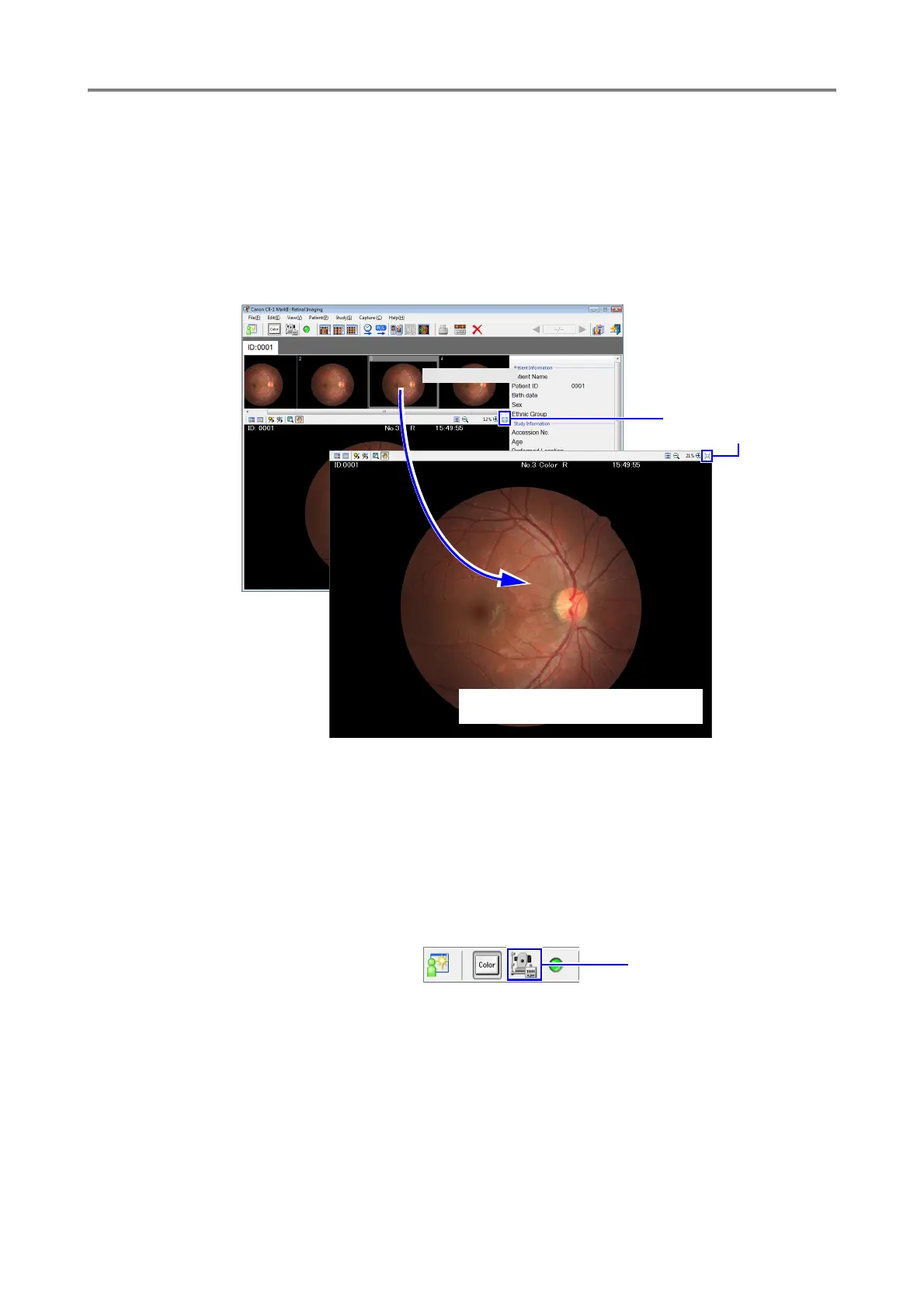
The Retinal imaging control software NM can display retinal images in full screen.
Click [Full Screen] or double-click the thumbnail that you want to display in full screen.
To return to the previous screen, click [Return] or press the ESC key.
See also section 6.1 “Main screen” in the Operation Manual.
Changing Capture Settings During Examination
You can open the Capture screen with a click of a button when you are about to capture an
image. On the Capture screen, you can change the capture settings, for example, the image
format and size.
1
Click the [Capture Settings] button on the toolbar.
Full Screen button
Double-click
Return button
To change the displayed image, press
the left or right arrow key.
Capture Settings button



 To Next Page