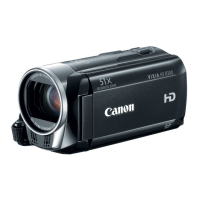
This document outlines the process for controlling a Canon VIXIA HF R60/R62 camcorder remotely using an iOS or Android device, specifically for "Remote Control+Streaming" from a location outside the home after initial setup. The primary function described is the ability to monitor streamed images and initiate recording on the camcorder from a remote location.
Function Description
The core function of this setup is to enable remote monitoring and control of the VIXIA HF R60/R62 camcorder. This is achieved through the "CameraAccess plus" application, which allows an iOS or Android device to connect to the camcorder via a Wi-Fi network and the internet. Once configured, users can leave their camcorder at home and still view a live streamed image from it, as well as start or stop recording remotely. This feature is particularly useful for security monitoring, keeping an eye on pets, or any scenario where remote visual oversight and recording capabilities are desired. The system leverages an access point (wireless router) to establish an internet connection, allowing the mobile device to communicate with the camcorder even when geographically separated.
Usage Features
The usage of this remote control and streaming function is broken down into five main steps:
- Installing CameraAccess plus: The first step involves downloading and installing the free "CameraAccess plus" app from the App Store (for iOS) or Google Play (for Android). This application serves as the interface for controlling the camcorder.
- Performing Camcorder Password and Port Configuration Settings: This crucial step involves setting up security and network parameters on the camcorder itself. Users must define a unique password (recommended 8 characters with a mix of numbers and letters) for the "Monitor while Out" function and configure the port number (default is 80, but can be changed). This ensures secure access to the camcorder from remote locations.
- Connecting the Camcorder to an Access Point: The camcorder needs to be connected to a Wi-Fi access point (wireless router) to establish an internet connection. The manual details several methods for this, including WPS (Wi-Fi Protected Setup) via button or PIN code, searching for access points, and manual setup. WPS offers a simplified connection process for compatible routers. If multiple access points are saved, the camcorder can automatically connect to a previously configured one. For new connections or different access points, users will need to select or manually enter network details like SSID and password. Advanced users can manually configure IP address, subnet mask, default gateway, and DNS server settings if needed.
- Registering the Camcorder's ID in the iOS/Android Device: Once the camcorder is connected to the network, its ID needs to be registered with the "CameraAccess plus" app on the mobile device. This can be done automatically if the mobile device is on the same Wi-Fi network as the camcorder, or manually by entering the camcorder's ID and password into the app. This registration links the mobile device to the specific camcorder for remote control.
- Controlling the Camcorder with the iOS/Android Device: After successful registration, the user can start the "CameraAccess plus" app on their mobile device from a secondary location. They will then enter the password configured in step 2 to establish a secure connection. Once connected, the app's on-screen controls allow the user to view the live streamed image from the camcorder and operate its recording functions remotely.
NFC Compatibility: For NFC-compatible Android devices, the initial pairing process is simplified. By touching the NFC touchpoints on both the Android device and the camcorder, the "CameraAccess plus" app can automatically launch and facilitate the connection. This eliminates the need for manual Wi-Fi configuration in some cases.
Shooting Mode and Video Quality: When operating in "Monitor from Home" or "Monitor while Out" mode, the camcorder's shooting mode automatically defaults to AUTO. Video recorded in these modes will be at 30P, even if the frame rate was previously set to 24P. This function is not available for 60P video quality or when "Dual recording" or "Relay recording" is activated.
Connection Stability: The quality of the live video stream and the responsiveness of controls can be affected by the strength of the wireless signal and the internet connection. Users may experience interruptions or slow responses in areas with poor connectivity.
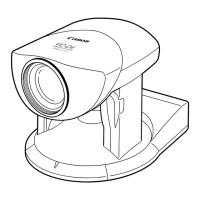
Optional Accessories: The document also mentions the optional CT-V1 Camera Pan Table. If the camcorder is mounted on this accessory, the "CameraAccess plus" app can be used to remotely pan the camcorder sideways, in addition to starting and stopping recording. Proper alignment of the camcorder lens with the mark on the CT-V1's base plate is crucial for correct operation.
Maintenance Features
While the document primarily focuses on setup and usage, some aspects touch upon maintenance implicitly:
- Password Management: The requirement to set a unique password for the "Monitor while Out" function highlights the importance of security maintenance. Users are advised to use strong, mixed-character passwords to protect their camcorder from unauthorized access.
- Network Configuration: The detailed steps for connecting to an access point, including manual setup options, allow users to troubleshoot and maintain their network connection. Understanding how to configure IP addresses, subnet masks, and DNS servers can be crucial for resolving connectivity issues.
- Application Updates: Although not explicitly stated as "maintenance," the reliance on the "CameraAccess plus" app implies that keeping the app updated on the iOS/Android device is essential for continued functionality, bug fixes, and compatibility with operating system changes.
- Resetting Settings: The note about not needing to re-register the camcorder's ID unless its settings are reset suggests that users should be mindful when performing factory resets or significant configuration changes, as this would necessitate re-registration.
- Physical Device Care: A warning is included regarding NFC-compatible devices, advising users to avoid forcibly hitting the mobile device against the camcorder to prevent damage. This is a basic physical maintenance consideration. Additionally, ensuring that both the camcorder and the mobile device are not covered by protective cases during wireless connection attempts can prevent connectivity issues.
- Power Management: The mention that the camcorder may turn on unintentionally if it comes into contact with an NFC-compatible device (e.g., in a carrying bag) and the option to set NFC to [Off] are important for power management and preventing accidental operation.
- System Requirements: The document refers to "System Requirements for Smartphone Applications (HF R62)," indicating that users should consult this information to ensure their mobile device's model and operating system are compatible with the "CameraAccess plus" application, which is a form of compatibility maintenance.
- Remote Monitoring Checker Utility: For Windows users, the "Remote Monitoring Checker" utility program is available to verify if their home network's access point and internet connection meet the requirements for the "Monitor while Out" function. This is a diagnostic tool that aids in network maintenance and troubleshooting.

 Need help?
 General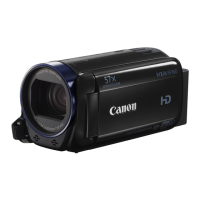

 To Next Page