EasyManua.ls Logo

Canon VC-C4 - User Manual

Canon VC-C4
36 pages
Print Icon
To Next Page IconTo Next Page
Loading...
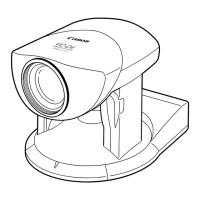
INSTRUCTION MANUAL
Please read this instruction manual carefully before operation.
Be sure to read the “aSafe Use of Equipment” section before
using this equipment. Store this manual in a readily accessible
location for future reference.
ENGLISH
VC-C4
COMMUNICATION CAMERA
f:4-64mm 1:1.4-2.8

Questions and Answers

  • C
    castilloericJul 30, 2025
    Why is there no picture on my Canon Digital Camera monitor?
    • T
      triosJul 30, 2025
      If there is no picture on the monitor, it might be due to several reasons: the camera is switched off (the LED is red), some components might not be connected correctly, or the power to the camera or monitor is not switched on. To resolve this, ensure the camera and monitor are powered on, check all component connections, and if the LED is red, press the 'p' button on the wireless controller to switch the camera on.
  • D
    davidmoralesAug 4, 2025
    What to do if my Canon VC-C4 will not focus?
    • M
      Michelle Gonzales MDAug 4, 2025
      If your camera will not focus, there are several potential causes. First, check if the camera is set to manual focus mode; if so, focus manually or switch to auto-focus by pressing the 'a' button on the wireless controller. Also, the lens may be dirty, so clean it. If you restored a preset position in manual focus mode, adjust the focus again or switch to auto-focus. Ensure the subject is within the camera's focal range, and if you are using auto-focus on an unsuitable subject, try adjusting the focus manually.
  • K
    Kenneth MayoAug 10, 2025
    How to fix a Canon Digital Camera wireless controller that does not work?
    • M
      Megan KirbyAug 10, 2025
      If the wireless controller isn't working, first check the LED. If it's not lit, ensure the plug is correctly inserted into the main power outlet. If the LED is red, the camera is off; press the 'p' button to turn it on. If the LED is orange, reset the ID correctly or cancel ID mode operation. If the LED is green, check the wireless controller batteries and ensure you're within its effective range.
  • S
    Shannon HesterAug 16, 2025
    What to do if my Canon VC-C4 will not move to a preset position?
    • M
      Mr. Gregory Rivera MDAug 17, 2025
      If the camera will not move to a preset position, the camera head may have been moved directly. Press the 'h' button on the wireless controller. Alternatively, the range of pan/tilt movement may have changed since the preset position was stored; in this case, store the preset position again.
  • S
    Sherry NelsonAug 22, 2025
    Why can't I adjust the camera head angle properly on my Canon Digital Camera?
    • N
      nobleanthonyAug 22, 2025
      If you cannot adjust the camera head angle properly, it might be because something has directly moved the camera head. Press the 'h' button on the wireless controller. Another reason might be that restrictions have been applied to the range of camera head movement; in this case, change the range of camera head movement.

Summary

Introduction to Canon VC-C4;VC-C4 R Camera

Features of the VC-C4;VC-C4 R Communication Camera

Lists key features and technical specifications of the camera models.

Exclusion of Liability

Canon Inc.'s disclaimer of responsibility for financial losses due to data loss.

Copyright Information

Guidelines on the usage of recorded video or still images.

Manual Notes and Trademarks

Important notes regarding manual content and company trademarks.

Safe Use of Equipment

Important Warnings

Highlights critical safety warnings, including electrical shock and user-serviceable parts.

Important Operational Instructions

Provides essential operational guidelines and cautions for safe usage.

FCC NOTICE

Details FCC compliance and interference guidelines for the device.

IC NOTICE

Outlines Industry Canada compliance for radio noise emissions.

IMPORTANT SAFETY INSTRUCTIONS

Maintenance Procedures

Cleaning the Equipment

Instructions on how to clean the camera body safely and effectively.

Cleaning the Lens

Guidance on cleaning the camera lens to ensure optimal image quality.

Icons Used in This Instruction Manual

Explains the meaning of special icons used throughout the manual.

Before You Use the Product

Checking the Accessories

Lists items to verify in the product package upon receipt.

Nomenclature

Identifies and labels the parts of the camera and controller.

Wireless Controller Overview

Details the functions and layout of the wireless controller.

Installing the Product

Provides instructions for securely mounting the camera.

Using a Tripod Mount

Guidance on attaching the camera to a tripod safely.

Using the Wide-angle Converter

Instructions for attaching and using the optional wide-angle converter.

Connecting the Components

Explains how to connect the camera to other devices like a PC or monitor.

Turning the Power ON and OFF

Procedures for powering the camera system on and off.

LED Displays and Camera Status

Explains the meaning of different LED indicators on the camera.

Loading Batteries into Wireless Controller

Step-by-step guide for inserting batteries into the wireless controller.

Operable Range of Wireless Controller

Defines the effective range and conditions for wireless controller operation.

Controlling the Camera from the Wireless Controller

Changing the Camera Head Angle

Instructions for moving the camera head horizontally and vertically.

Range of Camera Head Movement

Details the physical limits of the camera head's movement.

Zooming In;Out (TELE;WIDE)

How to adjust the camera's zoom level using the remote.

Focusing Range

Information on the camera's focusing distance capabilities.

Focusing (FOCUS) Operations

Explains auto-focus and manual focus modes for the camera.

Adjusting the Brightness (BRIGHT)

How to adjust the image brightness using the wireless controller.

Storing a Preset Camera Position

Instructions for saving and recalling specific camera positions and settings.

Switching the Camera ON and OFF

Procedures for turning the camera on and off via the wireless controller.

Camera Settings

Buttons Used to Specify Settings

Identifies the wireless controller buttons used for menu navigation and setting selection.

Setting Menu Description

Overview of the main menu structure and its sub-menus.

Setting the Clock

Guide to setting the date, time, and their display formats.

Entering Characters

Instructions for inputting text characters for display.

Selecting Display;Hide Clock and Text

How to toggle the visibility of the clock and text on the monitor.

Setting Camera Head Movement Speed and Pan

Adjusting pan/tilt speeds and direction mirror settings.

Setting the Range of Camera Head Movement

Defining custom limits for the camera head's movement range.

Setting the AE (Auto Exposure)

Configuring Automatic Exposure (AE) and reference settings.

VC-C1 Mode and VC-C3 Mode Settings

Explains settings specific to VC-C1 and VC-C3 operational modes.

RS-232 C Settings

Configuration for serial communication control via RS-232C.

ID Mode Operation

Setting the ID Number

Assigning unique identification numbers to each camera for control.

Selecting the Camera to be Controlled

Choosing which camera(s) to control via the wireless controller.

Cancelling ID Mode

Reverting from ID mode operation to simultaneous control.

Troubleshooting Common Issues

Wireless Controller Not Working

Diagnosing and resolving problems with the wireless controller's functionality.

No Picture on Monitor

Troubleshooting steps for when the camera display is not showing an image.

Camera Head Angle Adjustment Issues

Solutions for issues with camera head movement range or control.

Camera Will Not Move to Preset Position

Addresses problems with recalling stored camera positions.

Camera Focus Problems

Solutions for focusing difficulties, including manual and auto-focus issues.

Factory Default Settings

Technical Specifications

Appendix A: Serial Pin Outs

RS-232 C Pin Out Diagrams

Diagrams illustrating the pin configurations for RS-232C connections.

Canon VC-C4 Specifications

General IconGeneral
TypePTZ Camera
Image Sensor1/4 inch CCD
FocusingAuto/Manual
Shutter Speed1/60 - 1/10000 sec
ISO SensitivityAuto
InterfaceRS-232, RS-422, Ethernet
White BalanceAuto
Video OutputComposite

Related product manuals