Can on
USER GUIDE /
GUIA DE USARIO
PRINTED IN CHINA / IMPRESO EN CHINA
X
Mark I EU
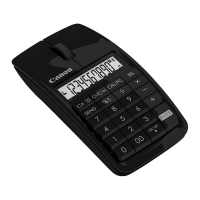
Bluetooth Mouse Calculator /
Bluetooth Raton Calculadora
ENGLISH
III
IMPORTANT: READ BEFORE USE
Please read the following instructions and safety
precautions before using the Mouse Calculator.
Keep this sheet on hand for future reference.
5
Your computer is now setup to use your Mouse Calculator.
THIS DEVICE IS WINDOWS AND MACINTOSH COMPATIBLE.
A
You will be prompted during setup to select an operating system (OS) using the
Bluetooth OS switch on the back of the device. If the switch is set to an incorrect
OS, the device may not function properly.
A
If your computer does not have a built-in Bluetooth device, you need to purchase
a Bluetooth USB adaptor (dongle).
A
Before connecting the Mouse Calculator with your computer's Bluetooth device
or dongle, be sure the Bluetooth feature in your computer is enabled and ready.
INITIAL SETUP INSTRUCTIONS
Screens or set-up may vary depending on the computer or Bluetooth device driver.
Instructions are provided for Windows® XP, Windows Vista®, Windows® 7, and Macintosh.
BATTERY INSTALLATION
1.
Remove the battery cover from the back of the Mouse Calculator by sliding the
cover in the direction of the arrow.
2.
Install AAA alkaline batteries, matching the positive (+) and negative (—) ends of
each battery with the polarity indicators inside the battery compartment.
3.
Place the battery cover back on the battery compartment.
CAUTION:
The e is a risk of explosion if an incorrect battery type is installed.
Please dispose of used batteries according to their instructions.
,
(NOTE: In the Bluetooth Device Selection window, the "Canon X Mark
I Mouse" should appear. If not, wait a moment and press the "PAIR"
button again -or- move the Bluetooth switch to "OFF" and then to
"PC ON", click "Search Again" and press the "PAIR" button again.)
Select
"Canon X Mark I Mouse"
and click
"Next".
Use the Mouse Calculator to click "Click here" to confirm that the
correct mouse is being connected.
Your computer is now setup to use your Mouse Calculator.
To
customize your Mouse Calculator,
go to
"Control Panel > Mouse"
(NOTE: You can configure the primary mouse button, customize pointers
and scrolling, adjust double-click speed, and more.)
Open
"My Bluetooth Places" and
double-click on
"Add a Bluetooth
Device"
to open the Bluetooth Setup.
To make the device discoverable,
move the Bluetooth switch on the
device to
"PC ON".
(NOTE: The * icon
on the front display
should be flashing.)
Click
"Next"
on the computer.
Press the
"PAIR"
button on
the device using the tip of a
pen or a similar object.
WINDOWS VISTA® AND WINDOWS® 7
Windows Vista®
Go to
"Control Panel > Bluetooth Devices"
and
click on
"Add Wireless Device".
Windows® 7
Go to
"Control Panel > Hardware and Sound > Device and Printers"
and click on
"Add a Device".
o
"4
0' \-'
0
to
/
(NOTE: In the computer window,
the "Canon X Mark I Mouse"
should appear in the list of new devices. If not, wait
a
moment
and press the "PAIR" button again -or- move the Bluetooth switch to
"OFF" and then to "PC ON", and press the "PAIR" button again.)
Select
"Canon X Mark I Mouse"
and click
"Next".
(NOTE: Wait a moment while the computer connects to the device.
It will take a few seconds for the computer to finish automatically
installing the device. A notification should appear stating that the
device has installed successfully.)
Click
"Close"
to finish.
To
customize your X Mark I Mouse,
go to
"Control Panel > Hardware and Sound > Mouse".
(NOTE: You can configure the primary mouse button, customize pointers
and scrolling, adjust double-click speed, and more.)
MACINTOSH'
To activate Bluetooth,
go to the Bluetooth icon in
the menu bar and select
"Turn Bluetooth On".
(NOTE: If already "On", skip to 2.)
Go to the Bluetooth icon and select
"Set up Bluetooth Device..."
to open the Bluetooth Setup Assistant.
,
1
I
ll
Q
.
)
4
Pr
e
s
s e
--PAtft
--
button on
—
the device using the tip of a
pen or a similar object.
Open Bluetooth Preferences
(NOTE: In the Bluetooth Setup Assistant, the "Canon X Mark I Mouse"
should appear under the Devices list. If not, wait a moment and
press the "PAIR" button again -or- move the Bluetooth switch to "OFF"
and then to "Mac ON", and press the "PAIR" button again.)
5
Select
"Canon X Mark I Mouse"
and click
"Continue".
Your computer is now setup to use your Mouse Calculator.
Click
"Quit"
in the Conclusion window to finish.
I
To
customize your Mouse Calculator,
go to
"System Preferences > Mouse"
(NOTE: You can set the left or right button as the primary mouse button,
customize zooming using the scroll wheel, and adjust the speed for
tracking, scrolling and double-clicking.)
To find the device, move the
Bluetooth switch on the
device to
"PC ON".
(NOTE: The * icon
\*-,
on the front display
/
should be flashing.)
Press the
"PAIR"
button on
the device using the tip of a
pen or a similar object.
2
3
Move the Bluetooth switch on
the device to "MAC ON".
(NOTE: The * icon
on the front display
should be flashing.)
Turn Bluetooth On
Or
Turn Bluetooth Off
Discoverable
Send File...
Browse Device.
Set Up Bluetooth Device
Open Bluetooth Preferences..
0
9c
i
d
(

 Need help?
 General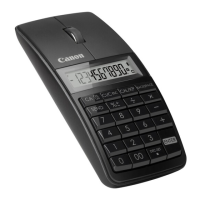

 To Next Page