EasyManua.ls Logo

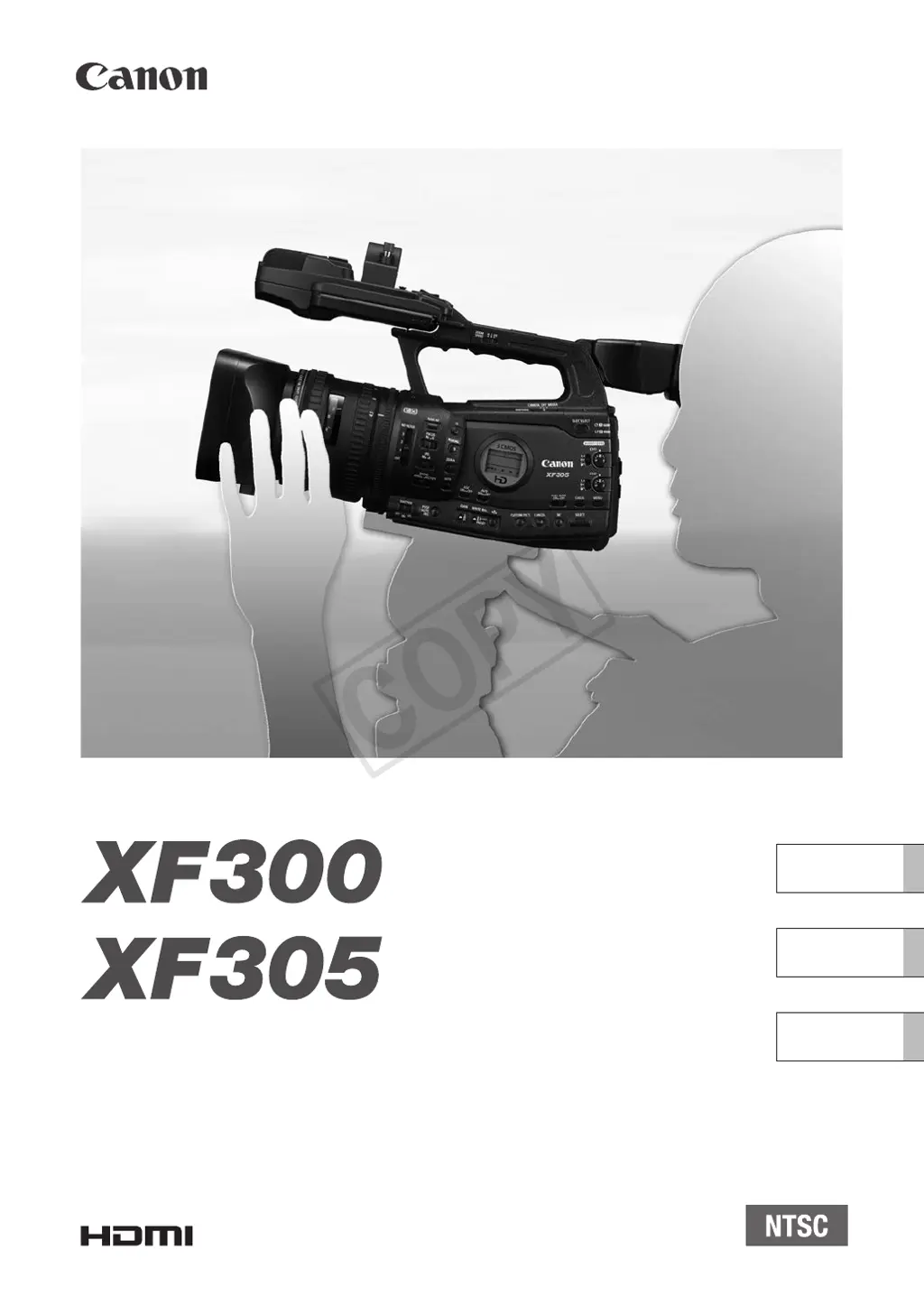
Canon XF305 - User Manual

Canon XF305
213 pages
Print Icon
To Next Page IconTo Next Page
Loading...
HD Camcorder
Instruction Manual
Caméscope HD
Manuel d'instruction
Videocámara HD
Manual de Instrucciones
English
Français
Español
PUB. DIM-0957-001A
COPY

Table of Contents

Other manuals for Canon XF305

Questions and Answers

  • W
    wwiseSep 10, 2025
    Why can't I delete a photo on my Canon XF305 Camcorder?
    • J
      Jonathan CookSep 10, 2025
      If you cannot delete a photo on your Canon Camcorder, the photo may be protected. Remove the protection. Also, check if the LOCK switch on the SD card is set to prevent accidental erasure and change the position of the LOCK switch.
  • S
    Stephen GomezAug 22, 2025
    What to do if Canon Camcorder won't start recording?
    • R
      Randy ThompsonAug 22, 2025
      If pressing the START/STOP button on your Canon Camcorder doesn't start recording, it might be because the CF card is full or contains the maximum number of clips (999 clips). Delete some clips or save your clips and initialize the CF card to free up space, or replace the CF card. Alternatively, check the START/STOP lock lever on the handle and ensure it's not set to R. Also, if you're using the optional RC-V100 Remote Controller, finish changing settings before pressing the START/STOP button.
  • R
    Renee RogersAug 25, 2025
    Why is my Canon XF305 battery not charging?
    • J
      jose24Aug 25, 2025
      If you're unable to charge the battery pack for your Canon Camcorder, it may be due to the battery pack's temperature being outside the charging range. If the battery pack’s temperature is below 0 °C (32 °F), warm it before charging it; if it is above 40 °C (104 °F), let the battery pack cool down before charging it. Ensure you charge the battery pack in temperatures between 0 °C and 40 °C (32 °F and 104 °F). If the issue persists, the battery pack may be faulty, and you should replace it.
  • R
    Rhonda KellyAug 26, 2025
    Why is my Canon XF305 not recording audio?
    • S
      Scott DukeAug 26, 2025
      If your Canon Camcorder isn't recording audio, make sure the AUDIO IN switch is set correctly. Also, if you're using an external microphone connected to the XLR terminal, ensure the XLR terminal switch is set to MIC+48V if it requires phantom power.
  • E
    Erin McfarlandAug 27, 2025
    What to do if my Canon Camcorder cannot record to CF card?
    • A
      Alex MontoyaAug 27, 2025
      If your Canon Camcorder cannot record to a CF card properly, save your clips and initialize the CF card. Be sure to use a compatible CF card. The CF card might be full or it already contains the maximum number of clips (999 clips), so delete some clips to free some space or replace the CF card.
  • K
    Krista WoodsAug 29, 2025
    What to do if my Canon Camcorder is recording audio at an extremely low level?
    • T
      tiffanyaguirreAug 29, 2025
      If your Canon Camcorder is recording audio at an extremely low level, check the audio level meter on the LCD screen and adjust the audio level correctly if the AUDIO LEVEL switch is set to M and the recording level is set too low. Also, turn off the microphone attenuator of the built-in microphone or external microphone.
  • A
    Andrea GarciaSep 18, 2025
    Why does the Canon XF305 Camcorder cannot record on the CF card?
    • Q
      qcarlsonSep 18, 2025
      Use a compatible CF card. Initialize the CF card when you use it with the camcorder for the first time. The CF card is full or it already contains the maximum number of clips (999 clips). Delete some clips to free some space or replace the CF card.
  • P
    perrygrantSep 12, 2025
    Why are the tally lamps not illuminating on my Canon Camcorder?
    • R
      rhonda98Sep 12, 2025
      If the tally lamps on your Canon Camcorder do not illuminate, set [Other Functions] [Tally Lamp] [Front] or [Rear] to [On]. The battery pack might be exhausted, so replace or charge the battery pack. There might not be enough available space on the CF card, so delete some clips to free some space or replace the CF card.
  • T
    thomas30Sep 8, 2025
    Why can't I copy clips on my Canon Camcorder?
    • S
      Sarah LongSep 8, 2025
      If you can't copy clips on your Canon Camcorder, there might not be enough available space on the CF card you're copying to, or the CF card already contains the maximum number of clips (999 clips). Delete some clips to free up space or replace the CF card.
  • O
    osbornewilliamSep 5, 2025
    What to do if my Canon XF305 Camcorder displays abnormal characters?
    • B
      Brandi KochSep 5, 2025
      If your Canon Camcorder displays abnormal characters and doesn't operate properly, disconnect the power source and reconnect it after a short time. If that doesn't work, disconnect the power source and press the RESET button. Alternatively, use the [Other Functions] [Reset All Settings] function.

Summary

Important Usage Instructions

Copyright Warning

Notice regarding unauthorized recording of copyrighted materials.

Essential Safety Warnings

Covers warnings for fire, electric shock, and interference.

Important Safety Instructions

General Safety Guidelines

Comprehensive list of safety instructions for product use and maintenance.

Trademark Acknowledgements

List of Registered Trademarks

Lists trademarks for software and hardware associated with the camcorder.

Highlights of the XF305;XF300

HD Recording Capabilities

Details on the camcorder's high-definition recording features and quality.

Design and Ergonomics

Covers overall design, ergonomics, viewfinder, and LCD screen improvements.

Media and Software

Information on CF cards, recording media, and the Canon XF Utility software.

Artistic Expression Features

Explains special recording modes for creative effects like slow/fast motion.

1 Introduction

About this Manual

Explains the purpose, scope, and intended audience of the manual.

Manual Conventions

Defines symbols, notes, and terms used throughout the manual for clarity.

Supplied Accessories

List of Included Accessories

Identifies all items provided in the camcorder package.

Names of Parts

Camcorder Exterior Controls

Identifies and labels buttons and switches on the camcorder body.

Camcorder Terminals and Ports

Labels the various input/output terminals and ports on the camcorder.

Wireless Controller Layout

Labels the buttons and functions of the wireless remote controller.

2 Preparations

Powering the Camcorder

Instructions for using battery packs and the AC adapter for camcorder power.

Camcorder Physical Setup

Guides for attaching lens hood, eye cup, and adjusting viewfinder/LCD.

Terminal Cover and Controller Setup

Procedures for accessing terminal covers and activating the wireless controller.

Tripod Mounting Procedures

Instructions on how to securely mount the camcorder on a tripod.

Preparing Recording Media

CF Card Management

Covers CF card compatibility, insertion, status, and data recovery procedures.

SD Card Management

Instructions for SD card insertion, removal, and initialization processes.

Media Initialization and Recording Methods

Explains media initialization, slot switching, and recording methods like relay/double slot.

3 Recording

Recording Video Basics

Covers preparing for recording, basic steps, and test recordings for correct operation.

Onscreen and Side Panel Displays

Explains the information presented on the camcorder's screens during recording operations.

Adjusting the Focus

Manual Focus Modes and Assistance

Details on full manual and manual focus, including peaking and magnification.

Autofocus and Face Detection

Explains autofocus modes, magnification, and face detection capabilities for automatic focusing.

Focus Limit and Macro Shooting

Options for restricting the focus range and enabling close-up macro photography.

Image Stabilizer

Image Stabilization Modes and Settings

Explains the different image stabilization modes to reduce camera shake.

Gain Control

Automatic and Manual Gain Settings

Covers Automatic Gain Control (AGC), gain limits, and manual gain adjustments.

Shutter Speed Control

Shutter Speed Modes and Availability

Details on shutter speed modes, settings, and flicker reduction options.

Adjusting the Aperture

Aperture Control Methods

Explains automatic, manual aperture control, and PUSH AUTO IRIS override.

AE Level and Light Metering

Covers adjusting exposure compensation and selecting light metering modes.

Using the ND Filter

ND Filter Settings and Operation

Instructions for using the built-in ND filter to manage exposure in bright conditions.

White Balance Settings

White Balance Modes and Adjustments

Covers auto, preset, color temperature, and custom white balance configurations.

Zooming Operations

Selecting and Operating Zoom Controls

Explains how to use the zoom ring, rockers, and wireless controller for framing shots.

Onscreen Markers and Zebra Patterns

Displaying and Customizing Onscreen Markers

Guides on using various markers for framing, composition, and safe areas.

Using Zebra Patterns for Exposure Control

Explains how to use zebra patterns to identify overexposed areas in the image.

Setting the Time Code

Time Code Configuration and Modes

Covers running modes, initial values, drop/non-drop frame, and user bit settings.

Time Code Display and External Synchronization

Instructions for holding the time code display and synchronizing with external signals.

Synchronizing with an External Device

External Device Connection Methods

Details on connecting via GENLOCK and TIME CODE terminals for synchronization.

Time Code Signal Output

Procedure for outputting the camcorder's time code signal to external devices.

Recording Audio

Built-in Microphone Setup and Control

Configuring low-cut filter, sensitivity, and attenuator for the internal microphone.

External Audio Input and Channel Selection

Using XLR terminals for microphones/line input and selecting audio channels.

Audio Level Adjustment and Monitoring

Adjusting audio levels and monitoring sound using headphones.

Using Metadata

Setting and Embedding User Memos

How to create, save, and add user memos to clips for data tracking.

Color Bars and Audio Reference Signal

Generating Test Signals

Instructions for recording color bars and a 1 kHz audio reference signal for calibration.

Video Scopes

Displaying and Configuring Video Scopes

Guides on using waveform, vectorscope, and edge monitors for visual analysis.

Adding Shot Marks

Marking Important Shots During Recording

How to add shot marks to clips for easier navigation and editing during recording.

Reviewing a Recording

Clip Playback and Review Options

Steps for reviewing the last recorded clip or specific segments after recording.

Special Recording Modes

Interval and Frame Recording Modes

Explains modes for time-lapse and stop-motion animation recording.

Slow & Fast Motion and Pre-recording Modes

Details on creating slow/fast motion effects and utilizing pre-recording functionality.

Optical Axis Shift

Adjusting Image Stabilization for 3 D

How to adjust image stabilization for dual-camera 3D recording setups.

Using the Focal Length Guide

Calibrating 3 D Recording with Focal Length Guide

Using a guide to align camcorder angles for precise 3D recording calibration.

Using Optional Accessories

GP-E2 GPS Receiver Integration

How to attach and use the GPS receiver for geotagging recorded clips.

RC-V100 Remote Controller Setup

Instructions for connecting and using the remote controller for camcorder operation.

4 Customization

Assignable Buttons Configuration

How to assign frequently used functions to camcorder buttons for quick access.

Custom Picture Settings Management

Covers selecting, editing, renaming, protecting, and transferring custom picture files.

Function and Display Customization

Tailoring camcorder functions and onscreen displays to user preferences.

Saving and Loading Camera Settings

Procedures for backing up and restoring camcorder settings using an SD card.

5 Playback

Clip Index Screen Navigation

How to open the clip index screen and switch between different index views.

Clip Playback and Controls

Instructions for playing back clips, using playback controls, and adjusting volume.

Clip Management Operations

Performing actions like displaying info, adding marks, copying, and deleting clips.

Clip Operations

Clip Menu Overview and Navigation

Explains the clip menu structure and how to navigate its functions.

Clip Information and Marking

Procedures for displaying clip details, adding shot marks, and managing user memos.

Clip File Management

Covers copying, deleting clips, and managing custom picture files embedded in clips.

Index Screen Operations

Guides on using shot mark index screens and changing clip thumbnails.

6 External Connections

Video Output Configuration by Terminal

Details on video signal output settings for various terminals.

Connecting to External Monitors

Guides on connecting the camcorder to external displays via different terminals.

Audio Output Settings

Configuration for audio output channels, levels, and synchronization.

Saving Clips to a Computer

Instructions for using Canon XF Utility and plugins to transfer footage to a computer.

7 Photos

Taking and Capturing Photos

Procedures for taking photos in camera mode and capturing stills from video clips.

Photo Playback and Management

Viewing photos, performing operations like deletion, protection, and copying custom picture files.

8 Additional Information

Menu Options Reference Guide

A comprehensive list of camcorder menu items, submenus, and settings with page references.

Troubleshooting

Power Source and Recording Issues

Solutions for common problems related to power, recording, and camcorder operation.

Playback, Connection, and Error Messages

Troubleshooting playback anomalies, external connection issues, and interpreting error messages.

Card Errors and System Malfunctions

Addresses CF/SD card errors, system malfunctions, and invalid operation messages.

Handling Precautions

Camcorder and Battery Safety Guidelines

Essential precautions for safe handling of the camcorder and battery pack, including warnings.

Media Care and Storage Recommendations

Guidelines for recording media care, long-term storage, and battery terminal maintenance.

Battery Information and Disposal

Details on built-in and button battery types, and guidance on proper disposal.

Maintenance and Others

Cleaning Procedures and Condensation Management

Instructions for cleaning the camcorder body, lens, and LCD, plus condensation advice.

International Usage and Power Sources

Information on using the camcorder abroad and understanding power source compatibility.

Optional Accessories

Compatible Optional Accessories List

Lists compatible accessories that can be used with the camcorder.

Specifications

System and Video Configuration Details

Technical specifications for the recording system, video formats, and image sensor.

Terminal Interfaces and Lens Specifications

Details on terminal types, lens configuration, and AF system.

Power, Dimensions, and Adapter Specifications

Information on power supply, consumption, physical dimensions, weight, and AC adapter ratings.

Canon XF305 Specifications

General IconGeneral
Filter size82 mm
Digital zoom1.5 x
Optical zoom18 x
Image stabilizerYes
Focal length range4.1 - 73.8 mm
Focal length (35mm film equivalent)29.3 - 527.4 mm
Sensor typeCMOS
Total megapixels2.37 MP
Optical sensor size1/3 \
Video out1
Flash memory32768 MB
Aperture range (F-F)1.6 - 22
Horizontal resolution1000 lines
Power consumption (typical)9 W
Viewfinder resolution1550000 pixels
Viewfinder screen size0.57 \
Display diagonal4 \
ISO sensitivityAuto
Normal focusing range0.02 - 1 m
Maximum frame rate50 fps
Maximum video resolution1920 x 1080 pixels
Image formats supportedJPG
Audio formats supportedMP3
Camera shutter speed1/18 - 1/2000 s
Microphone inNo
USB 2.0 ports quantityUSB 2.0 ports have a data transmission speed of 480 Mbps, and are backwards compatible with USB 1.1 ports. You can connect all kinds of peripheral devices to them.
Firewire (IEEE 1394) ports0
Compatible memory cardsSD, SDHC
Product colorBlack
Video recording time1.2 h
Operating temperature (T-T)-5 - 45 °C
Weight and Dimensions IconWeight and Dimensions
Depth180 mm
Width394 mm
Height192 mm
Weight2700 g

Related product manuals