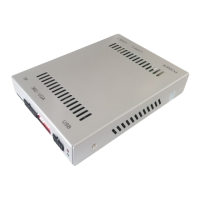
This document is an instruction manual for the CHAMPION OEM INTERFACE, a device designed to integrate various smartphone and multimedia functionalities into a car's infotainment system. The device, branded as CARTIZAN®, supports both wireless and wired connections for popular smartphone mirroring technologies and offers a range of customizable settings for audio, display, and parking assistance.
Function Description
The CHAMPION OEM INTERFACE acts as an intermediary between a smartphone and the car's original equipment manufacturer (OEM) infotainment system. Its primary function is to enable Apple CarPlay and Android Auto, along with iOS AirPlay mirroring and Android Autolink, thereby extending the car's multimedia capabilities.
Core Functions:
- Apple CarPlay (Wireless & Wired): Allows iPhone users to access CarPlay features wirelessly or via a USB cable. This includes navigation, music, calls, and messaging through the car's display.
- Android Auto (Wireless & Wired): Provides Android smartphone users with wireless or wired access to Android Auto, offering similar functionalities to CarPlay for Android devices.
- iOS AirPlay Mirroring: Enables screen mirroring from iPhones and iPads to the car's display, allowing users to view content directly from their iOS devices.
- Android Autolink: Supports wired screen mirroring for Android smartphones, facilitating the display of the phone's screen on the car's infotainment system.
- USB Media Playback: The device includes a USB port for playing multimedia files (music, video, picture) from a USB flash drive. It supports HD video up to 1080P and various lossless music formats (APE, WAV, FLAC, MP3, WMA, etc.).
- HDMI Input: Features a 720P HDMI audio and video input, allowing external devices to connect and display content.
- Front Camera Input (F-CAM): Provides an input for a front-view camera, enhancing parking and maneuvering safety.
- Settings Interface: Offers a comprehensive settings menu to customize connections, audio, display, and other system parameters.
- Exit Function: Allows users to switch back to the car's factory infotainment system.
Important Technical Specifications
While the manual doesn't list explicit hardware specifications like processor speed or RAM, it highlights several key technical capabilities:
- Integrated Module: The device is an "all in one module" supporting multiple mirroring technologies.
- Wireless Connectivity: Supports Wi-Fi for wireless CarPlay, Android Auto, and AirPlay. The Wi-Fi channel is adjustable for better performance.
- Audio Processing: Integrates a high-performance DSP (Digital Signal Processor) module, supporting audio equalizer settings.
- Video Resolution: Supports 720P HDMI audio & video input and USB HD video playback up to 1080P.
- Microphone Integration: Adjustable microphone settings (volume, echo canceling, sensitivity) and compatibility with the factory microphone.
- Speaker Integration: Compatible with factory speakers.
- Power Output: For some car models, the "Camera 12V out" cable might not output 12V when shifting to R gear, requiring connection to the "Reverse Detect" cable.
Usage Features
The CHAMPION OEM INTERFACE offers a user-friendly experience with several convenience features:
Connection & Setup:
- Simple USB Connection: For wired CarPlay and Android Auto, users simply plug in their smartphone with a USB cable.
- Wireless Pairing: Detailed instructions are provided for pairing iPhones and Android phones wirelessly via Bluetooth and Wi-Fi.
- Automatic Switching: The interface can automatically switch between light and dark appearances for CarPlay/Android Auto based on the car's headlights.
- Adjustable Wi-Fi Channel: Users can adjust the Wi-Fi channel for optimal wireless performance.
Audio & Multimedia:
- Multi-Adjustable Volume: Independent volume controls for navigation, multimedia, in-call audio, ringer, and voice assistant.
- Audio Equalizer: Customizable equalizer settings (standard, soft, pop, electronica, jazz, rock, classical, custom) for music playback.
- Navi and Factory FM Audio Mixed: A unique option for NTG5XP models (with external AMP box) to listen to OEM FM/AM radio while using CarPlay navigation. Activated by holding the Comand Controller UP button for 2 seconds.
Parking & Camera Assistance:
- Front View Camera Support: Supports front and rear view cameras.
- Auto Front View Display: Can automatically enable the front view after exiting reverse, with adjustable duration (up to 15 seconds).
- Dynamic Parking Guideline: Adjustable position for dynamic parking guidelines on aftermarket rear view systems.
- Parking Distance Control: Enables parking distance control on aftermarket rear view systems.
- Flip Front View Horizontal: Option to horizontally flip the front view display.
- Exit Reversing with MENU Button: For some BMW vehicles without a PARK ASSISTANT button, this allows manual exit from the rear view after shifting from R gear.
- Full Screen Reversing: Enables full-screen rear view for wide-screen vehicles (e.g., BMW 8.8/10.25, Lexus 10.3/12.3 inch).
- Ignore 360 Panoramic State: Unique option for Mercedes car models to ignore the 360 panoramic system state.
- Delay for Factory Reversing: Unique option for Lexus vehicles to adjust the delay after exiting R gear, with four options (General, Default, Disable, High, Low).
- L/R Detect for 360 Panoramic: Unique option for Lexus vehicles to use left/right lamp detection for aftermarket 360 panoramic systems.
Display & Interface:
- Size Adjustment: Allows adjustment of CarPlay and Android Auto display size (left, right, top, bottom).
- Color Adjustment: Customizable display colors including contrast, chroma, saturation, and brightness.
- Right-Hand Drive CarPlay: An option to optimize the CarPlay interface for right-hand drive vehicles.
- Steering Wheel Control: Enables control of the interface module using steering wheel buttons.
- Page Up/Down in CarPlay: For car models with a joystick controller, this enables page up/down functionality in CarPlay maps.
- Switch Interface with BACK Button: For some BMW vehicles, this option allows switching interfaces using the "BACK" button.
- SWC Options: Unique options for Lexus vehicles to troubleshoot steering wheel control buttons (A, B, C).
- Center Console Type: Unique option for Lexus vehicles to select between "Mini Touch Pad" (for 4-button touchpads) or "Joystick" for center console control.
Maintenance Features
The manual outlines several features related to system maintenance and troubleshooting:
- Quick System Restart: The interface can be quickly restarted by pressing and holding the "BACK" button for 8 seconds.
- Software Update: The device supports software updates (MCU, System, CarPlay icon, etc.) via USB extension. Access to this function requires a password from the after-sales team for system stability.
- Factory Mode: A password-protected "Factory Mode" is available, also requiring contact with the after-sales team for access, likely for advanced diagnostics or settings.
- BT Reset: Allows resetting Bluetooth settings, which erases all connection history.
- Troubleshooting Connection: Provides guidance for troubleshooting wireless connection issues, including deleting paired devices and retrying.
- Antenna Placement: Advises ensuring the WiFi antenna is installed for better wireless experience and to avoid sticking it on metal parts.
- Parking Guideline Adjustment: Detailed steps are provided for adjusting the horizontal position, vertical position, and size of the parking guidelines.
The manual includes a "WARNING" section emphasizing safety and proper installation:
- No Operation While Driving: Users are strictly warned not to operate the interface while driving to ensure driving safety and comply with traffic laws.
- Reversing Assistance Only: The reversing surveillance function is for assistance only; users must check the entire surroundings when reversing.
- Professional Installation: All installation steps should be performed by a well-trained specialist.
- Installation Sequence: The ignition key should be off during installation, and the power cable should be connected last.
- Avoid Hot-Plugging: Do not plug or pull connected cables while the device is powered on to prevent damage to the monitor or accessories.
- Proper Wiring: Wiring must be routed to avoid contact with metal parts or hot surfaces to prevent fire, shocks, or damage.
- Environmental Protection: Do not expose the product to damp environments or water to prevent electric shock, damage, or fire.
- Component Check: Users should check all components upon receipt and report any missing items to the supplier/manufacturer.
- Pre-Loading Check: Before loading, check the interface's functionality, key control, and for any scratches on the vehicle interface.
- Careful Disassembly: When disassembling automotive components, handle them carefully to avoid scratching the instrument panel. Leftover connecting cables must be handled and insulated to prevent short circuits.
- Secure Cable Connections: Cables should be connected securely and routed to minimize space usage and avoid interfering with active components like the steering wheel, throttle, and brake pedal. Fasten cables to prevent them from dropping.

 Need help?
 General

 To Next Page