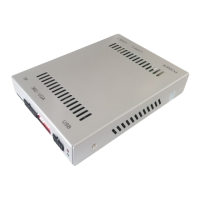
This document outlines the features and usage of the CARTIZAN Wireless CarPlay/Android Auto/Mirroring Integration device. The manual, version 1.0, was released on February 06, 2020.
Function Description:
The CARTIZAN integration device is designed to bring modern smartphone connectivity features to compatible vehicle infotainment systems. It primarily offers Wireless CarPlay, Android Auto, and screen mirroring capabilities. The device acts as an interface, allowing users to access their smartphone's functionalities, such as navigation, music, and communication, directly through the car's display. It supports both wireless and wired connections for CarPlay and Android Auto, providing flexibility for different user preferences and phone models. The mirroring function extends compatibility to a wider range of iOS and Android devices, enabling the display of the phone's screen on the car's monitor.
Important Technical Specifications:
The manual lists a range of compatible models, indicating the device's broad applicability across different car brands and infotainment systems. These include:
- VI-BM-CIC2
- VI-BM-24C2
- VI-BM-81C2
- VI-MB-38C2
- VI-MB-39C2
- VI-AD220C2
- VI-AD-SYMC2
- VI-VW-343C2
- VI-FR-189C2
- VI-FR-190C2
The device utilizes Bluetooth and Wi-Fi for wireless connectivity. The default Bluetooth name is "Carplay-BT XXXX" with a pair code of "0000". The Wi-Fi network is named "Carplay-wifi" and does not require manual connection. For wired connections, a USB cable is used. The system supports various multimedia formats for USB media playback, including MP3, WAV, FLAC, APE, MP4, and AVI.
Usage Features:
Main Interface:
The main interface of the device presents several distinct icons for different functionalities:
- CARPLAY: Provides access to both wireless and USB Apple CarPlay.
- ANDROID AUTO: Enables USB Android Auto for Android smartphones.
- USB MEDIA: Allows playback of multimedia files from a USB stick.
- MIRRORING: Facilitates USB screen mirroring for both iOS and Android devices.
- VIDEO IN: Supports input from external video sources.
- SETTINGS: Offers various configuration options, including connection settings and system version information.
Settings:
The "Settings" menu provides several customizable options:
- Auto Phone Connect:
- ON: Automatically initiates wired CarPlay/Android Auto when a phone is plugged in via USB. In this mode, the "Mirroring" function is unavailable.
- OFF: Requires manual selection of the function icon on the main UI after plugging in the phone. The "Mirroring" function is available in this mode.
- Driver Position: Configures the left/right layout for Apple CarPlay mode.
- Front Camera Time: Sets the automatic display duration for the front view camera. A value of "0" disables the front view, with a maximum duration of 10 seconds.
- Wireless Carplay:
- ON: Enables the wireless CarPlay function.
- OFF: Disables wireless CarPlay, allowing only USB CarPlay.
- Use touch on Android Auto:
- ON: For OEM screens that support touch input.
- OFF: For OEM screens without touch functionality, such as those found in Lexus, BMW NBT/CIC, and Mercedes NTG 5 systems.
Apple CarPlay:
- Connect Wireless CarPlay:
- Ensure "Wireless Carplay" is turned ON in the device's settings.
- On the iPhone, enable Wi-Fi and Bluetooth.
- Scan for Bluetooth devices on the iPhone, connect to "Carplay-BT XXXX" using the pair code "0000".
- Tap "Use CarPlay" on the iPhone notification after pairing.
- The device will automatically connect and enter wireless CarPlay. If not, select the "CARPLAY" icon on the interface.
- Note: The iPhone will disconnect Bluetooth after successfully connecting to CarPlay.
- Disconnect Wireless CarPlay:
- Access the Control Center on the iPhone.
- Tap the "WiFi" and "BT" icons in the top left corner to turn them off (icons will light off).
- USB Cable CarPlay:
- Plug the iPhone into the device using a USB cable.
- Select the "CARPLAY" icon. If "Auto Phone Connect" is ON in settings, CarPlay will start automatically.
Android Auto:
- Install the "Android Auto" app on the Android smartphone.
- Plug the smartphone into the device using a USB cable.
- Select the "ANDROID AUTO" icon. If "Auto Phone Connect" is ON in settings, Android Auto will start automatically.
Mirroring:
- Note: To use mirroring, "Auto Phone Connect" must be turned OFF in the settings.
- iPhone Mirroring:
- Select and enter the "MIRRORING" icon.
- Plug the iPhone into the device with a USB cable.
- Tap "Trust" on the iPhone notification.
- Android Mirroring:
- Download and install "EasyConnection" from the Google Play Store.
- Select and enter the "MIRRORING" icon on the main interface.
- Plug the smartphone into the device with a USB cable.
- Tap "Yes" on the smartphone notification.
Single-Task Mode:
Wireless CarPlay, USB CarPlay, Android Auto, and Mirroring operate in a single-task mode. This means that running a new process requires shutting down the currently active process.
Maintenance Features (Warnings and Installation Guidelines):
The manual emphasizes several critical warnings and installation guidelines to ensure safe and proper operation, which can be considered maintenance-related:
- Driving Safety: Do not operate the interface while driving to ensure driving safety and comply with traffic laws.
- Reversing Surveillance: The reversing surveillance function is for assistance only; always check the entire surroundings when reversing.
- Professional Installation: All installation steps should be performed by a well-trained specialist.
- Power Disconnection: The ignition key must be removed during installation. Connect the power cable last, after all other installations are complete.
- Power-On Connection: Do not plug or pull connected cables while the device is powered on to prevent damage to the monitor or accessories.
- Wiring Precautions:
- Route wiring to avoid contact with metal parts, which could cause damage, fire, or shocks.
- Avoid contact with hot surfaces, as high temperatures can damage wiring, leading to shorts, arcing, and fires.
- Environmental Protection: Do not expose the product to damp environments or water to prevent electric shock, damage, and fire accidents due to short circuits.
- Component Check: Upon receiving the product, verify that all components are present in the box. Report any missing items to the supplier/manufacturer.
- Pre-Use Check: Before loading, start the engine and check if the interface functions correctly, if key controls are accurate, and if the vehicle interface has any scratches. Report any issues to the supplier/manufacturer.
- Installation Best Practices:
- Handle disassembled automotive components carefully to avoid scratching the instrument panel.
- Properly manage leftover connecting cables; do not leave them loose in the car.
- Insulate connecting plugs to prevent short circuits.
- Ensure cables are connected securely, especially given limited vehicle installation space. Plan cable routing to avoid interfering with active components like steering wheel controls, throttle, and brake pedals. Fasten cables to prevent them from dropping.

 Need help?
 General

 To Next Page